

Resize Node
Purpose & Use Cases
The resize node provides high-performance image scaling with flexible dimension control and automatic aspect ratio preservation. It supports both fixed dimensions and proportional scaling using optimized C++ backend processing.
Real-World Applications:
- Web Image Optimization: Scale images for different device sizes and bandwidths
- Thumbnail Generation: Create preview images and gallery thumbnails
- Print Preparation: Resize images to specific print dimensions
- Storage Optimization: Reduce image sizes to save storage space
- Performance Enhancement: Optimize image sizes for faster loading
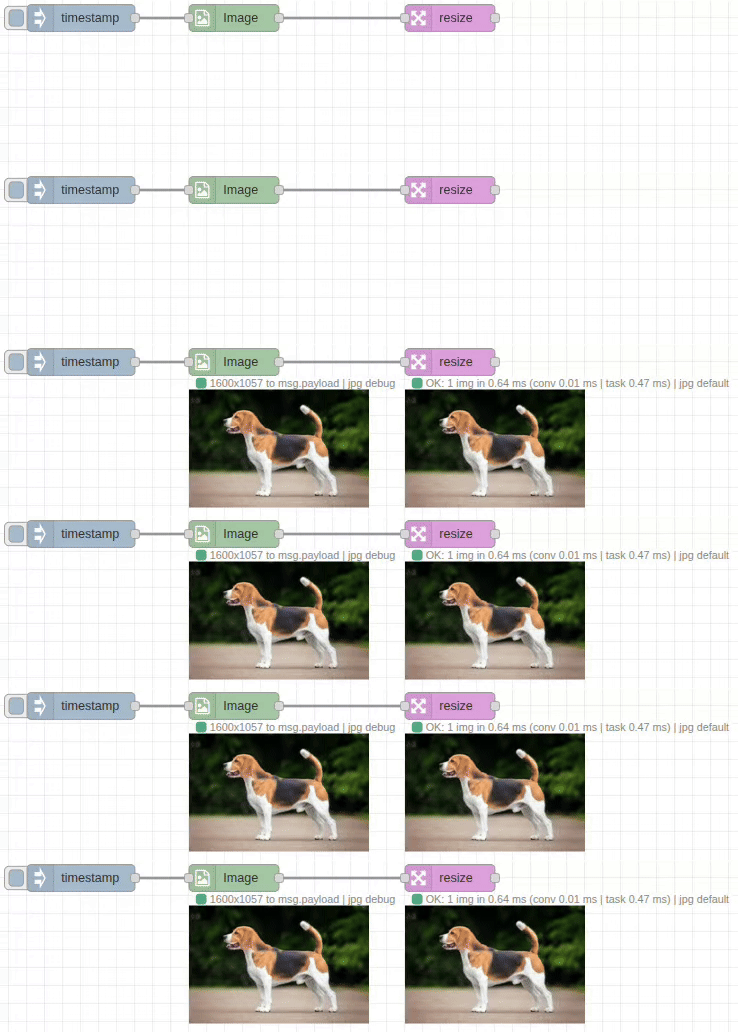
Input/Output Specification
Inputs
- Single Image: Standard image object format
- Image Array: Array of image objects for batch processing
- Dynamic Dimensions: Dimensions can be provided via message properties
Input Image Format
javascript
{
  data: Buffer,        // Raw pixel data
  width: number,       // Original width in pixels
  height: number,      // Original height in pixels
  channels: number,    // Channel count (1, 3, 4)
  colorSpace: string,  // "GRAY", "RGB", "RGBA"
  dtype: string        // "uint8"
}Outputs
Output format depends on the Output Format setting:
- Raw: Standard image object (fastest for processing chains)
- JPEG/PNG/WebP: Encoded file buffer ready for storage/transmission
Configuration Options
Input/Output Paths
- Input From:
msg.payload(default),flow.*,global.* - Output To:
msg.payload(default),flow.*,global.* - Purpose: Flexible data routing for complex workflows
Dimension Configuration
Width Settings
- Mode:
- Set to: Fixed pixel value (e.g., 800 pixels)
- Multiply by: Scale factor (e.g., 0.5 for half size)
- Value Sources:
- Number: Fixed value
- msg.*: Dynamic from message property
- flow.*: From flow context
- global.*: From global context
- Auto Mode: Leave empty for automatic aspect ratio preservation
Height Settings
- Mode: Same options as width (Set to / Multiply by)
- Value Sources: Same dynamic options as width
- Auto Mode: Leave empty for proportional scaling
Output Format Options
Raw Format (Default)
- Performance: Fastest option for processing chains
- Use Case: When passing to other transform nodes
JPEG Format
- Quality: 1-100 (default: 90)
- Use Case: Final output, web optimization
- Compression: Lossy, smaller file sizes
PNG Format
- Optimize: Checkbox for additional compression
- Use Case: When transparency needed or lossless required
- Compression: Lossless
WebP Format
- Quality: 1-100 (default: 90)
- Use Case: Modern web applications
- Compression: Superior to JPEG at same quality
Debug Options
- Show Processed Image: Visual preview in Node-RED editor
- Debug Width: Preview image width in pixels
- Interactive: Click preview to hide
Performance Notes
C++ Backend Optimization
- High-Speed Processing: OpenCV-based scaling algorithms
- Memory Efficient: Optimized memory management for large images
- Parallel Processing: Array inputs processed concurrently
- Algorithm: Uses high-quality interpolation for best results
Processing Modes
- Batch Processing: Arrays processed in parallel for maximum throughput
- Async Operations: Non-blocking processing with timing display
- Status Display: Real-time processing time and result information
Real-World Examples
Web Image Optimization
[Image-In: original.jpg] → [Resize: 800x600] → [Save: web_optimized.jpg]Create web-optimized versions of high-resolution images.
Responsive Image Set
[Image-In] → [Resize: 1200x Auto] → [JPEG Quality 80] → [Large]
          → [Resize: 800x Auto]  → [JPEG Quality 85] → [Medium]
→ [Resize: 400x Auto] → [JPEG Quality 90] → [Small]Generate multiple sizes for responsive web design.
Thumbnail Generation
[Image Array] → [Resize: 150x150] → [PNG] → [Thumbnail Gallery]Create square thumbnails from image collections.
Batch Photo Processing
[Photo Collection] → [Resize: Multiply 0.7] → [Save Reduced]Reduce photo sizes by 30% for storage optimization.
Dynamic Sizing
[Set msg.targetWidth] → [Resize: Set to msg.targetWidth, Auto height] → [Output]Resize based on runtime requirements.
Common Issues & Troubleshooting
Aspect Ratio Distortion
- Issue: Images appear stretched or squashed
- Cause: Both width and height set without considering aspect ratio
- Solution: Leave one dimension empty for auto-calculation
Memory Issues with Large Images
- Issue: Processing very large images causes performance problems
- Solution: Process in batches or reduce dimensions incrementally
- Best Practice: Consider source image size vs. target size
Quality vs. File Size Balance
- Issue: Output files too large or quality too low
- Solution: Adjust quality settings (80-95 for good balance)
- Format Choice: Use WebP for best compression, PNG for transparency
Dynamic Value Errors
- Issue: Runtime errors when using message properties
- Solution: Validate dynamic values exist and are valid numbers
- Debugging: Use debug nodes to verify property values