

Git Control for Node-RED
@rosepetal/node-red-contrib-git-control provides a sidebar plugin for Git version control of the active Node-RED project (commits, branches, merges and synchronization with a remote from the editor, with diff, revert and merge-conflict resolution per flow and per node) and the HTTP admin API behind it.
Installation
cd ~/.node-red
npm install @rosepetal/node-red-contrib-git-controlRestart Node-RED after the install. The Git Control tab is then in the sidebar of the editor, next to Debug and the other tabs.
Requirements
- Node.js >= 18
- Node-RED >= 2.0.0
- Node-RED projects enabled (
editorTheme.projects.enabled: trueinsettings.js) and an active project. The plugin works on the Git repository of the active project; with projects disabled the tab is not added gitavailable to the Node-RED process- An SSH key among Node-RED's project keys (optional, for a remote over SSH; see Git Identity and SSH Keys)
Reference
| Page | Contents |
|---|---|
| HTTP API | The admin endpoints under /rosepetal-git: authentication, permissions, and the request and response of every operation |
What It Does
- Flow-aware diff and revert: changes are listed per flow tab, subflow and node instead of as lines of
flows.json. One flow or one node can be reverted without touching the rest of the file. - Flow-aware merge resolver: when a merge conflicts on the flow file, the plugin merges it node by node and asks only about the nodes that both sides changed. Take ours or theirs for everything, for a flow, or for a single node.
- Commit graph: the history with branch labels, push status and parent relationships, and per commit the flows and files it changed.
- Detached HEAD safety: a commit made from an old commit is put on a new branch, so it is not orphaned.
- Flow synchronization: after an operation that can change the flow file on disk (checkout, branch switch, reset, revert, merge, pull, discard, a flow or node revert, a resolved merge), the runtime reloads the flows from disk and the editor page reloads, so both match the repository. Deploy your edits before running these operations. Nothing is reloaded when the operation ends in a conflict, because the flow file then holds conflict markers.
- Conflict banner: while a merge, cherry-pick, revert or rebase is in progress, a banner lists the conflicted files and offers Abort and, for a merge, Resolve.
- Error messages with a suggestion: a rejected push, a missing identity, an authentication failure and similar errors are reported with the next step to take.
- Node-RED's own project and keys: the plugin uses the active project, the Git identity of the Node-RED user and the project SSH keys.
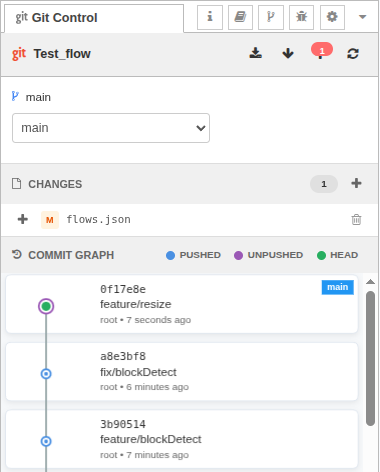
Quick Start
- Open the Git Control tab in the sidebar. Its header shows the name of the active project.
- Edit a flow and deploy. The changed files appear under Changes, and under the flow file, the flows that changed.
- Type a message under Create Commit and click Commit. Every change is committed; there is no staging step.
- Click Push in the toolbar. The first push of a branch creates the branch on the remote and sets it as upstream.
The Sidebar Tab
Toolbar
| Button | Action |
|---|---|
| Fetch | Download the commits of the remote without merging them (git fetch --prune) |
| Pull | Fetch and fast-forward. When the branch and its upstream have diverged, ask before creating a merge commit. A branch without upstream is first linked to origin/<branch> when that branch exists; otherwise the pull fails and asks you to push first |
| Push | Push the current branch to its upstream. A branch without upstream is published to origin (or the first remote) and linked to it. When the push is rejected because the remote has newer commits, a dialog offers Pull, Force push (--force-with-lease, with a second confirmation) or Cancel |
| Refresh | Reload every panel from the repository |
The numbers on Pull and Push are the commits the branch is behind and ahead of its upstream. Push is disabled when the branch has an upstream and nothing to push. The panels also reload when the tab is opened and one second after each deploy.
Branches
The first row is the branch picker. It lists the local branches and the branches that exist only on origin; picking one checks it out (a branch of origin becomes a local branch that tracks it). Typing a name that does not exist creates that branch from the current one and checks it out.
The menu next to it has the other branch actions:
| Action | Result |
|---|---|
| New branch from current | Create a branch and check it out; uncommitted changes come along |
| Merge branch into current | Merge a local branch into the current one |
| Rename current branch | Rename it and realign its upstream: origin/<new name> if it exists, otherwise none |
| Delete a branch | Delete a local branch other than the current one. Git refuses a branch with unmerged commits; the plugin then offers to force-delete it, after a confirmation |
| New orphan branch | After a confirmation, start a branch with no history; the current files are kept, to be committed as its first commit |
The second row is the upstream picker: the remote branch that the current branch tracks. Picking another remote branch sets it as upstream. Typing a name that is not on the remote pushes the current branch there, after a confirmation, and sets it as upstream; a name without a remote, such as feature, means origin/feature. The row is hidden while HEAD is detached.
Changes and Commit
Changes is a single list of every modified, created or deleted file; it is hidden when there is nothing to commit. The trash icon of a file asks for a confirmation and discards its changes; this cannot be undone.
Under the flow file the list shows the units that changed since the last commit. A unit is a flow tab, a subflow, or the group of global configuration nodes. Click a unit to see its added, removed and modified nodes with their fields before and after. The unit, or a single node inside it, can be reverted to the last commit.
Create Commit appears when there are changes. Commit stages everything and commits it.
Commit Graph
The graph shows the last 50 commits with their short hash, message, author, age and the labels of the local branches that point to them. While HEAD is detached, it shows the history of the branch you were on.
| Mark | Meaning |
|---|---|
| Blue dot | The commit is on the upstream branch |
| Purple dot | The commit is not pushed |
| Green ring | The current HEAD |
Click a commit to expand its details: the full hash (with a copy button), the author's email, the date, the local and remote branches that contain it, the flows it changed compared with its first parent, the files it changed (none are listed for a merge commit), and these actions:
| Action | Result |
|---|---|
| Checkout | Check out the commit (detached HEAD). Refused while there are uncommitted changes; the dialog that says so offers Discard All Changes (a hard reset to HEAD, which leaves untracked files) |
| Branch here | Ask for a name, create a branch at the commit and check it out |
| Reset here | After a confirmation, move the branch to the commit; the files stay as uncommitted changes |
| Revert | After a confirmation, create a new commit that undoes the commit |
| Reset --hard | After a confirmation, move the branch to the commit and discard the later commits and the uncommitted changes to tracked files |
In Changed flows, click a unit to see what the commit changed in it. The restore button brings the unit, or a single node, back to its version in that commit as an uncommitted change. In Changed files, click a file to see its text diff.
Merge Conflicts
A merge, a pull or a revert that hits a conflict leaves the repository in the middle of the operation. The banner shows the conflicted files and an Abort button, which, after a confirmation, returns the repository to the state before the operation. The banner also appears, without a file list, when an operation is in progress with no conflict left: commit to finish it, or abort it.
When the operation is a merge and the flow file is the only conflicted file, the banner also has a Resolve button. The resolver shows the nodes that both sides changed, grouped by unit; click a node to compare its fields side by side:
- Take ours for all / Take theirs for all: one side for every conflict. It overrides the choices below.
- Take ours / Take theirs on a unit: one side for the whole flow, subflow or configuration group.
- ours / theirs on a node: one side for that node. It overrides the choice of its unit. Where one side deleted the node, its button reads drop.
- Clear choices: forget every choice made so far.
A unit that one side deleted while the other changed it, or that both sides added with different content, takes a unit choice. "Ours" is the current branch and "theirs" the branch being merged. Changes that only one side made are merged without asking.
Resolve & commit is enabled once every conflict has a choice. It writes the merged flow file and creates the merge commit with the message in the editor, which starts as the message Git prepared and cannot be empty. Closing the resolver keeps the choices; Abort merge in the resolver does the same as Abort on the banner.
Conflicts in other files, and conflicts of a cherry-pick, revert or rebase, are resolved outside the plugin.
Detached HEAD
After checking out a commit, a banner warns that HEAD is detached. Return to Latest checks out the branch you were on. A commit made in this state goes to a new branch named from- plus the first seven characters of the new commit's hash (with -1, -2 and so on added when that name is taken); the plugin asks before committing. Until a branch is checked out, pull and push fail and the branch menu cannot rename.
Git Identity and SSH Keys
Commits are authored with the Git name and email of the Node-RED user settings. A field that is not set there is read from the Git configuration (user.name, user.email).
For a remote over SSH the plugin uses one of the keys that Node-RED keeps for projects in <userDir>/projects/.sshkeys. The key is chosen per project: the one selected through the HTTP API, else a key whose file name is __default_<project> or ends in _<project>, else the only key present. SSH then runs with that key only and ignores ~/.ssh/config. When no key applies, Git connects with its default SSH settings.
Git is not allowed to prompt for a user name or password (GIT_TERMINAL_PROMPT=0): over HTTPS the credentials must come from a Git credential helper or the remote URL. A fetch, pull or push that prints nothing for two minutes is stopped and reported as failed.
HTTP API
The sidebar works through HTTP admin endpoints under /rosepetal-git. Scripts and external tools can call them too, and they cover some operations that the sidebar does not have, such as staging individual files, cherry-pick and SSH key selection.
| Category | Endpoints |
|---|---|
| Project and status | project-info, status, log, branches, commit-branches |
| Working tree | add, unstage, commit, discard, discard-all, reset |
| Branches | checkout, validate-checkout, create-branch, orphan-branch, delete-branch, rename-branch, set-upstream |
| Remote | fetch, pull, push, force-push |
| History | merge, revert, cherry-pick, abort |
| Conflict resolver | merge/preview, merge/resolve |
| Diff | file-diff, commit-diff, flow-diff, flow-units |
| Flow-aware revert | revert-flow-unit, revert-flow-nodes |
| SSH keys | ssh-keys, ssh-key |
When Node-RED admin authentication is enabled, the endpoints require the git-control.read or git-control.write permission. See the HTTP API reference.
License
Apache-2.0.
The package is published on npm as @rosepetal/node-red-contrib-git-control.