

Export a flow and import it on another controller
A flow that works on one line is often needed on another. Node-RED saves a flow as a JSON file that you can keep as a copy or import on another controller, where it arrives ready to deploy. In this guide you export a flow that reads lot codes and import it again.
What you will learn
- How to export one flow, some nodes or all the flows of a controller
- How to save the export as a file or copy it
- How to import it, and what to do when the nodes already exist
Before you start
Here the flow is the lot code reader of Read text with OCR. The basics of the editor are in Introduction to Node-RED.
1. Open the export
With the flow on screen, open the main menu, the ☰ button at the top right of the editor, and choose «Export».
2. Choose what to export
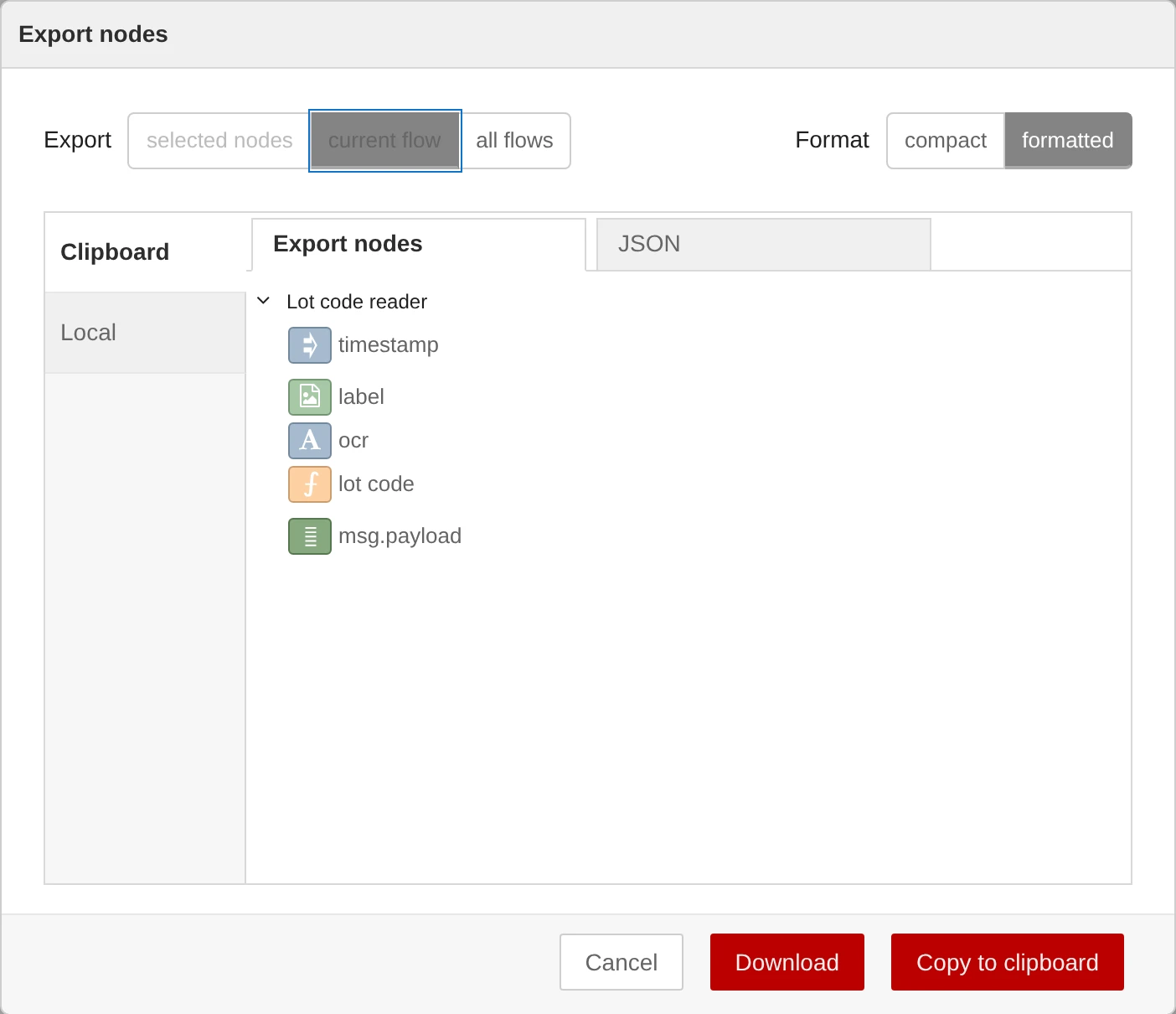
«Export» chooses what goes in: «selected nodes», the ones you selected before opening the dialog; «current flow», the whole tab on screen; or «all flows», every flow of the controller. The list shows the nodes that will go, and the «JSON» tab the text itself. Configuration nodes the flow uses, such as the connection to your project, go with it, without their passwords.
3. Download it
Click «Download»: the browser saves the flow as flows.json. Keep it as a copy of the flow, or take it to the controller where you need it. «Copy to clipboard» copies the same text, to paste it in the other editor straight away.
4. Open the import on the other controller
Choose the other controller in «Active controller», at the top right of the platform, and open «Flows». Then open the main menu and choose «Import». Here the flow goes back into the same controller, as a copy.
5. Choose the file
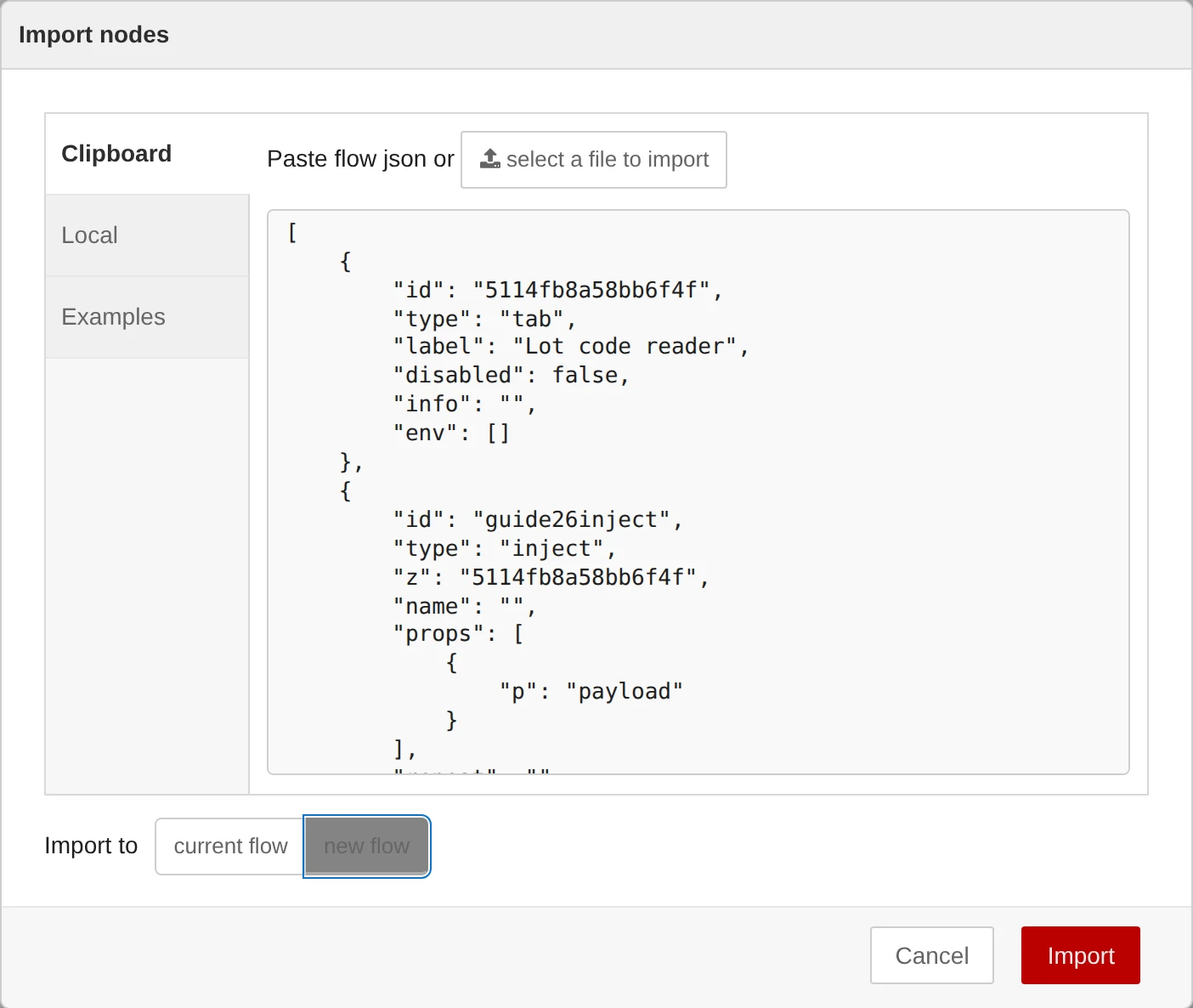
Click «select a file to import» and choose flows.json; its text appears in the box. You can also paste the text there. In «Import to», choose «new flow»: the flow arrives in a tab of its own.
6. Import it
Click «Import». On another controller the flow appears at once. On the controller it came from, Node-RED notices that these nodes already exist and asks: «Import copy» brings them in again with new identifiers, leaving the original as it was.
7. Check the copy
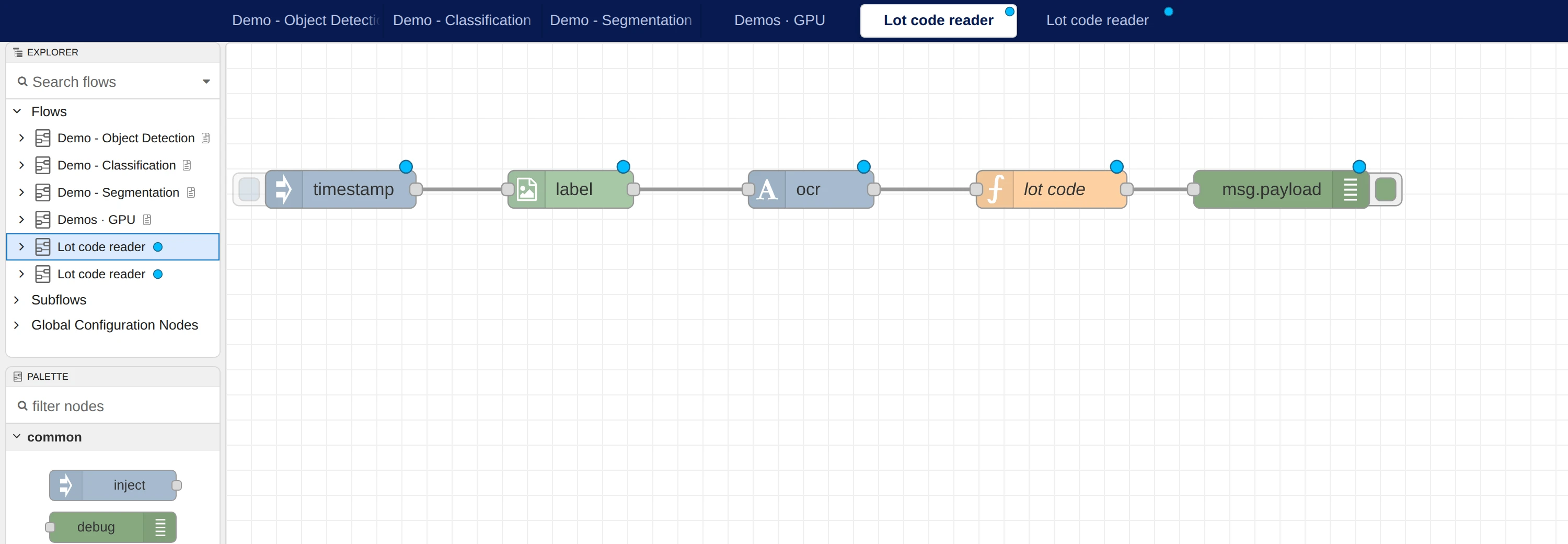
The flow arrives in a new tab, with its nodes, their settings and their wires. Check the settings that depend on the controller, such as the folders and the connection to your project, and click «Deploy» to start it there.
Good to know
- Passwords stay behind. An export carries no passwords or keys. A flow that uses a camera or a connection to a project needs them set again on the other controller.
- The same nodes installed. The file lists the node packages the flow needs, with their versions (here
@rosepetal/node-red-contrib-image-toolsand@rosepetal/node-red-contrib-vision-platform). The other controller needs them installed: a node it does not have arrives as «unknown», and the flow cannot be deployed until it is installed. - All the flows. «all flows» exports every tab of the controller, for a full copy before a big change.
- The library. «Local», in the same dialog, saves a flow in the controller's own library, to import it again from there.
Next steps
Recorded on Rosepetal release 1.8.15, Node-RED 5.0.10.