

Verify barcode print quality
A barcode that one scanner reads may fail at the next one down the supply chain. The «barcode-verifier» node grades the print quality of a 1D barcode the way a verifier does, by the ISO/IEC 15416 standard: a grade from 4.0 (A) to 0.0 (F), the parameter that limits it, and pass, warn or fail against the grades you choose. It can also check the barcode against the GS1 specification tables. In this guide you grade a good print and a worn one of the same EAN-13.
What you will learn
- How to grade the print quality of a barcode
- How to read the verifier's report and find what limits the grade
- How to set the grade that passes
Before you start
Here two inject nodes, «good print» and «worn print», send the path of a picture of the barcode on the controller, /tmp/line-check/ean-good.png or /tmp/line-check/ean-worn.png, and an rp-image-in node loads it and shows it under itself; see Load and transform an image. The debug node «report» shows msg.verification[0].reportText. To read the codes of an image, see Read barcodes and QR codes.
1. Add the verifier
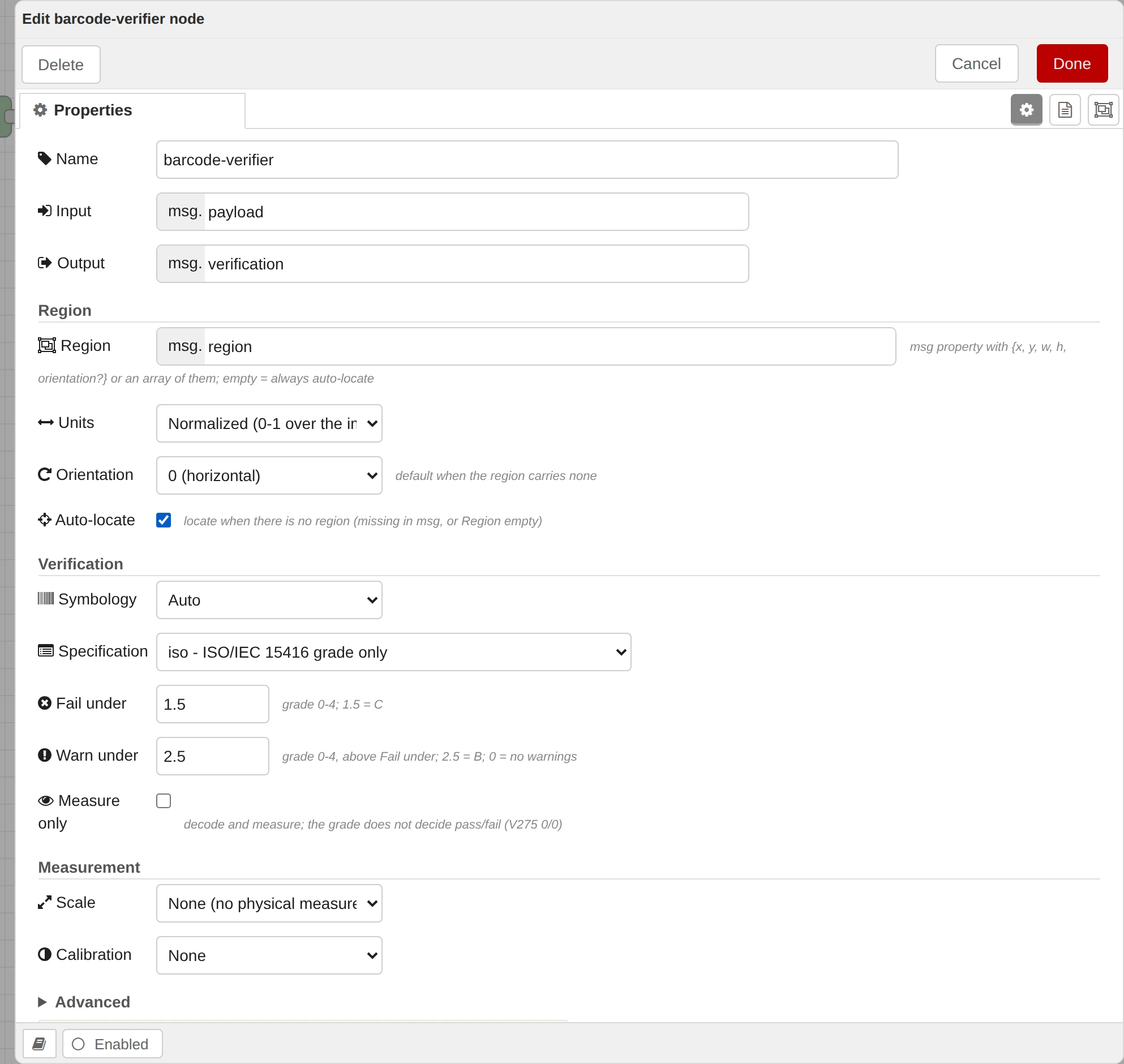
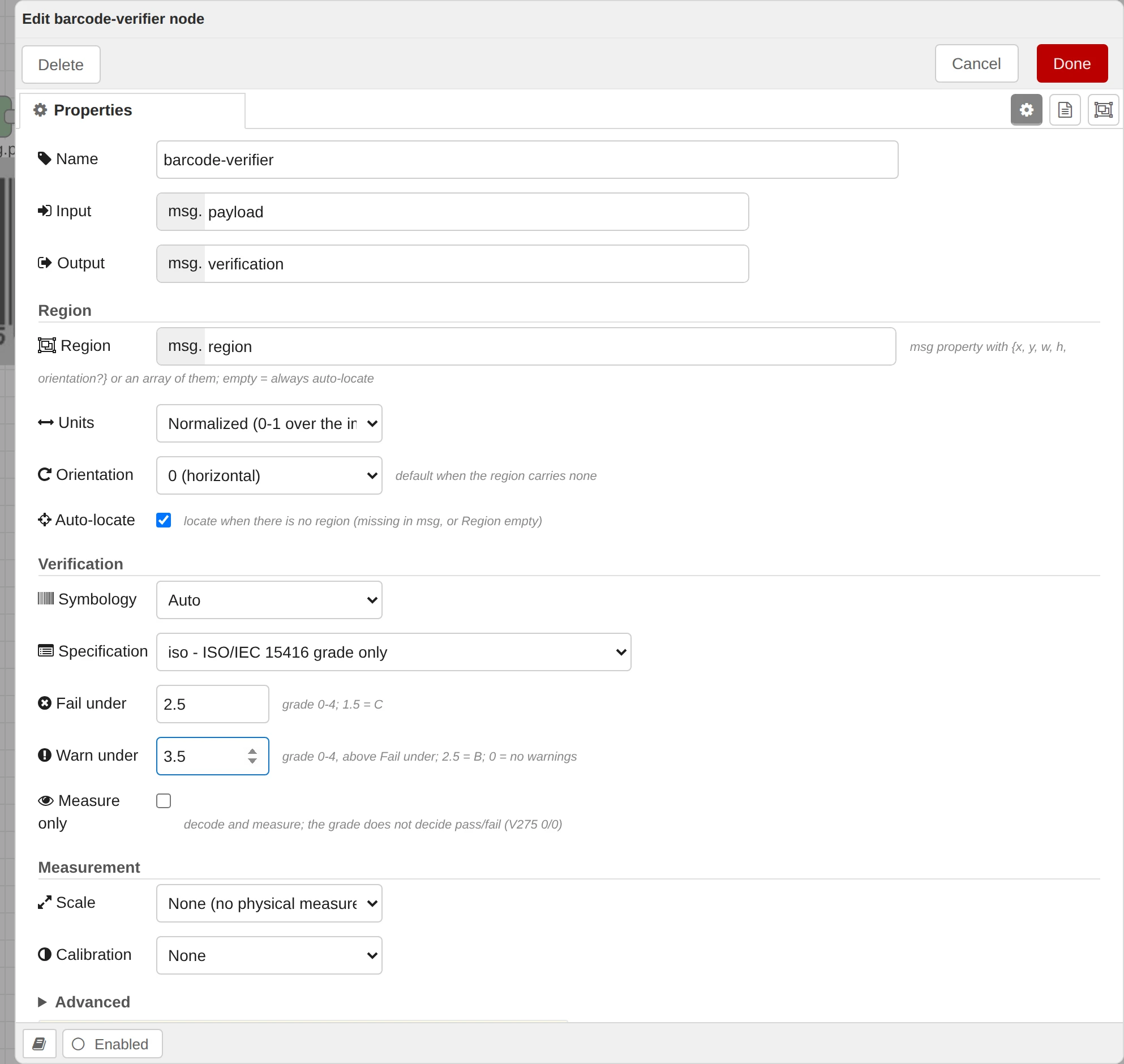
Type barcode-verifier in «filter nodes», drag the node between the image node and the debug node and wire it to both. Open it. It reads the image from msg.payload and writes its results to msg.verification. With «Auto-locate» ticked it finds each barcode of the image and grades it; give it a «Region» instead when the barcode is always in the same place.
2. Choose what passes
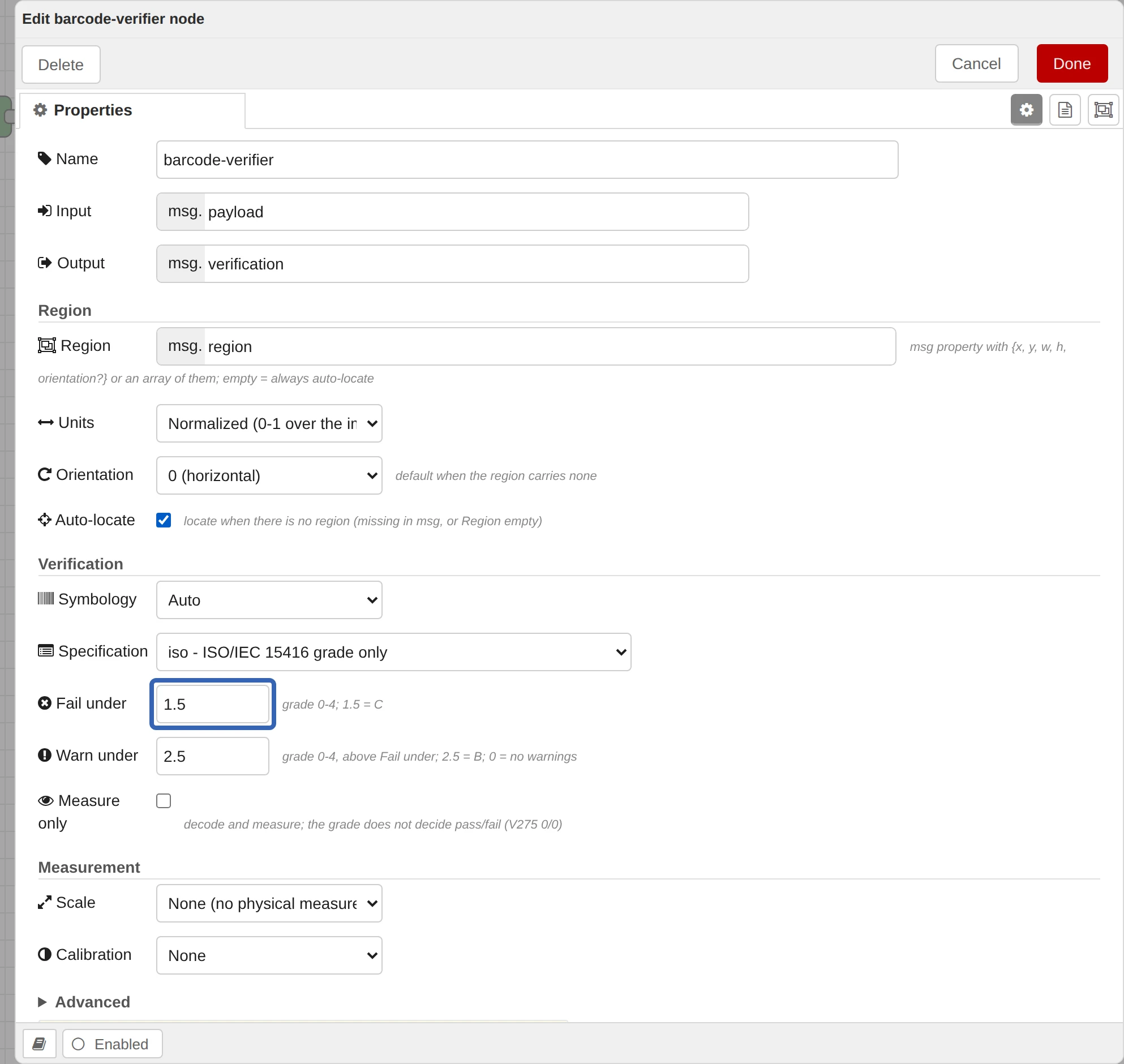
«Specification» is the standard to grade against: ISO/IEC 15416 alone, or one of the GS1 tables, which add the checks of the data and of the symbol's size for each use (retail, general distribution, logistics, healthcare). «Fail under» and «Warn under» turn the grade into a verdict: with 1.5 and 2.5, a grade below C fails and a grade below B warns. Ask your customer which grade they require.
3. Grade a good print
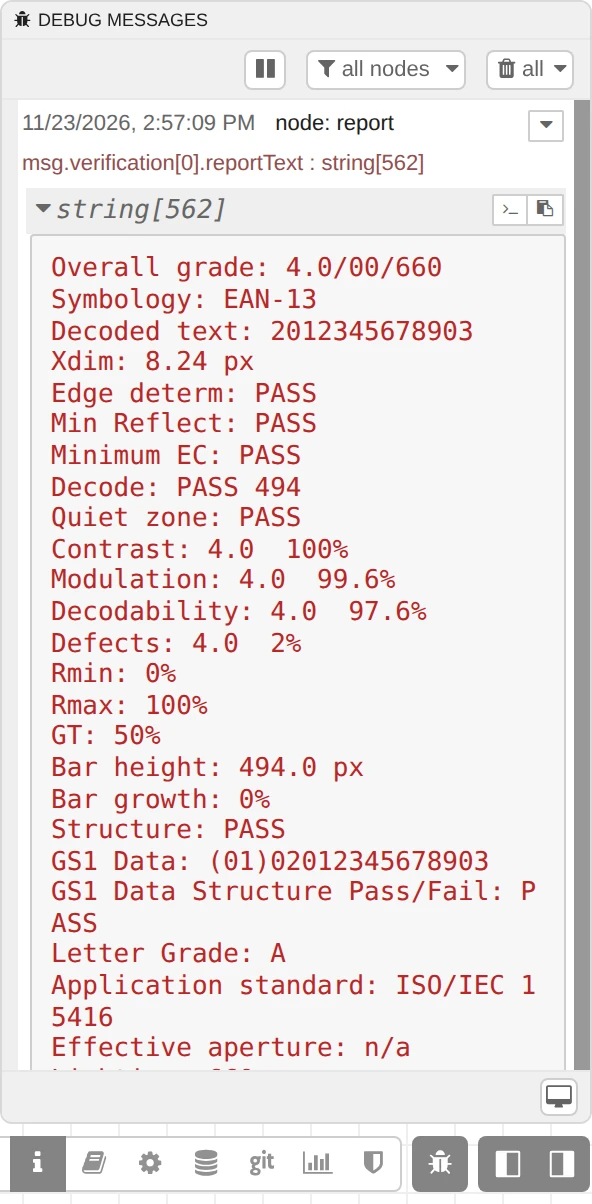
Click «Done», deploy and press «good print». The status under the node says how long it took and the verdict, «pass» in green. The report lists the overall grade, 4.0/00/660 (the grade, the aperture and the wavelength of light it assumes), the code it read and the grade of each ISO parameter: contrast, modulation, decodability, defects and the pass/fail checks.
4. Grade a worn print
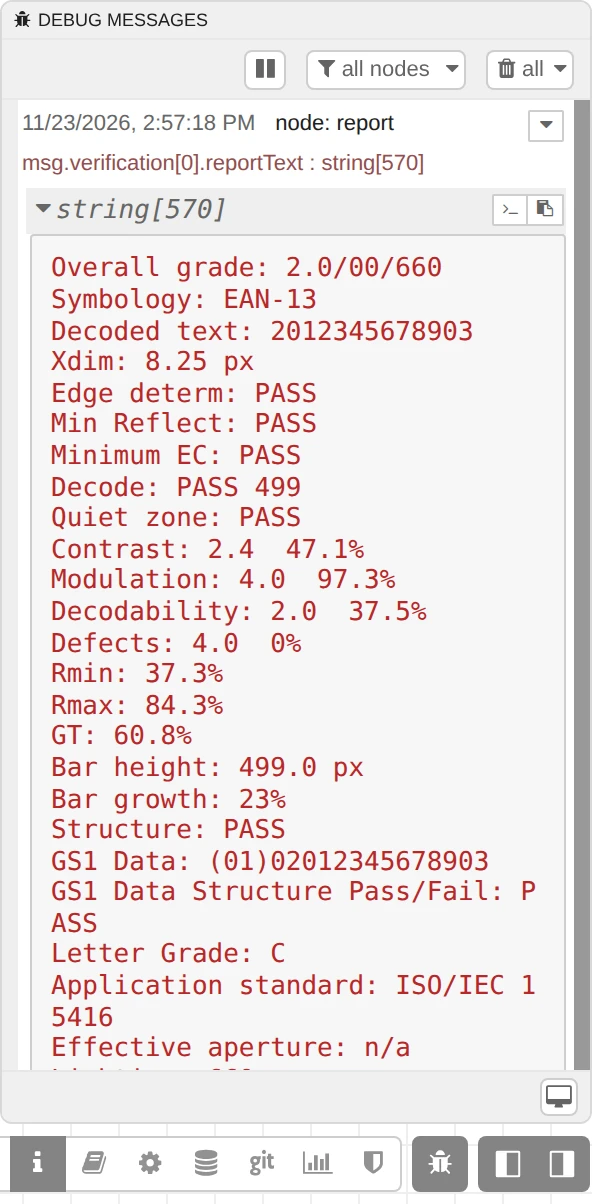
Press «worn print», the same barcode printed with grey, spread ink. It still decodes, but the grade drops to 2.0 (C) and the status turns yellow: «warn». Each line of the report says which parameter fell: decodability (the bars are no longer the width they should be) and contrast. The lowest one limits the grade, and msg.verification[0].reasons says it in words.
5. Require a better grade
Open the verifier and set «Fail under» to 2.5 and «Warn under» to 3.5: now anything below a B fails, and anything below an A warns.
6. Check the worn print again
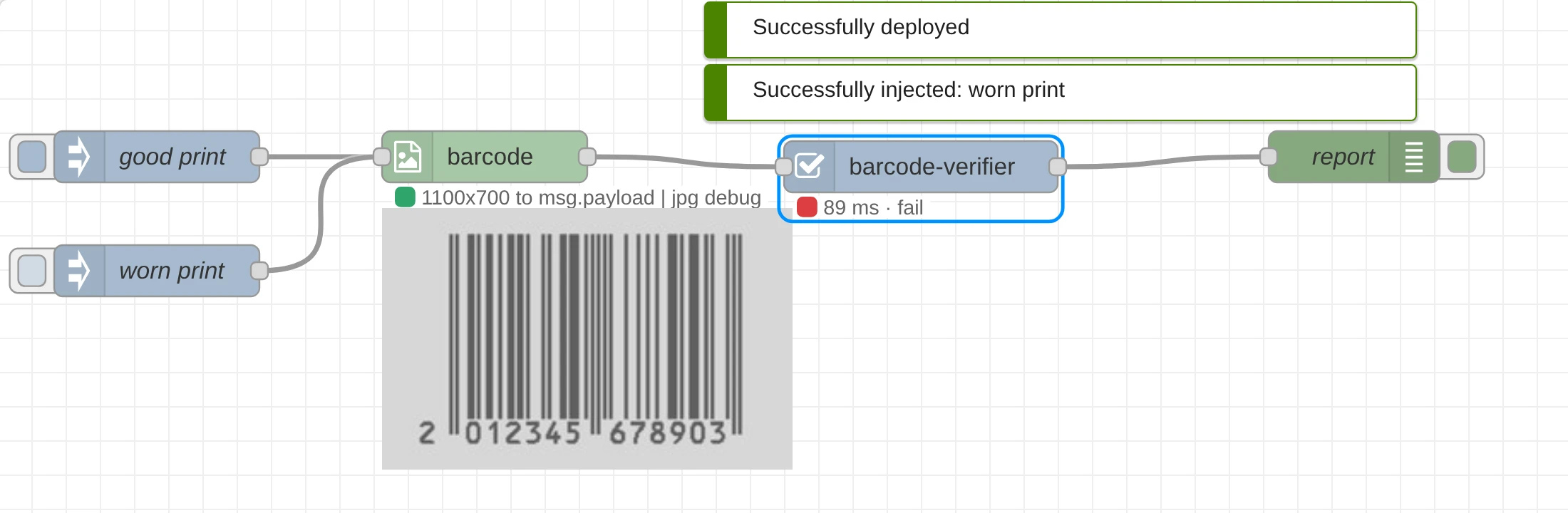
Click «Done», deploy and press «worn print». The status turns red, «fail». Send msg.verification[0].status to a switch node to reject the pack, or to a panel to warn the printer's operator before the whole batch is printed.
Good to know
- Physical sizes. Without a «Scale» the node measures in pixels. Give it the pixels per millimetre of your camera (or mils per pixel) and it also reports the X dimension, the bar height and the magnification, which the GS1 tables check.
- A camera is not a verifier. ISO/IEC 15416 assumes a calibrated reflectance and a set aperture. «Calibration» corrects the black and white levels of your camera with a calibration card; without it, use the grades to compare prints and catch drifts, not as a certificate.
- Only 1D codes. The node grades EAN-13, EAN-8, UPC-A, UPC-E, Code 128 and GS1-128, ITF and ITF-14, Code 39, Code 93 and Codabar. A QR code or a Data Matrix is never graded.
- Every scan line. Tick «Analyze» in «Advanced» to get the grade and the parameters of each of the scan lines in
msg.verification[0].scans.
Next steps
Recorded on Rosepetal release 1.8.15, Node-RED 5.0.10.