

Switch between controllers
A project can have several controllers, one for each machine or inspection point. The platform shows one at a time: the active controller, chosen in the top bar. In this guide you switch to another controller, see how «Flows» follows it, and come back.
What you will learn
- Where to see which controller you are working on
- How to switch to another controller, and what you see when it does not answer
- Which sections follow the choice, and who else it affects
Before you start
The list appears only in projects with more than one controller. You need a profile that sees «Flows» or «Controller», such as ais-operator, ais-admin or ais-superadmin.
1. See which controller is active
The button at the top right of the top bar names the active controller, here «general». «Flows», «Panels» and «Controller» always show that controller: its Node-RED, its operator screens and its tools. Here «Flows» is open on the Node-RED of «general».
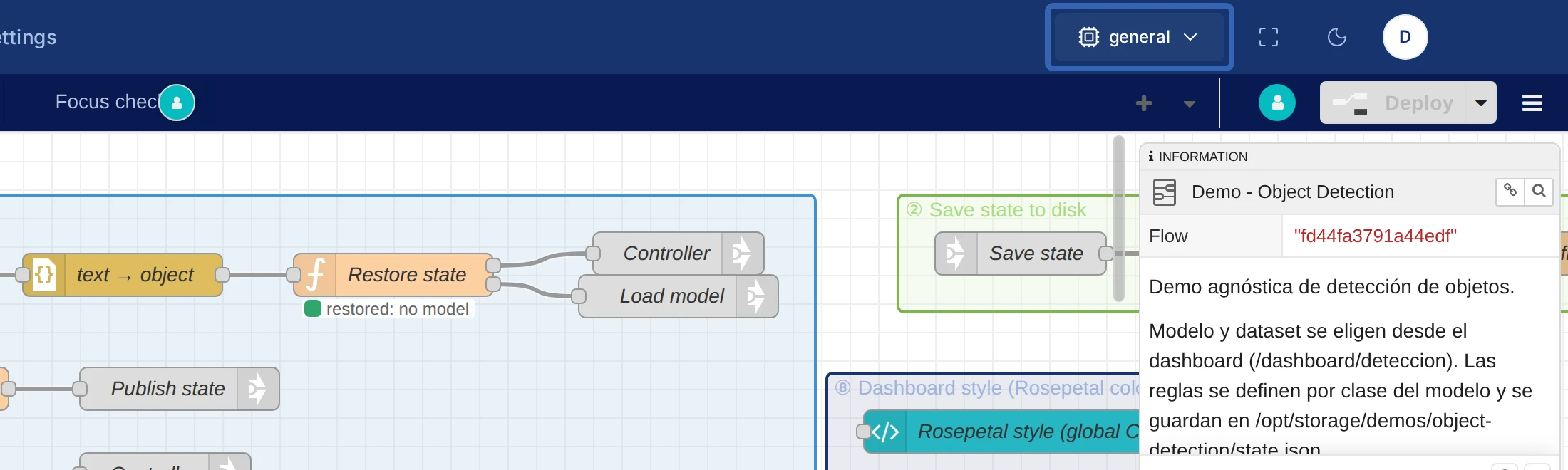
2. Open the list of controllers
Click the button. «Active controller» lists every controller of the project, and a tick marks the one you are on.
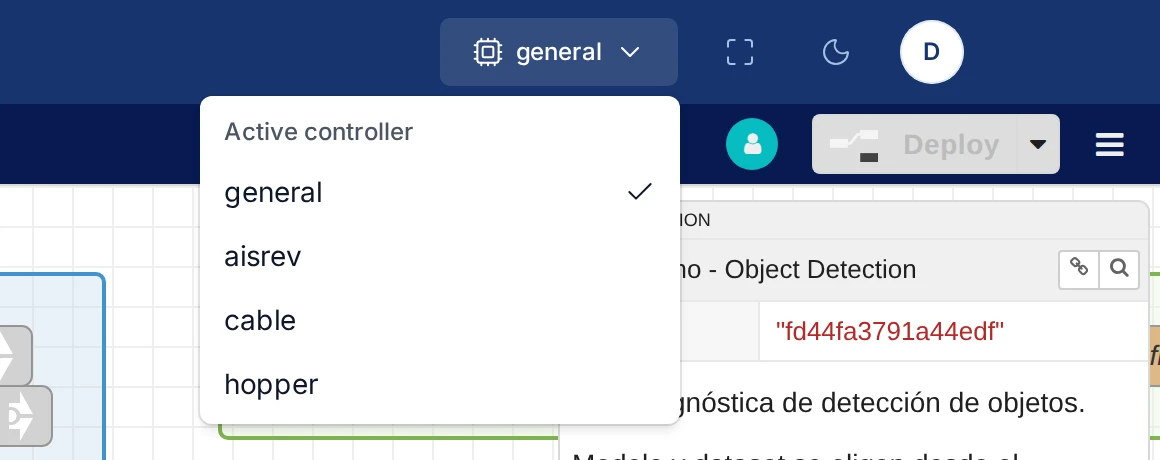
3. Pick another controller
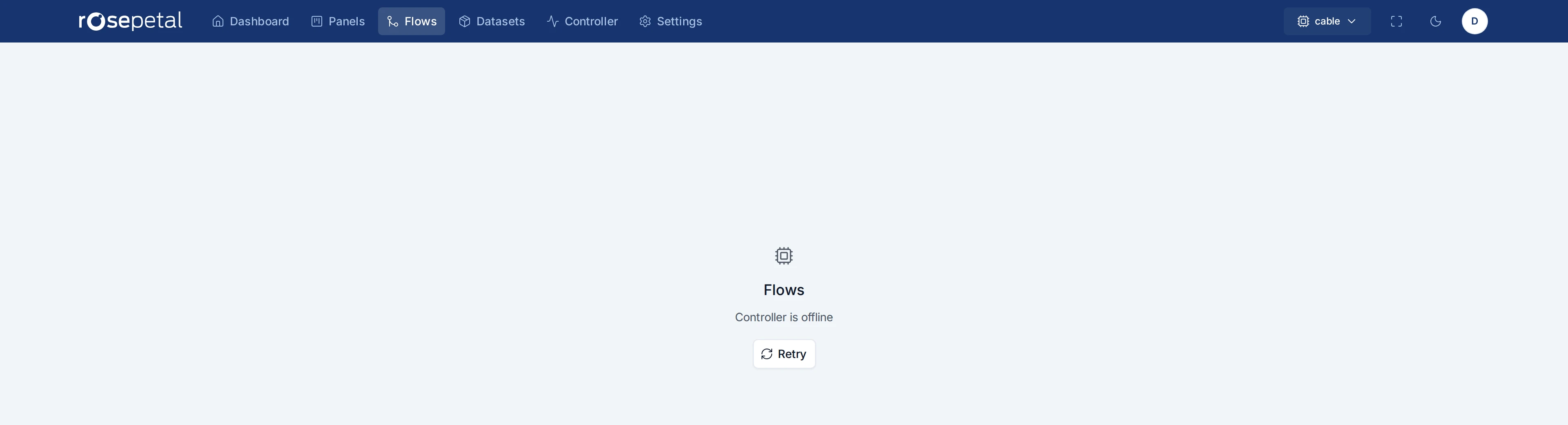
Click another controller, here «cable». The page reloads and stays in the section you were in, now on the new controller: the top bar names it, and «Flows» opens its Node-RED, with its own flows, and «Controller» and «Panels» its tools and its operator screens. Here «cable» is switched off, so «Flows» says so instead.
4. Read what a controller that does not answer shows
When the controller you pick is off or cannot be reached, «Flows», «Panels» and «Controller» say «Controller is offline» or cannot load its tools. «Retry» checks again. Nothing is lost: the other controllers keep running, and you can go back to one of them. To find out why a controller does not answer, see A controller shows as offline.

5. Go back to the first controller
Open the list again and pick «general». The page reloads on the same section, «Flows», now with the flows of «general».
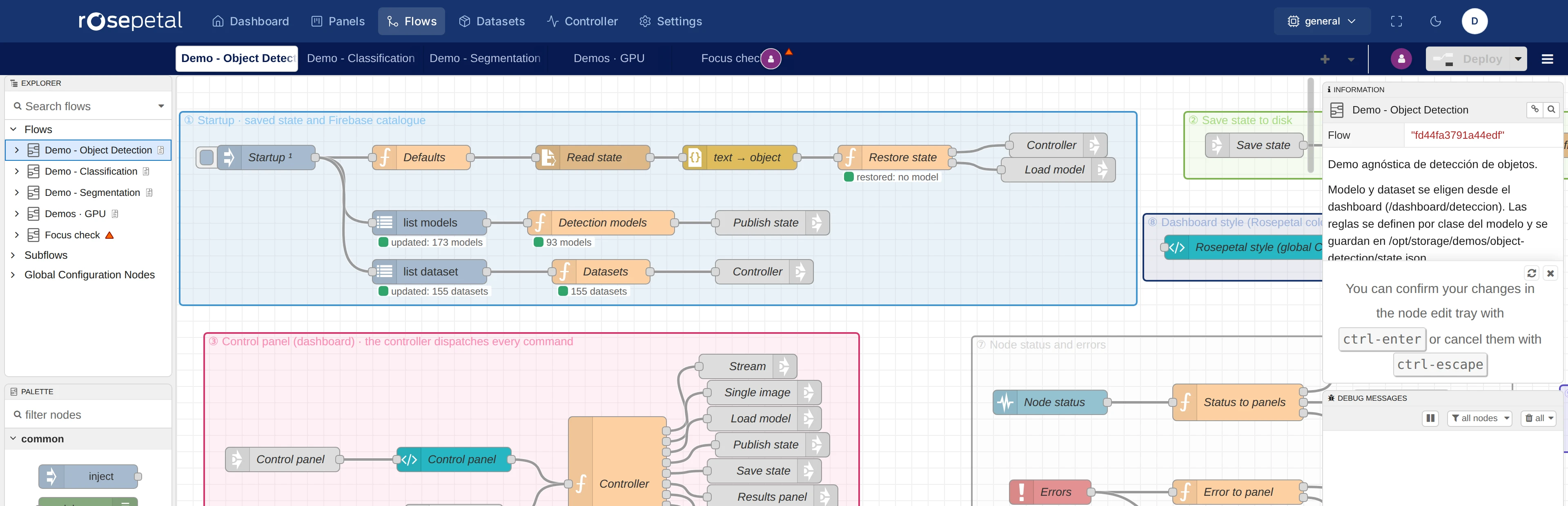
6. Know that the choice is per tab
The active controller is a choice of your browser, not of the project. Changing it does not change it for anyone else, nor in your other open tabs: each tab keeps its own. A new tab, or your next sign-in, starts on the controller you used last.

The dashboard's «Status» always lists every controller of the project and whether it answers, whichever is active.
Next steps
- Open the tools of a controller to check its resources, logs and services
- A controller shows as offline when a controller does not answer
Recorded on Rosepetal release 1.8.15.