

Find objects with a text prompt
Sometimes there is no model trained for what you need to find, or not yet: a new product, a rare defect, a quick check. The «VLM online» node sends the image to a vision-language model in the cloud and asks it, in words, to find something. It returns a box and a confidence for each object, in the same format as a trained model. In this guide you find the biscuits of a pack, first with a prompt and then with a list of tags of your own.
What you will learn
- How to find objects by describing them, without training a model
- How to limit the answer to a list of tags
- What each call costs and when to use it
Before you start
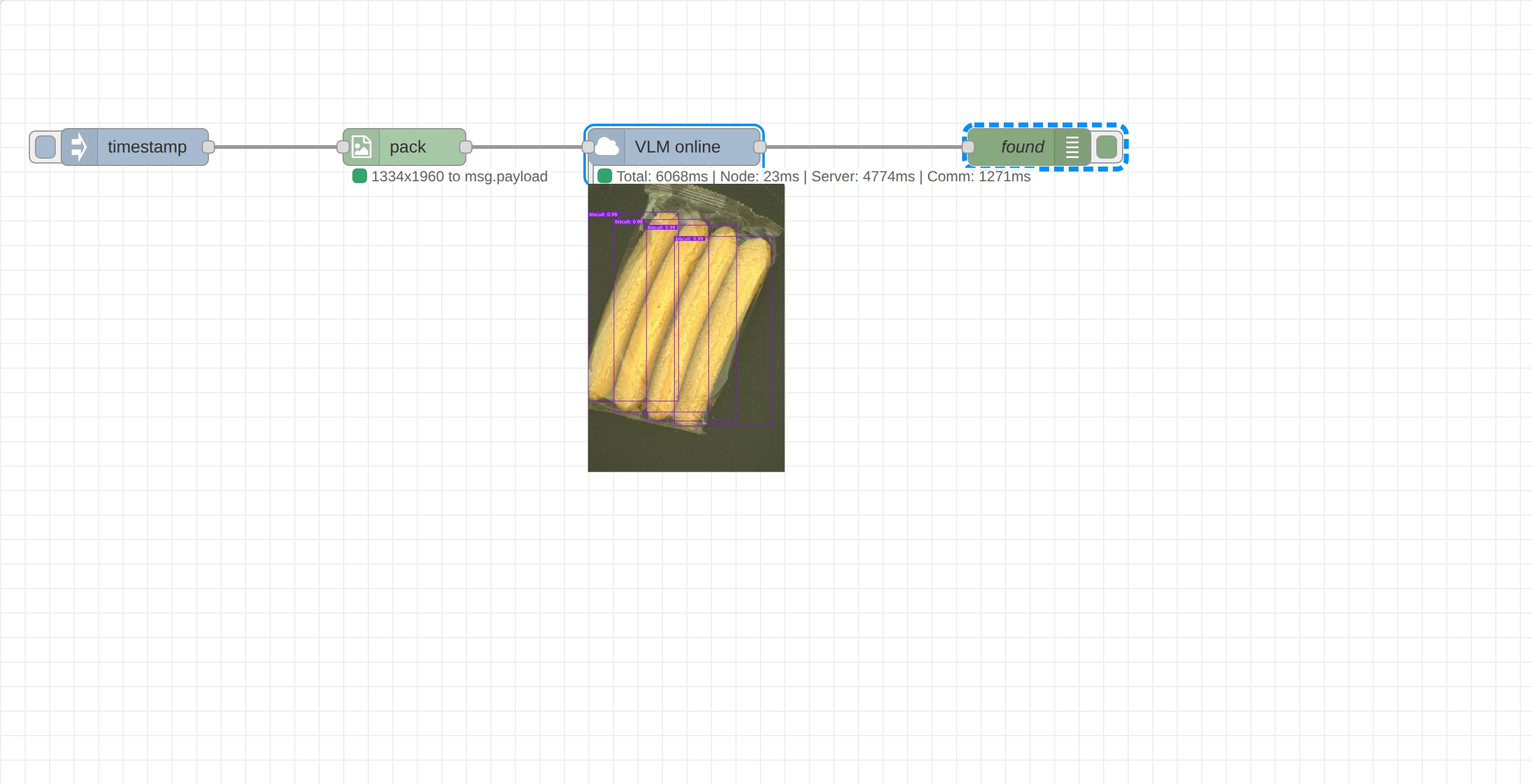
Each call is paid from the project's tokens, like the AI tools of the platform. Here an rp-image-in node loads a photo of a pack of biscuits from the controller's disk, /tmp/line-check/pack.jpg; see Load and transform an image. The debug node «found» shows msg.inference.
1. Add the VLM online node
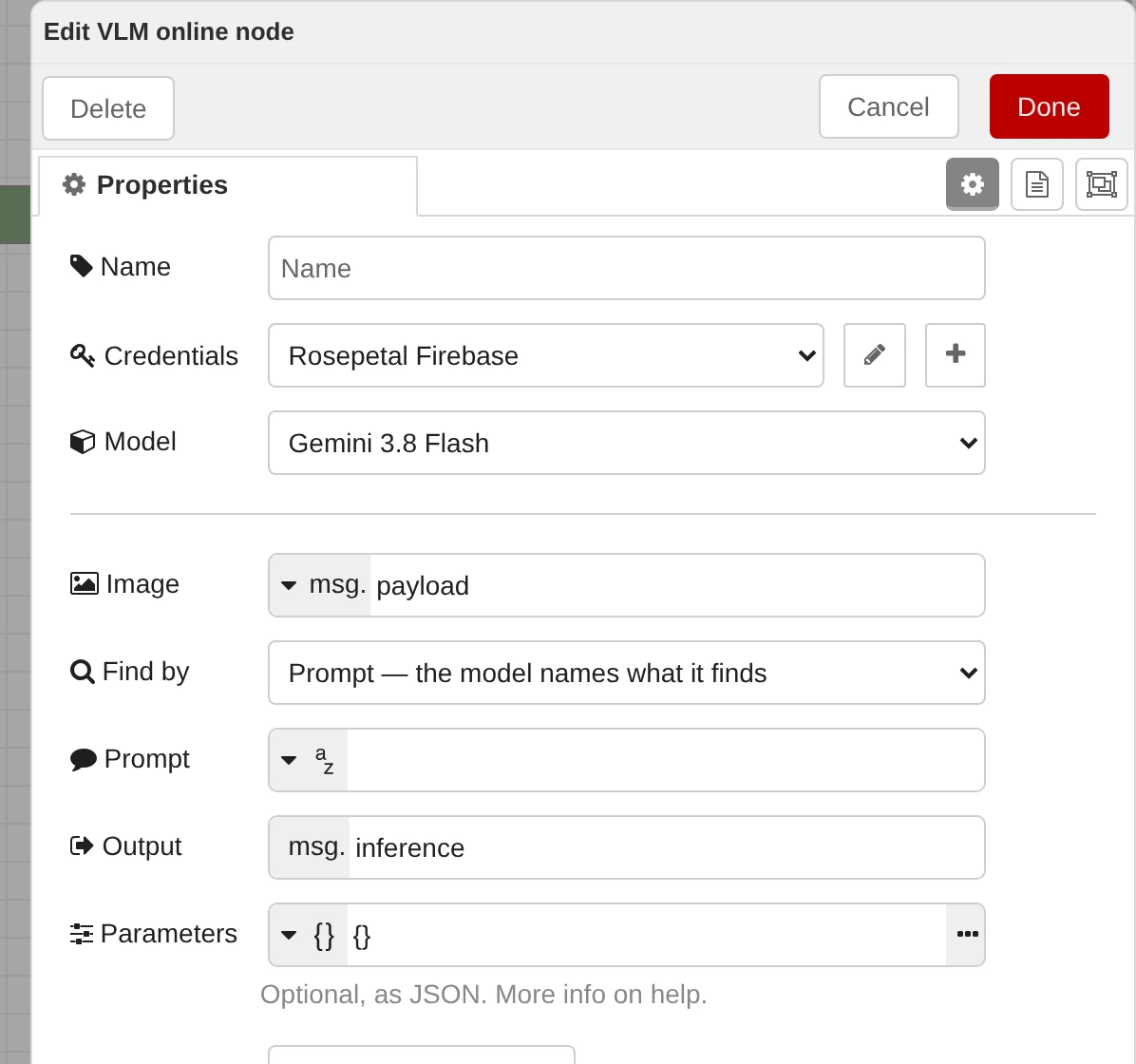
Type vlm-online in «filter nodes», drag the «VLM online» node between the image node and the debug node and wire it to both. Open it. «Credentials» is the controller's connection to the platform, here «Rosepetal Firebase»: the call is made and paid in that project. «Model» lists the models the platform offers; pick a fast one, here «Gemini 3.8 Flash».
2. Describe what to find
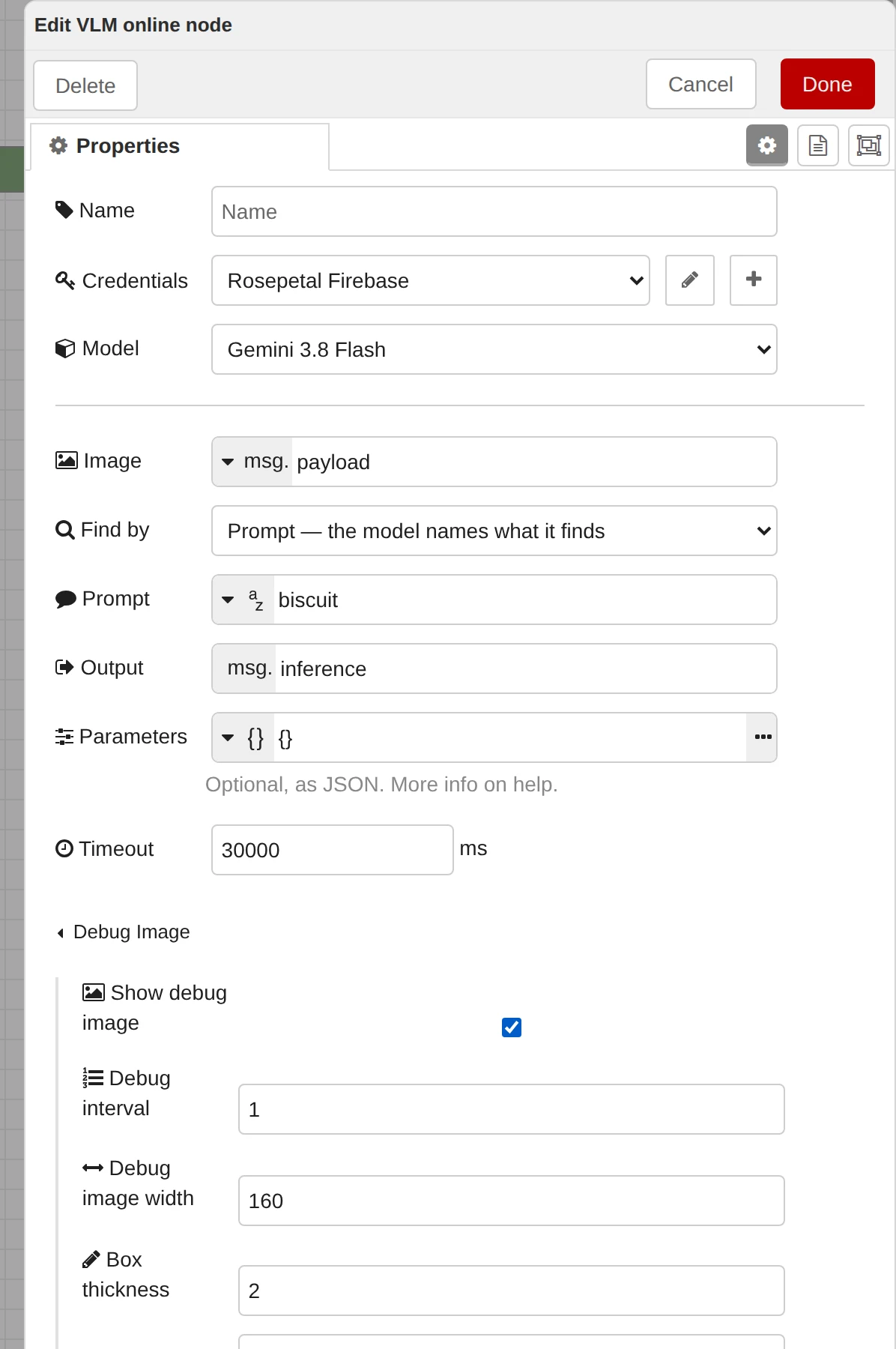
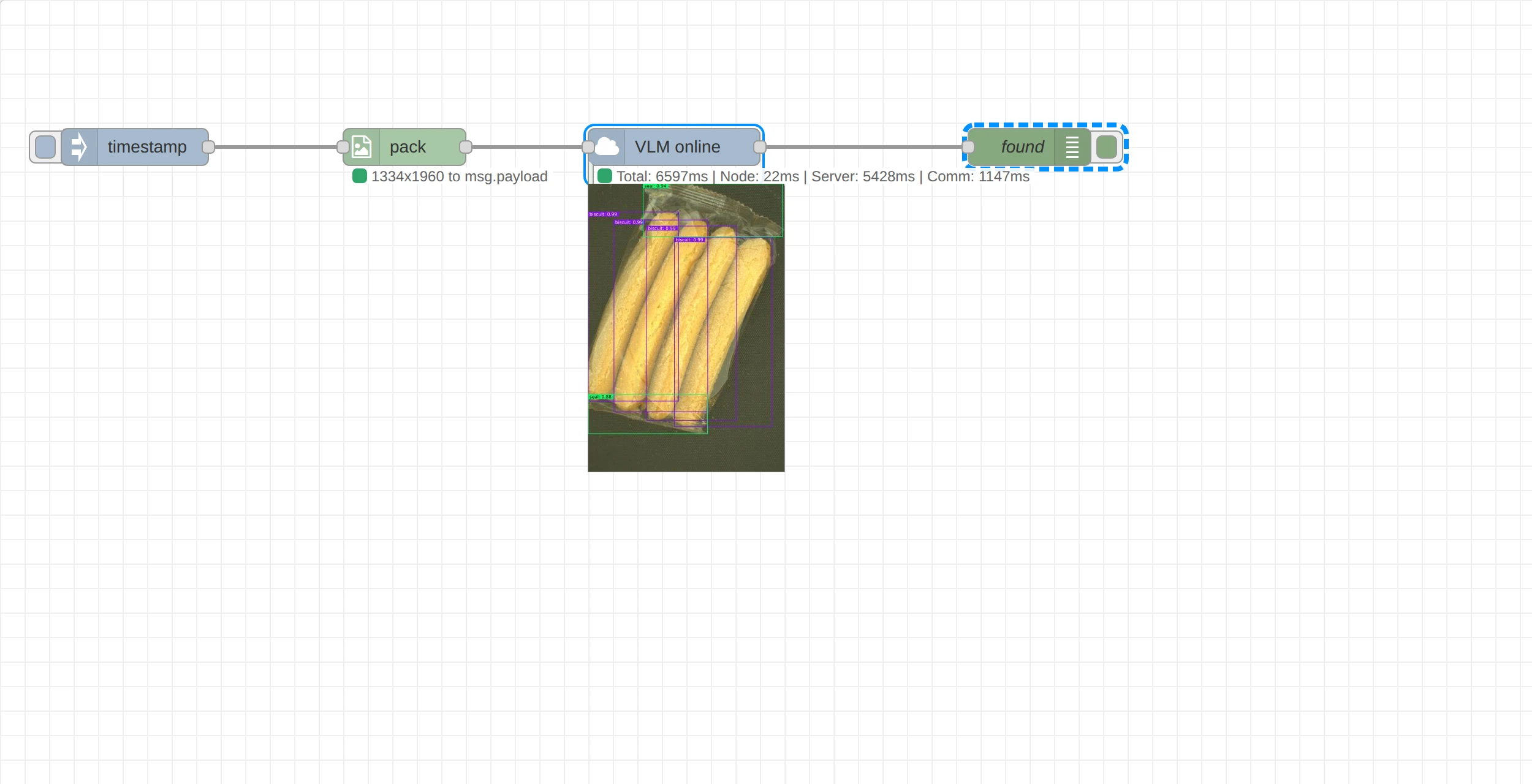
«Image» is where the image comes from, msg.payload. Leave «Find by» on «Prompt» and write what to look for in «Prompt», here biscuit; the model names what it finds. Open «Debug Image» and tick «Show debug image»: the node draws the boxes on the image under itself.
3. Find the biscuits
Click «Done», deploy and press the inject node. The call takes a few seconds. The image under the node shows a box for each biscuit, and msg.inference lists them: tag, confidence and the box in every format a trained model gives (raw_boxes, 2points, xywhr…), from 0 to 1, so rp-add-bbs or rp-cropBB take it as it is.
4. Limit the answer to your tags
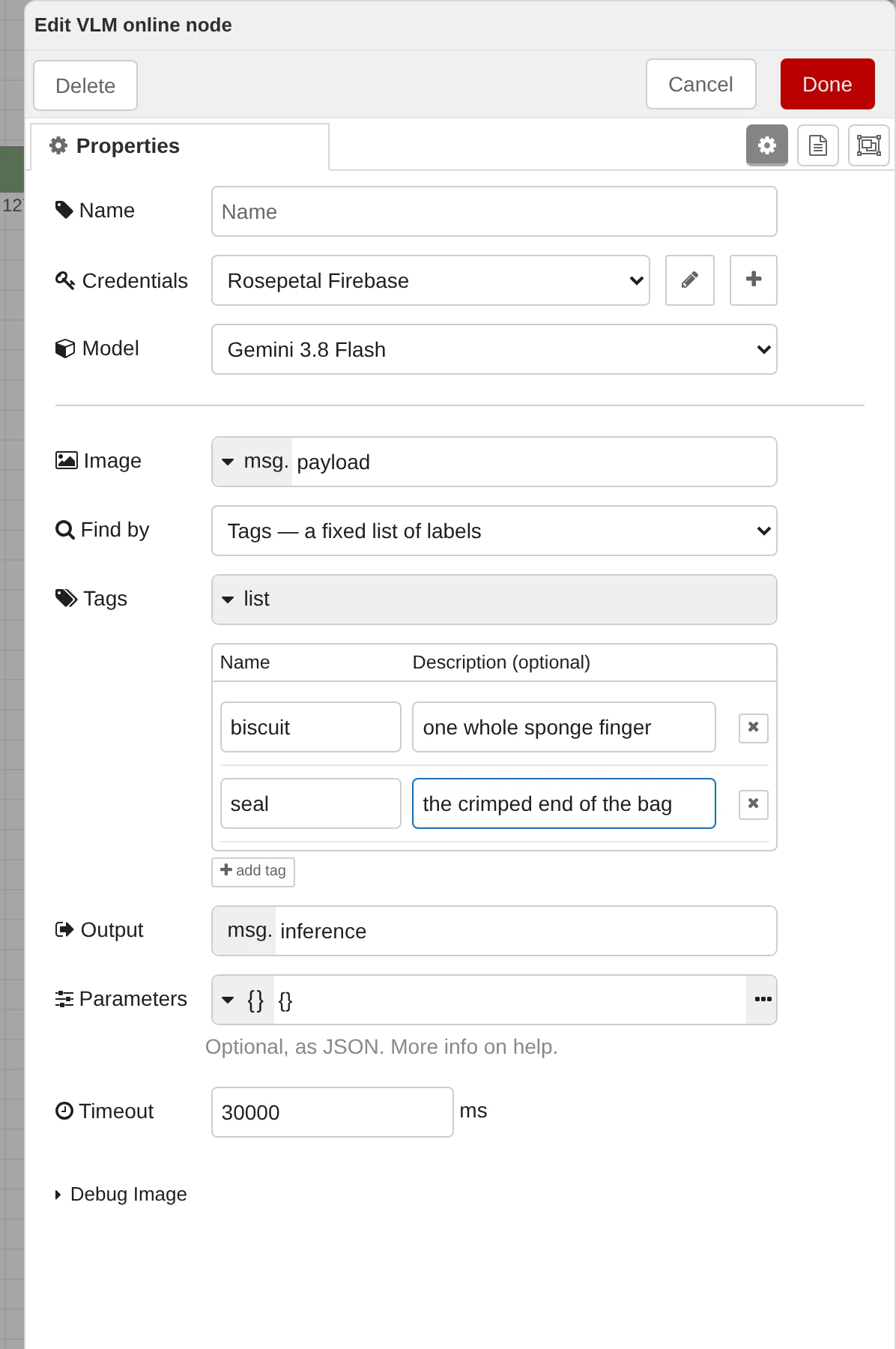
Open the node again and set «Find by» to «Tags»: a closed list of names, and the model may only answer with them. Click «add tag» for each one: biscuit, «one whole sponge finger», and seal, «the crimped end of the bag». The description becomes that tag's own line in the request, the place to say what it is and what it is not.
5. Find them again
Click «Done», deploy and press the inject node. Each object found carries one of your tags; whatever else the model sees is left out. With a single tag, everything it finds is given that tag.
When to use it
A call takes seconds and is paid from the project's tokens, which the whole project shares: use it to inspect a frame when something happens (a new product, a part the trained model is not sure about), not on every frame of a line at speed. For a check that runs all day, label images and train a model; Label automatically with a text prompt labels a dataset the same way.
Good to know
- Prompt or tags, not both. Only the field «Find by» names is sent. A prompt lets the model name what it finds; tags close the answer to your names.
- From the message. Every field has a type: set «Prompt» or «Tags» to
msg.,flow.orglobal.to take them from elsewhere at run time, for example the tags of a dataset kept in the flow's context. - Timeout. A call the node gives up on still finishes in the cloud and is still paid. If a model is slow, raise «Timeout» rather than sending the image again.
- Costs. The «Usage» card of the dashboard shows the tokens spent by each service; a 402 error in the status means the project has run out.
Next steps
Recorded on Rosepetal release 1.8.15, Node-RED 5.0.10.