Configure and Use OCR Node for Accurate Text Extraction
This tutorial teaches you how to use the OCR node to extract text from images efficiently.
1. Explain OCR Modes and Rotation
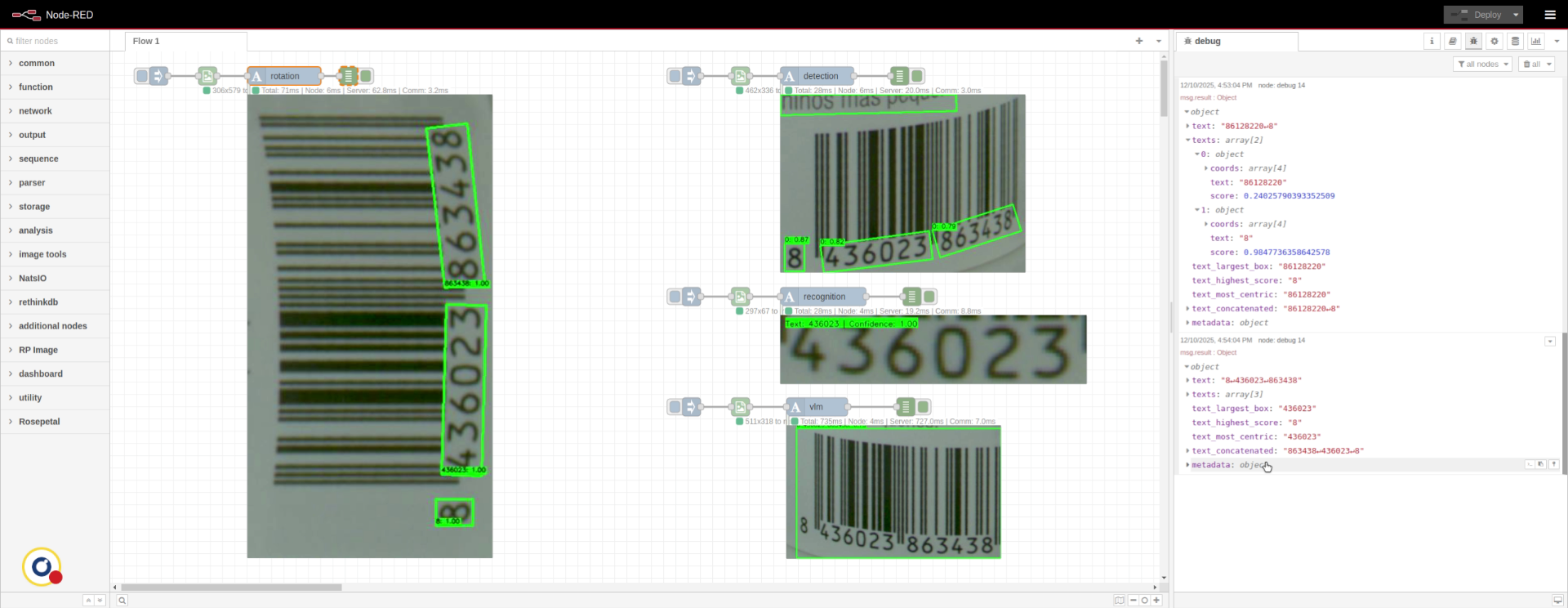
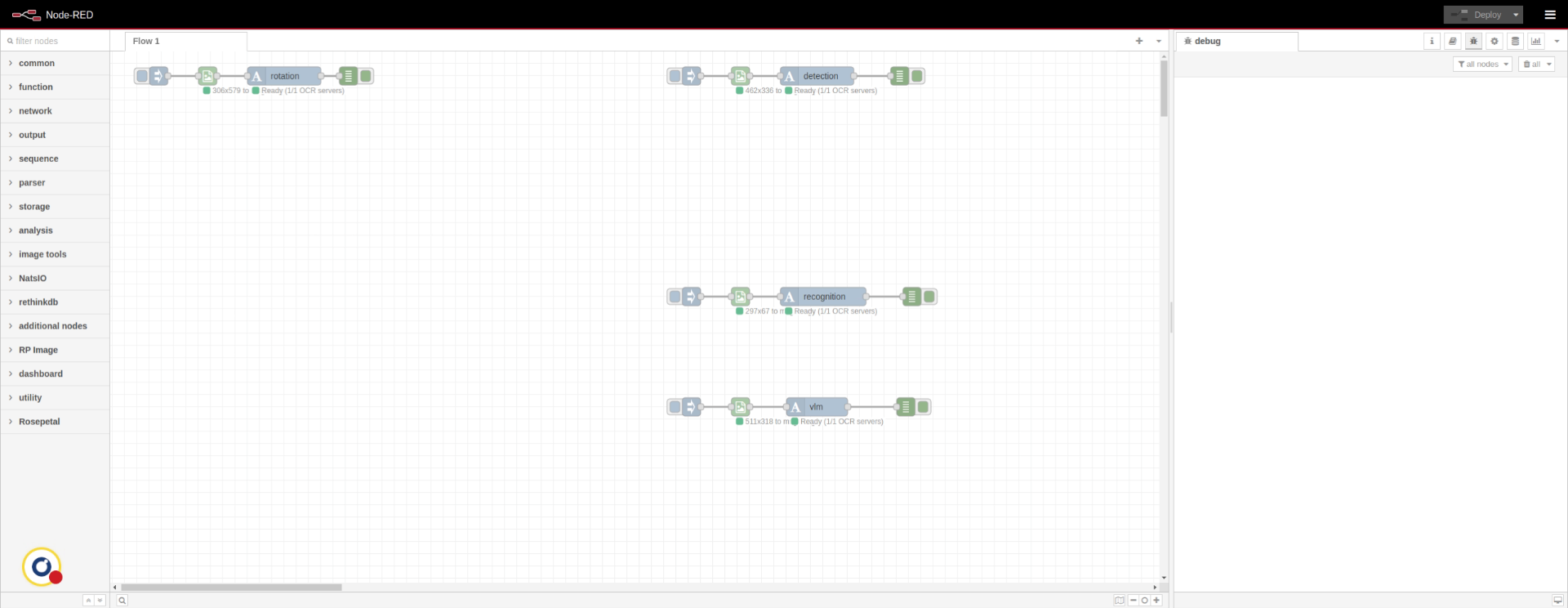
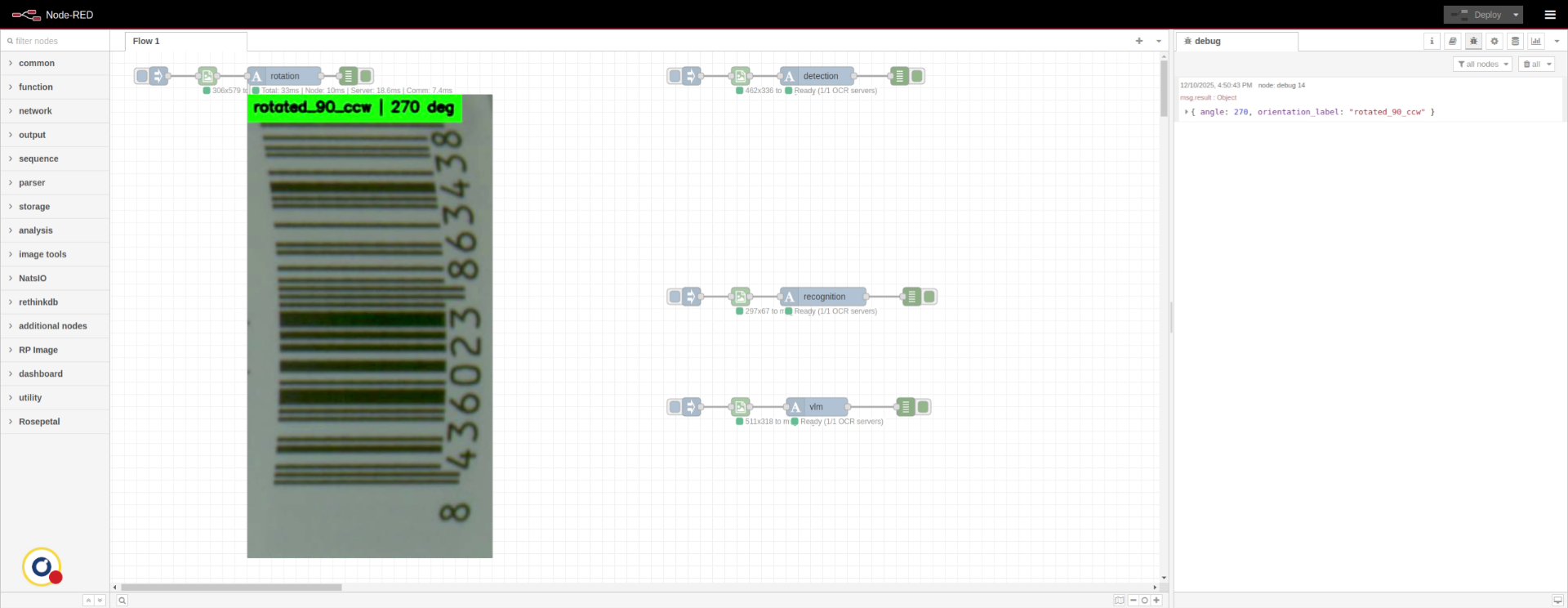
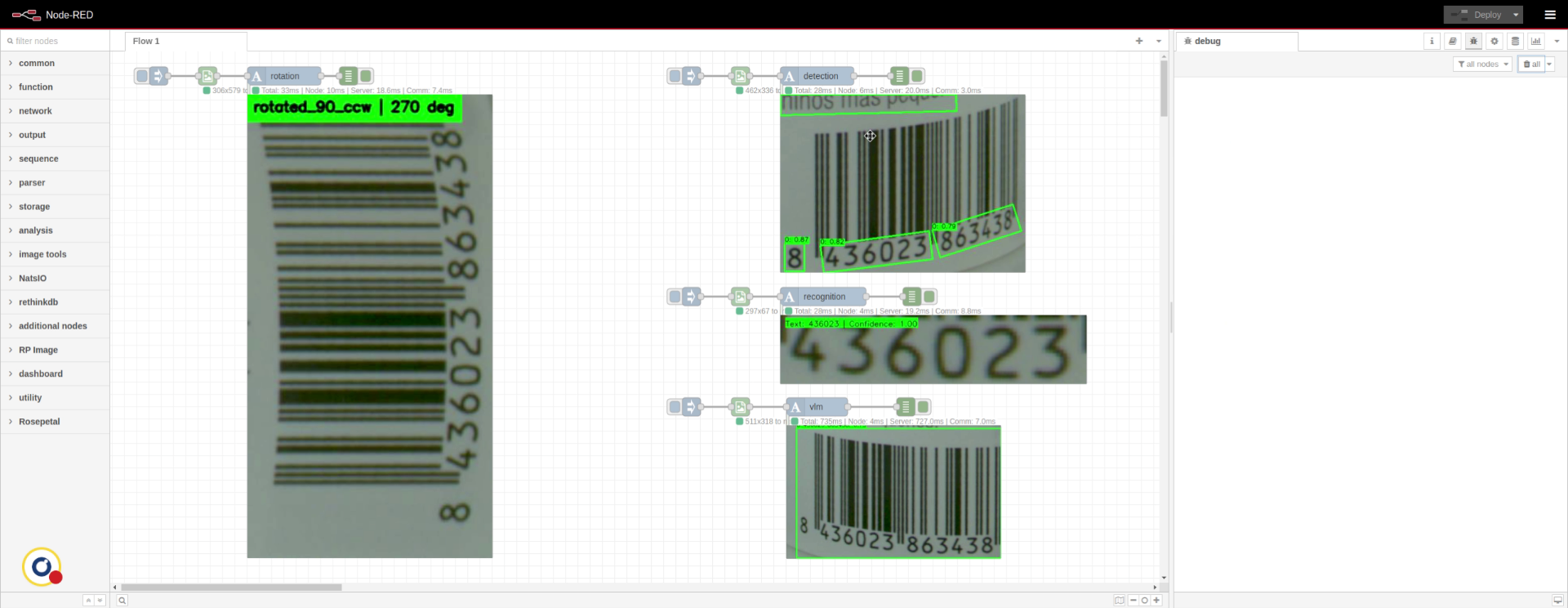
First, let's explain the available modes. Document orientation estimates the rotation angle of the image, allowing to align it before reading it.
2. Overview
3. Identify Image Rotation Detection
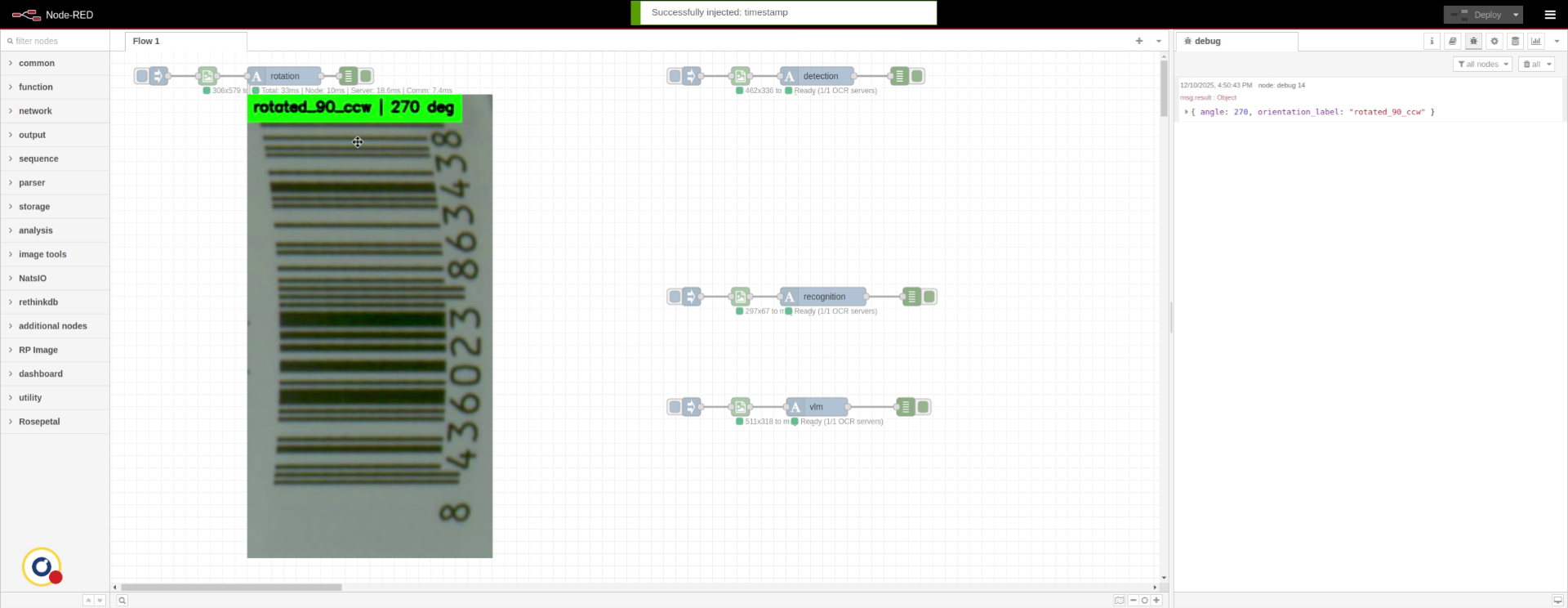
Here, we can see it has detected this image is rotated 90 degrees counterclockwise.
4. Understand Text Region Detection
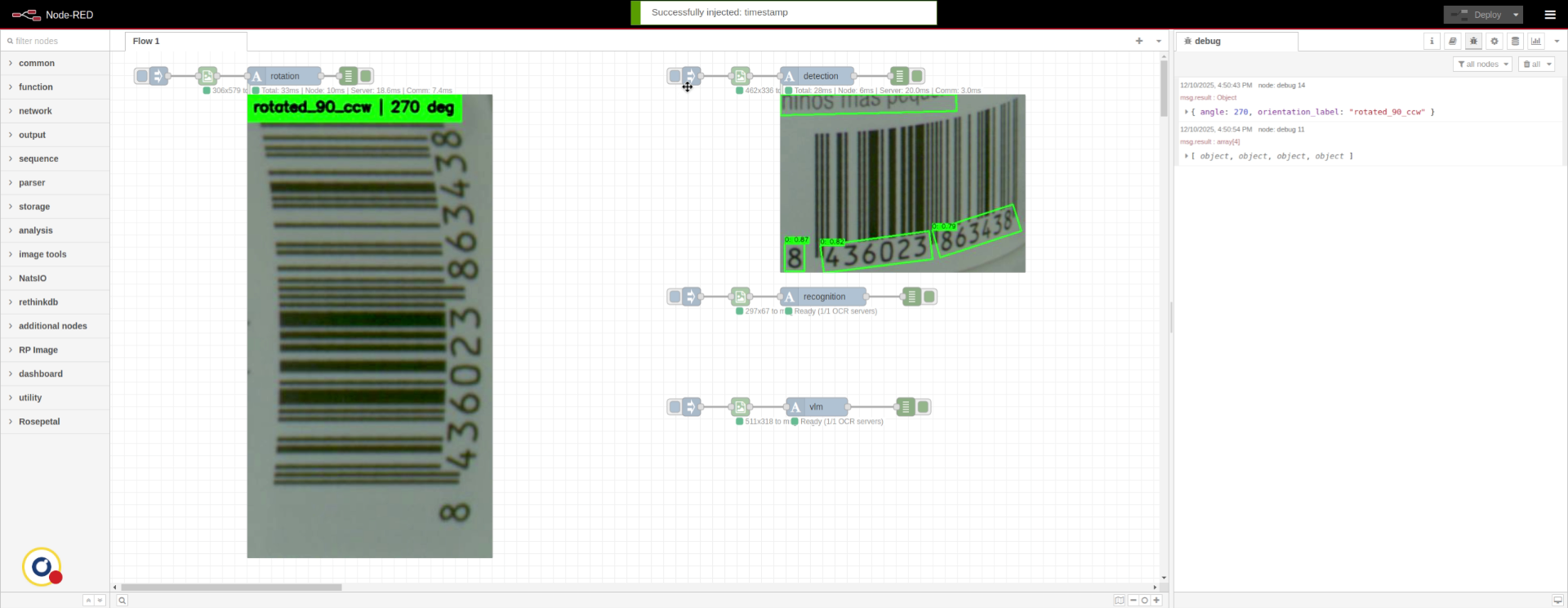
We also have detection task, which finds only the regions where text appears without reading it.
5. View Detected Text Boxes
Here, we can see it has detected the boxes which contain text, along their confidence and coordinates.
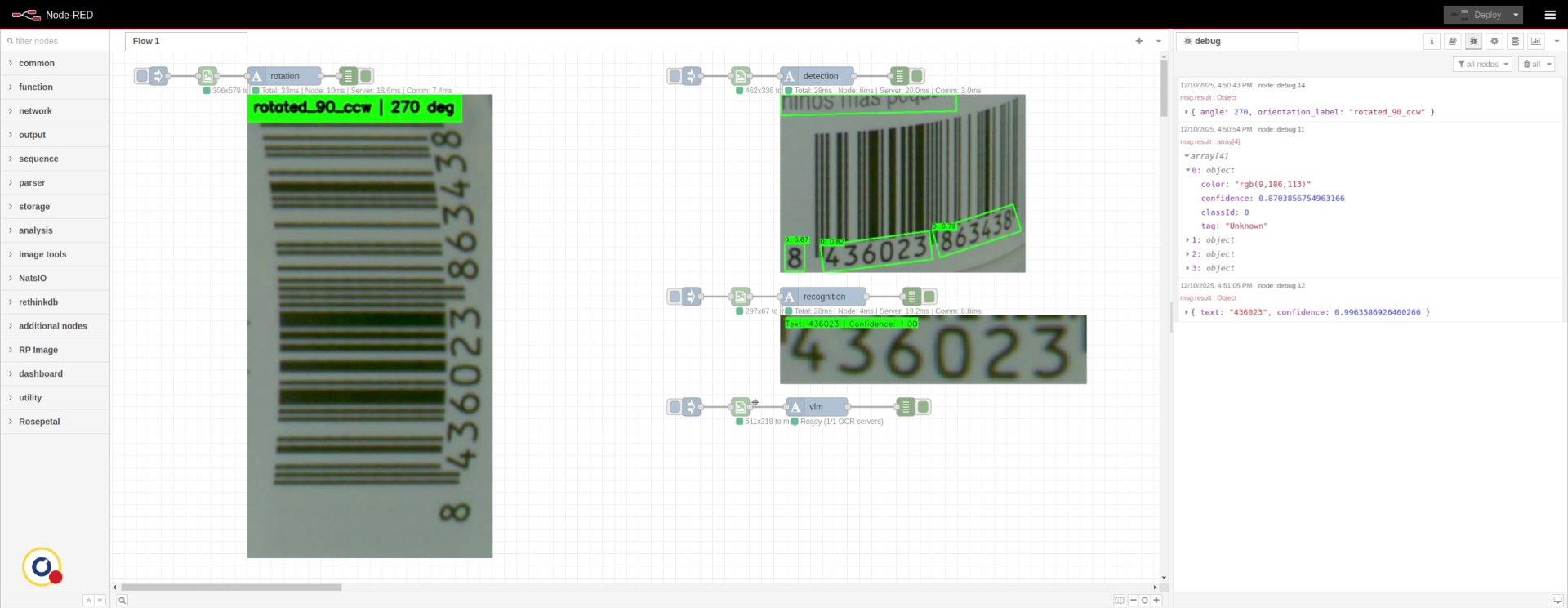
6. Review Recognized Text Output
We also have recognition, which reads text but assumes the image is already cropped. On the debug window, we can see the text it has read.
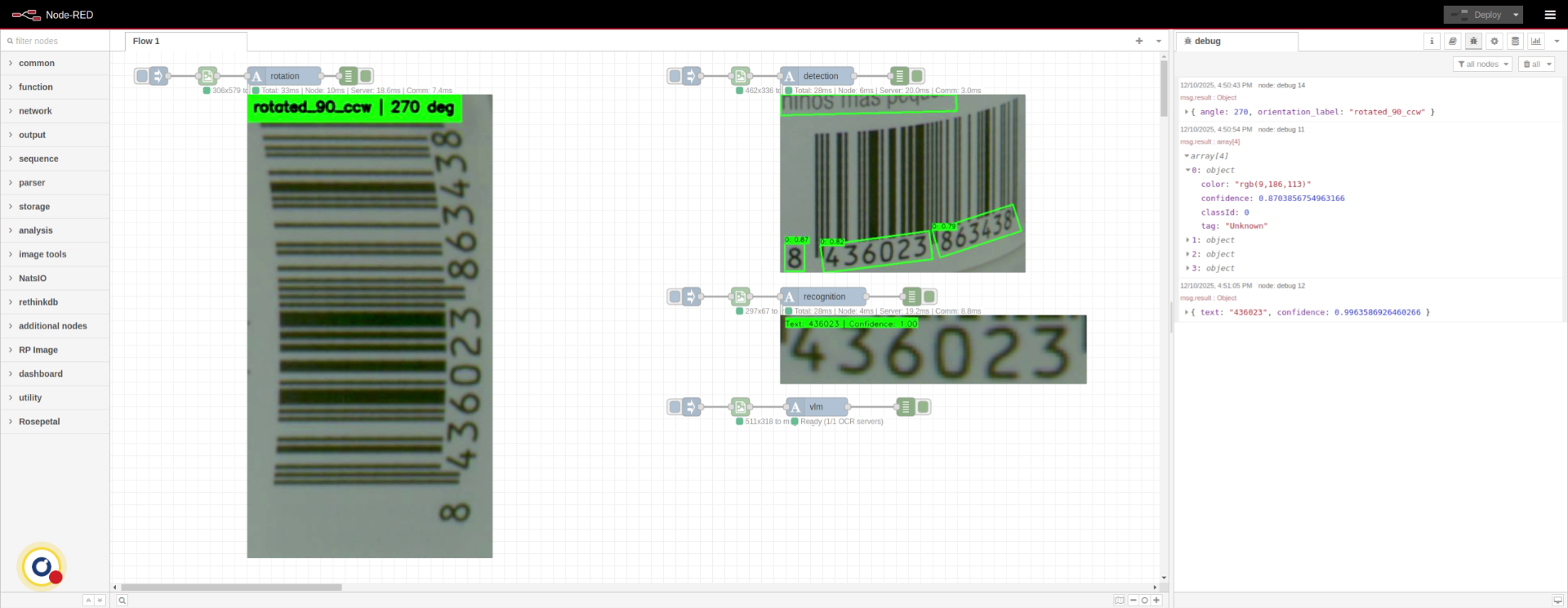
7. Vision Language Model
We also have PaddleOCR Vision Language model, which is a heavier and slower model.
8. Add OCR Node to Flow
To use the note, drag it onto the flow.
9. Select Existing OCR Node
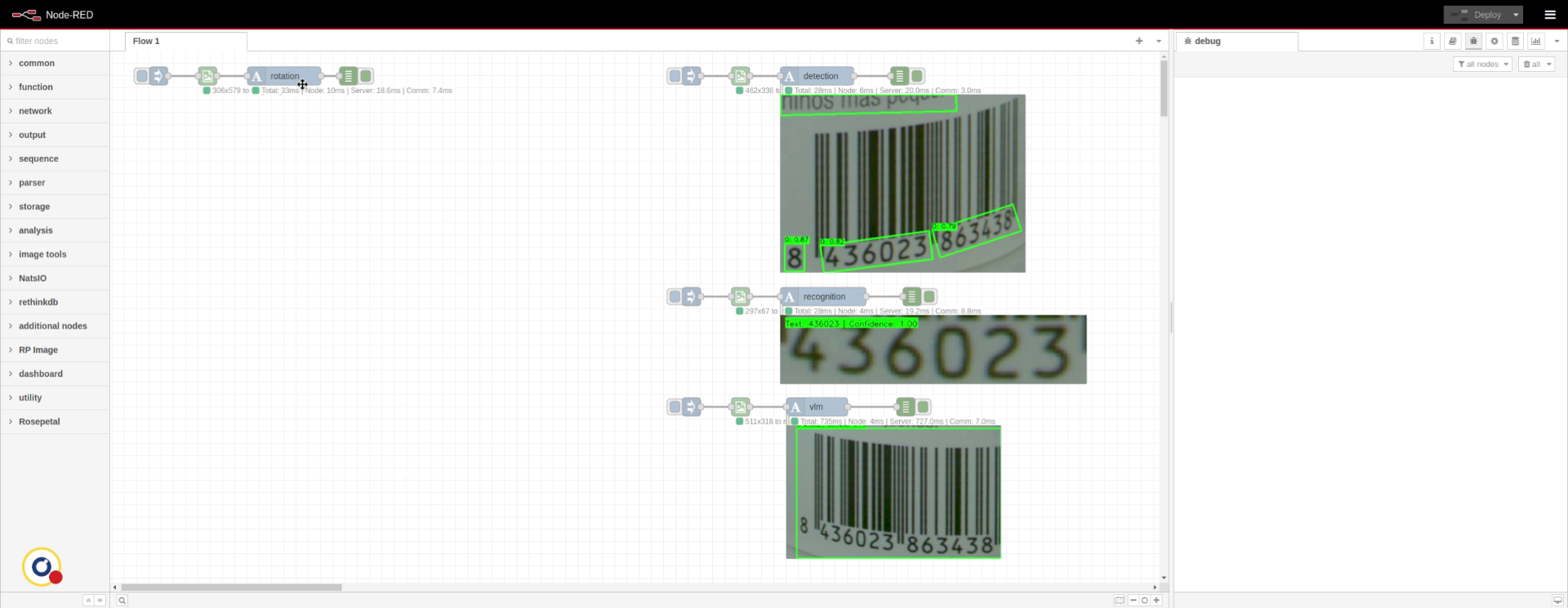
Finally, we'll see the OCR mode, which is a pipeline that combines multiple tasks to provide a full end-to-end text extraction.
10. Access OCR Node Settings
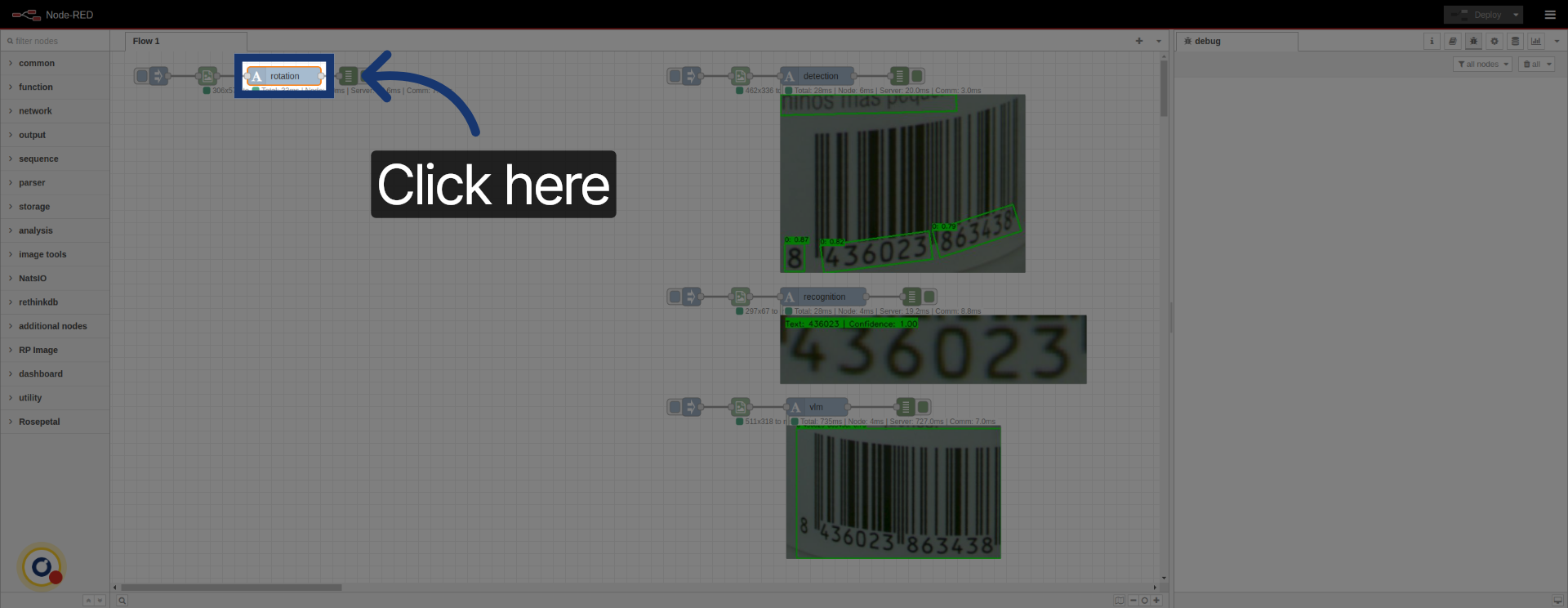
Click the node to access its settings.
11. Review Fields
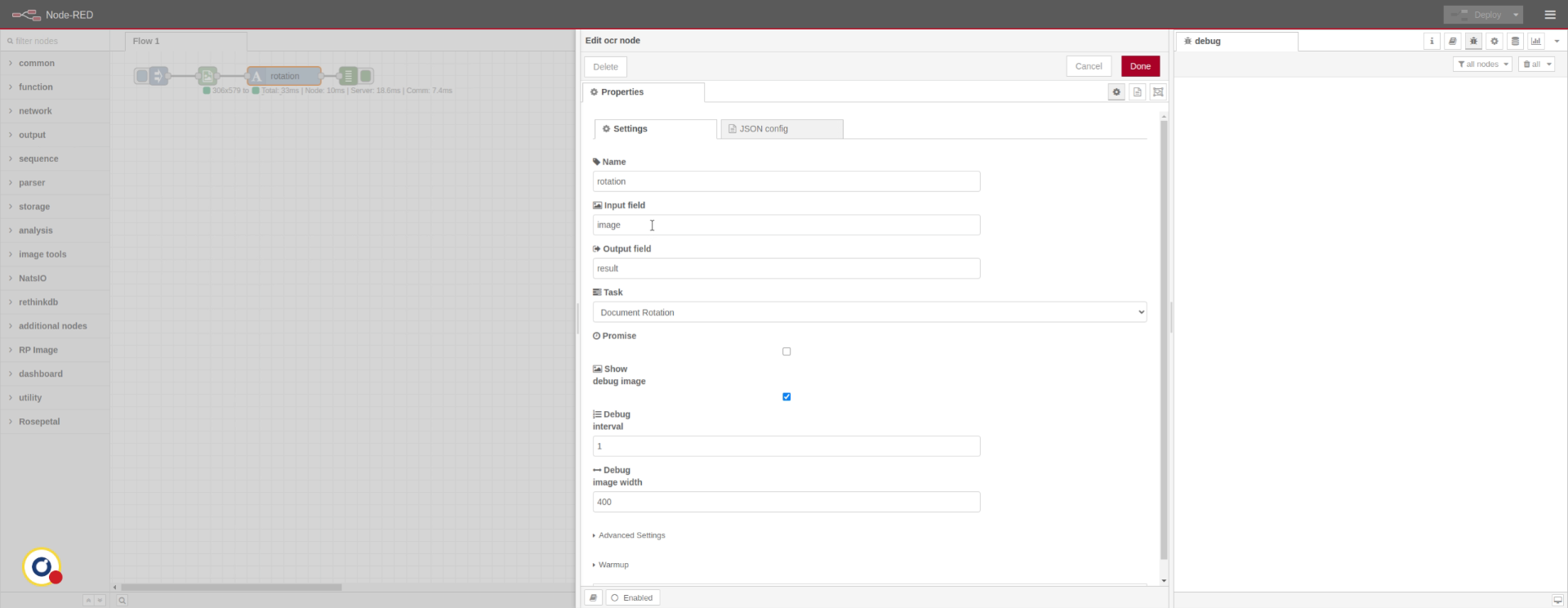
There multiple fields inside the configuration. Input and output field specify where the image will be received and where there results will end up, respectively. We can also see the mode dropdown, which we'll change the use OCR mode. This combines detection and recognition, first finding the boxes and then reading those.
12. Insert an image
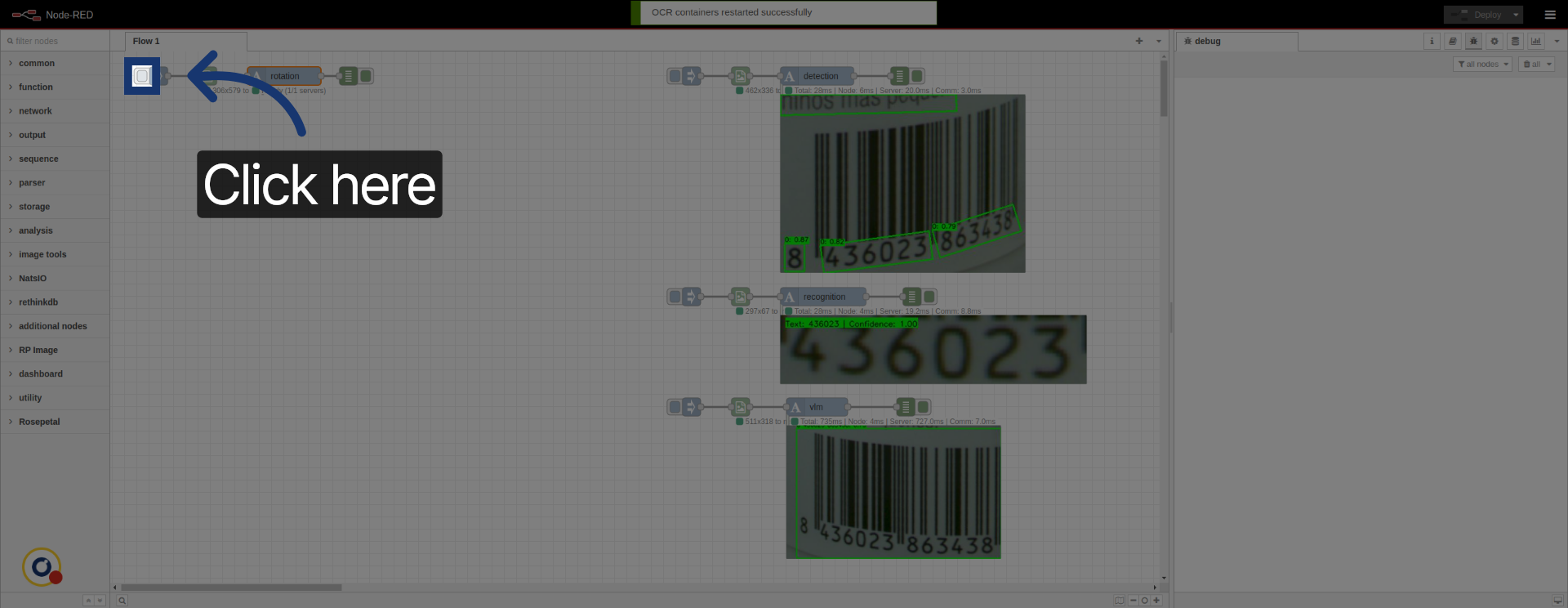
Insert an image to test the OCR task.
13. Reveiw Results
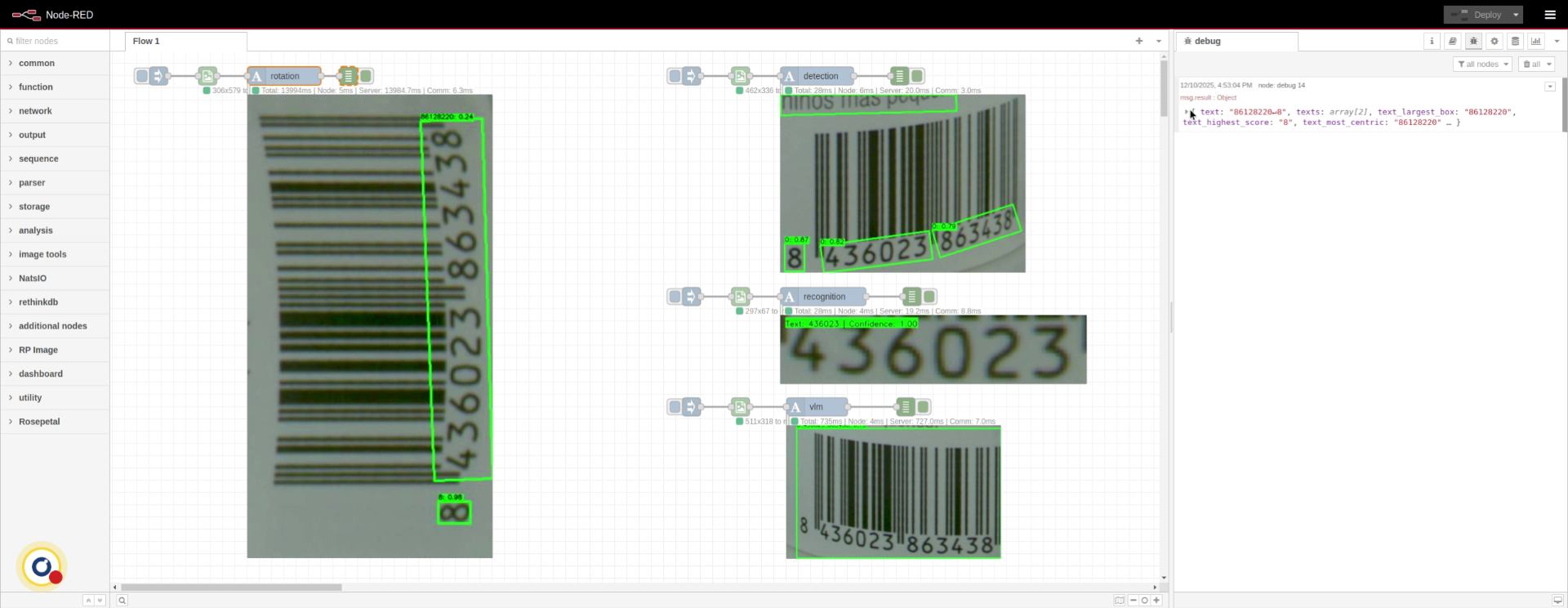
The OCR results return all the detected boxes along their text, confidence and coordinates. We can observe the text hasn't been correctly readen, becasue we've only applied detection and recognition (without rotation). There are additional fields, such as the highest scoring text, the most centric one, the biggest one and a concatenation of all (from top-left to bottom-right).
14. Go to JSON Config Tab
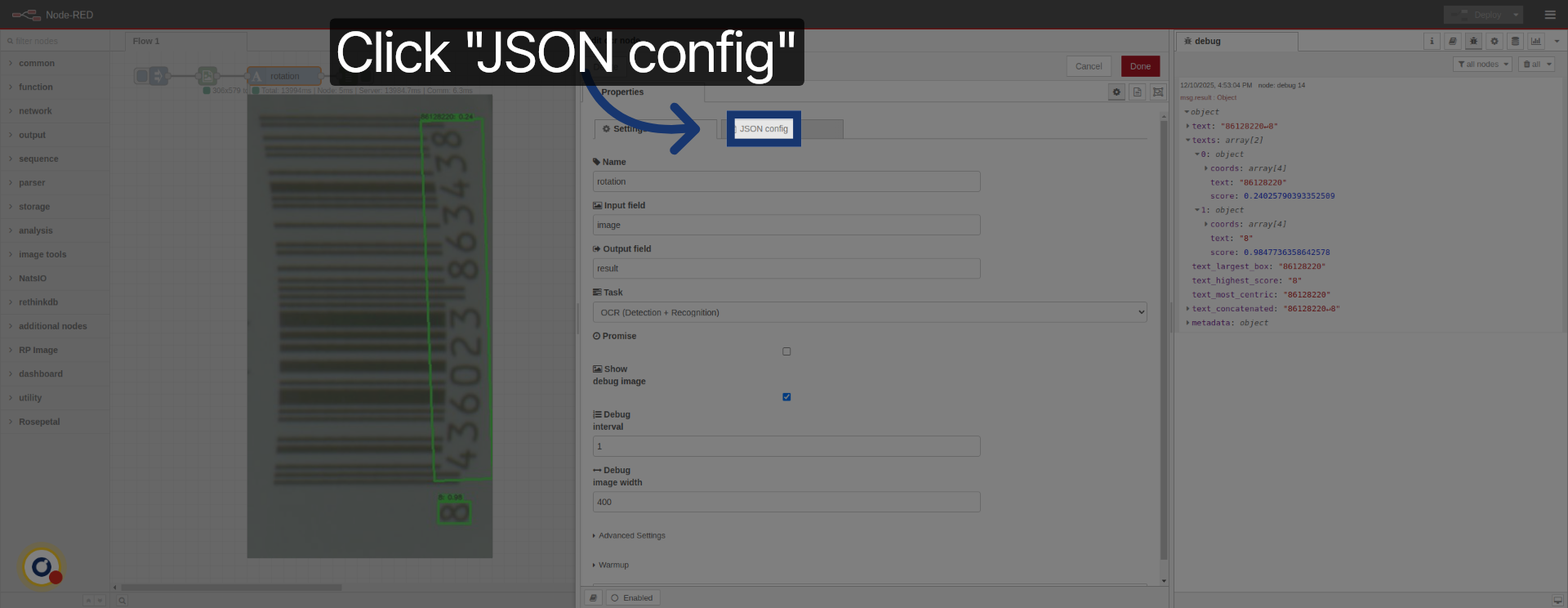
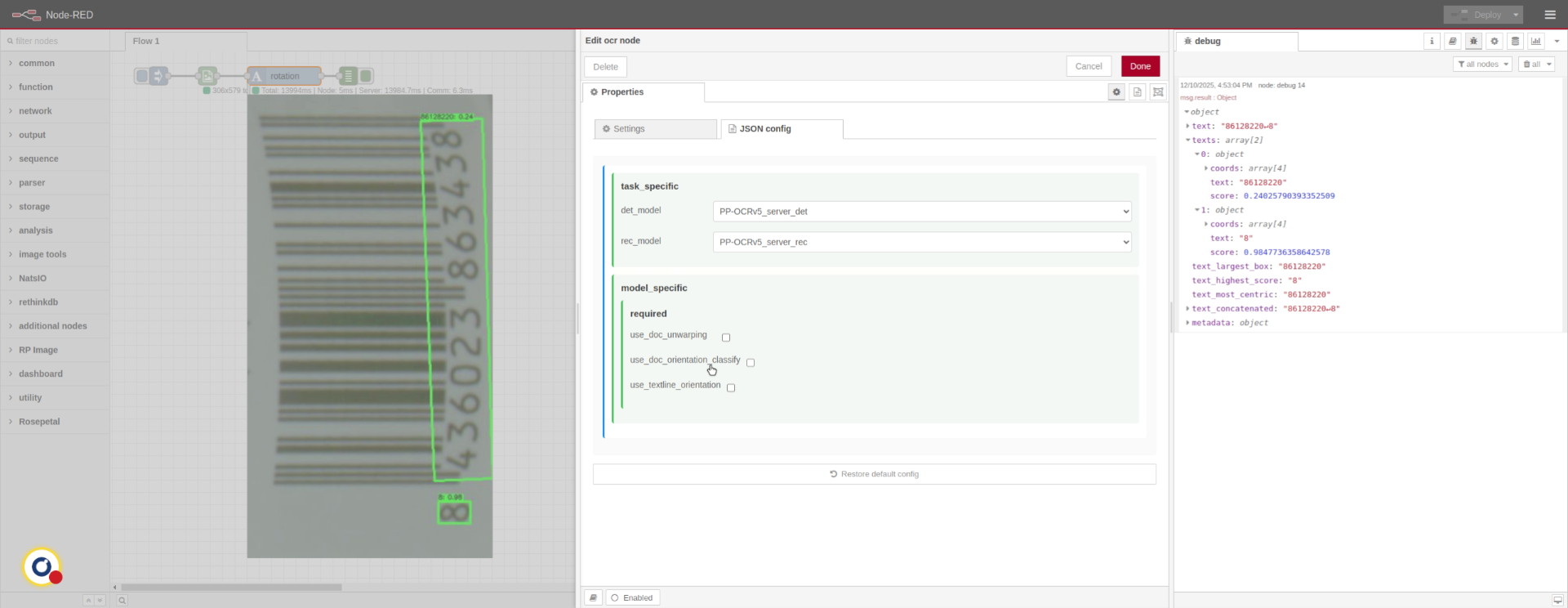
To resolve the rotation issue, navigate to the JSON Config tab.
15. Understand Config Parameters
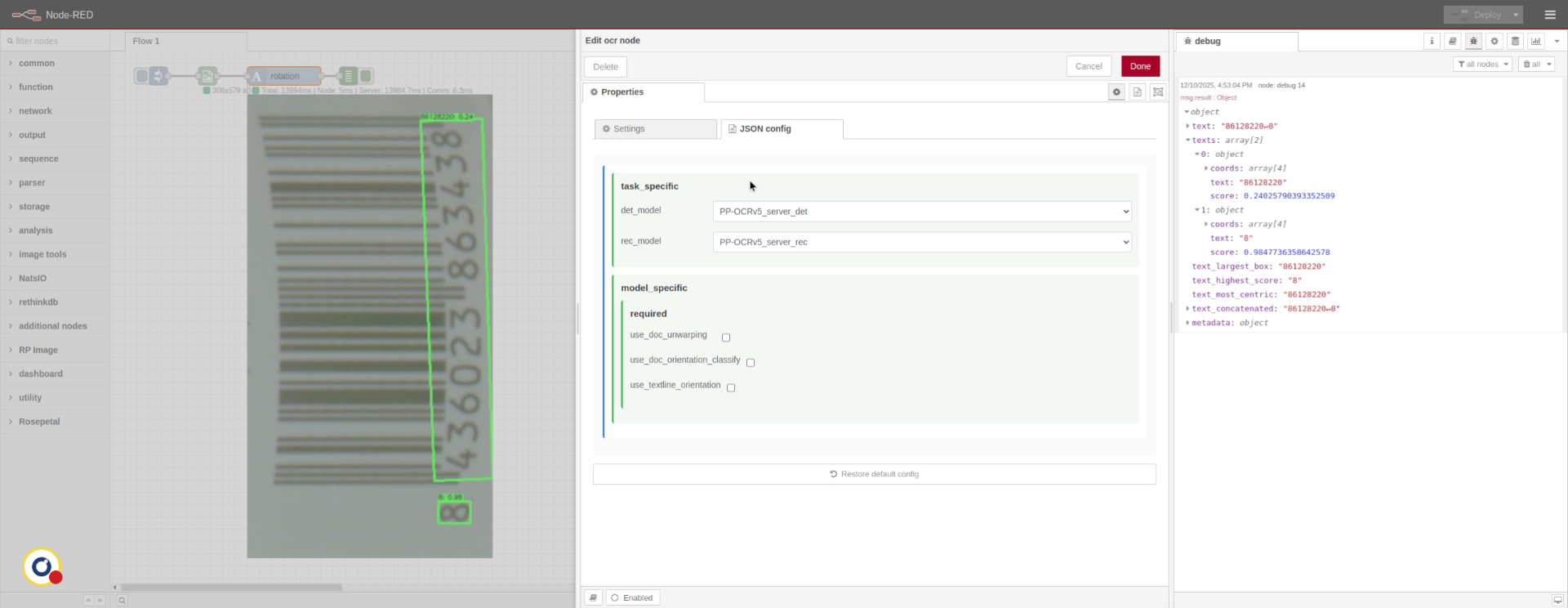
This tab contains several configurable options, including selecting specific models and enabling intermediate modules such as rotation correction or image undistortion.
16. Overview
In this case, we want to enable rotation classify and deploy after done chang
17. Inject Image
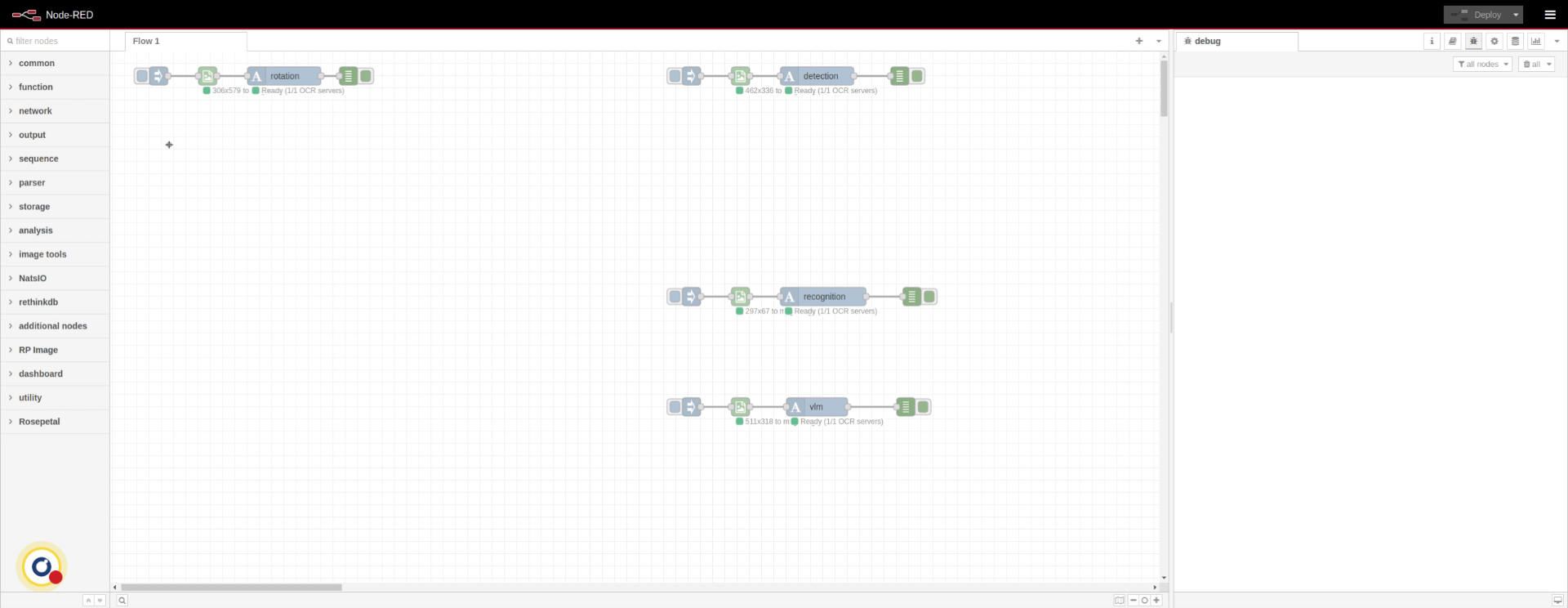
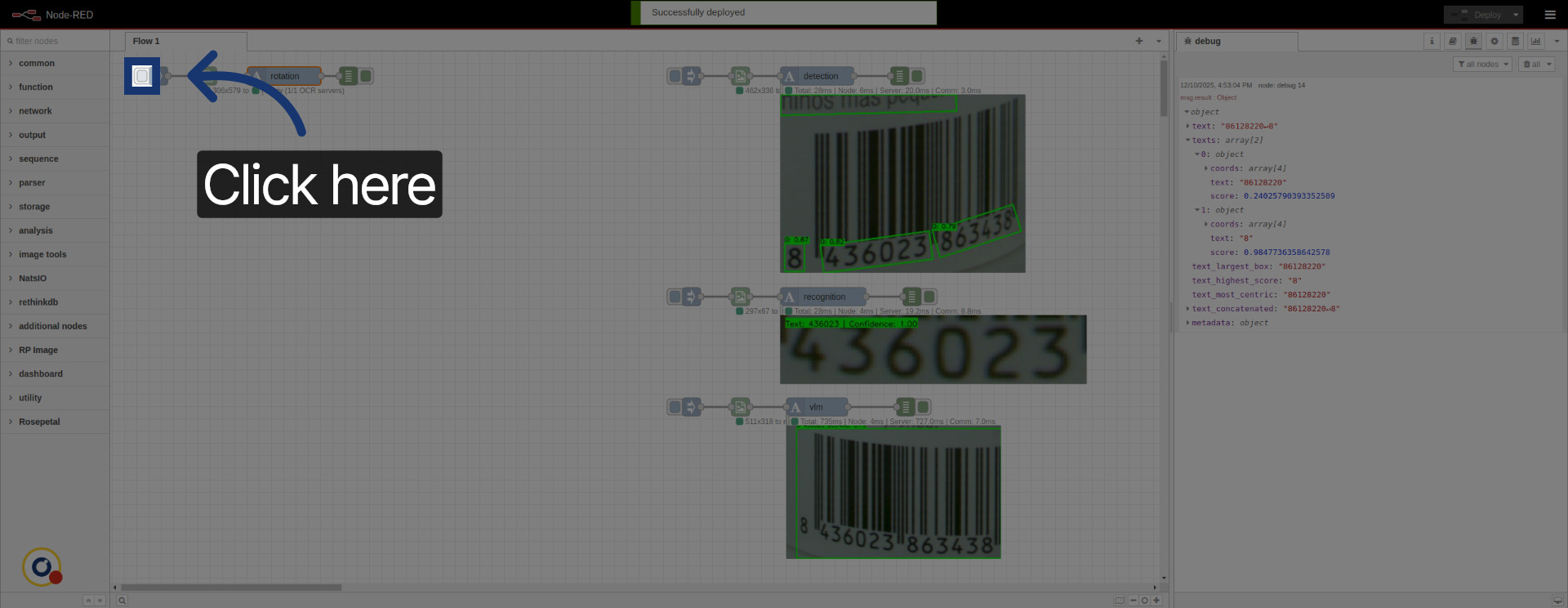
Now we inject the image again.
18. Complete OCR Node Tutorial
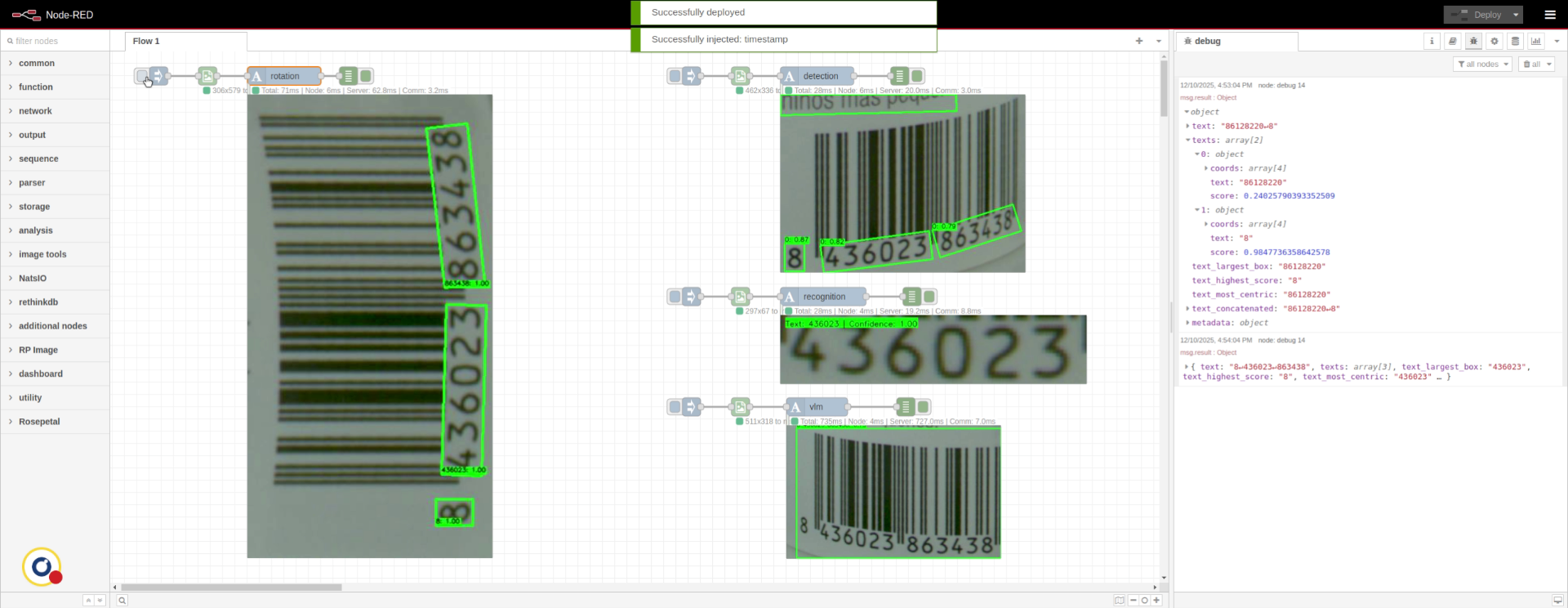
We can see now it has readen the text correctly. On metadata, we can access additional information such as the rotated angle
19. Review OCR Node Capabilities
After this tutorial, you have learned how to configure, deploy, and test the OCR node to extract text from images accurately.