Export Dataset Efficiently Using Rosepetal Application
This tutorial guides you through exporting a dataset using the Rosepetal application
1. Introduction
You will learn how to navigate the interface and download your dataset successfully.
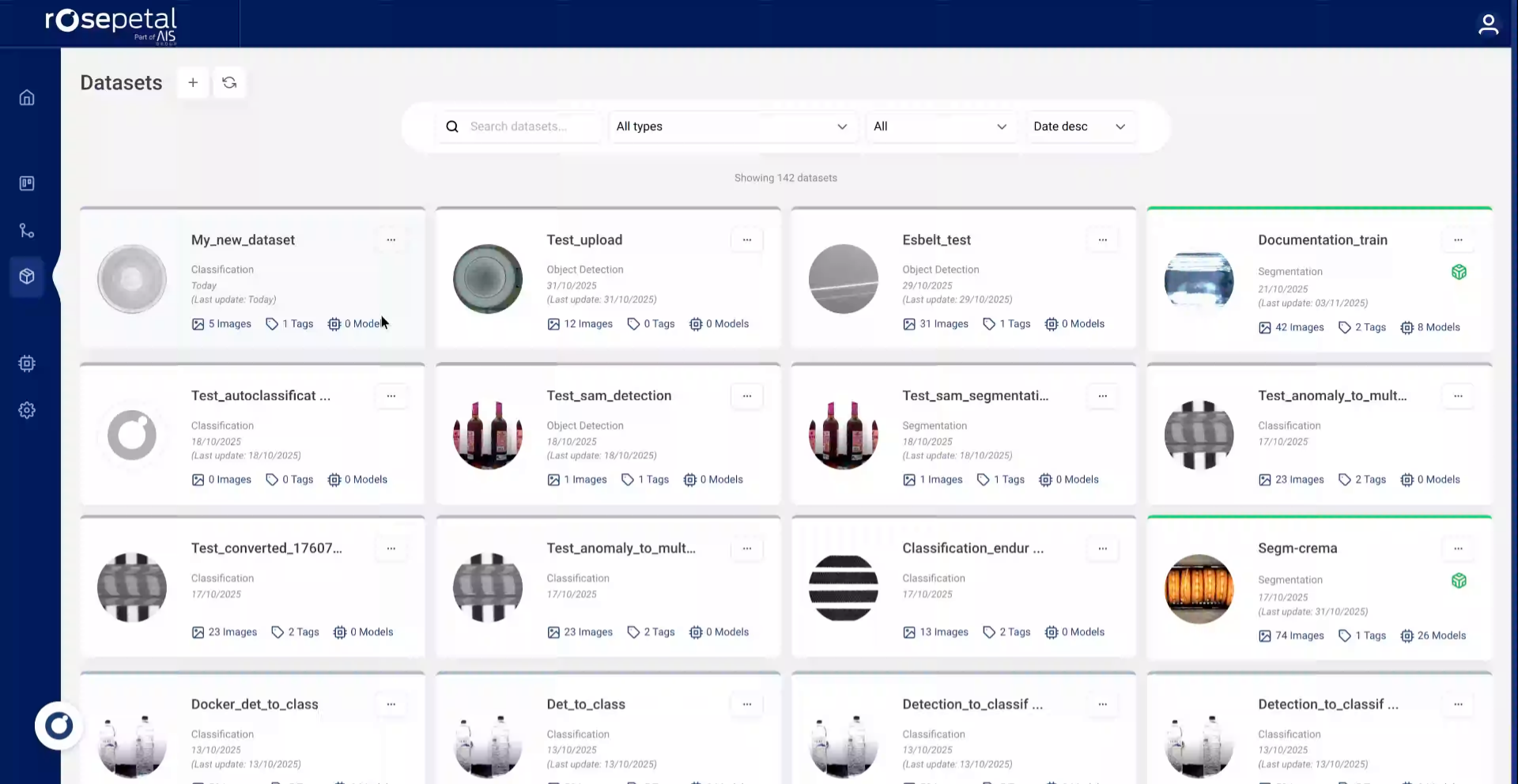
2. Open Dataset Menu
The first way to do that is by clicking the dataset menu in the Rosepetal application.
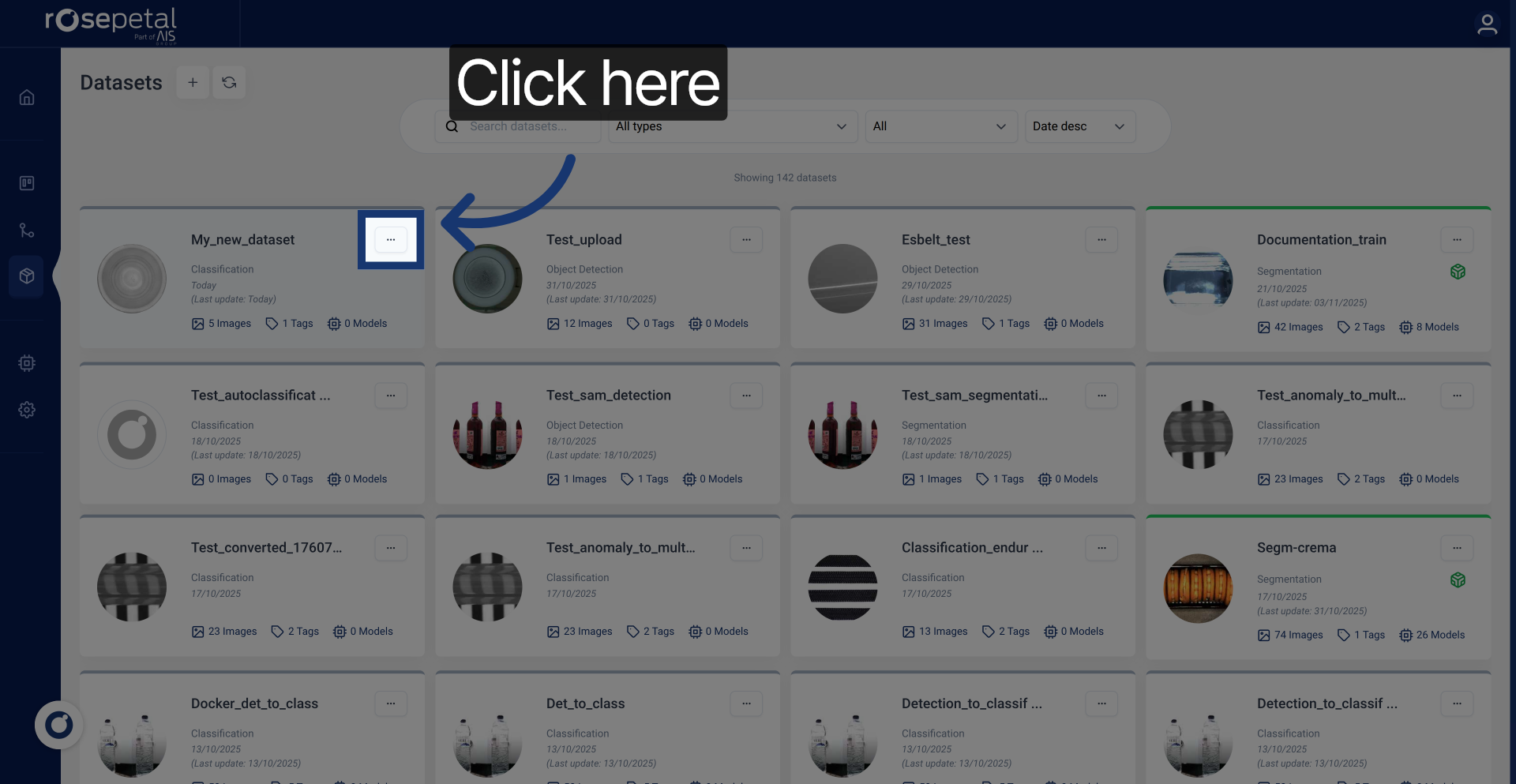
3. Access Download Options
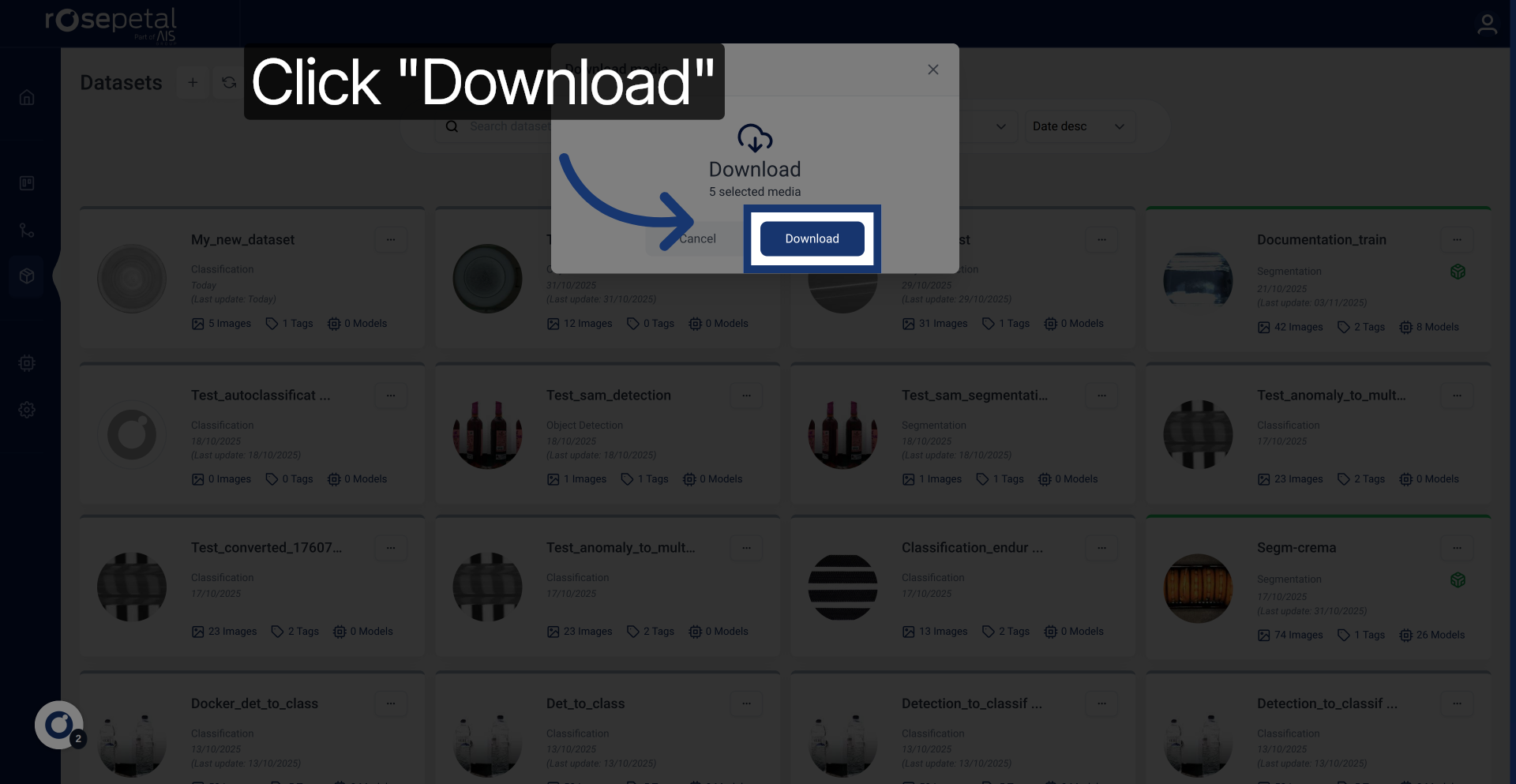
Click "Download" to access the dataset download options.
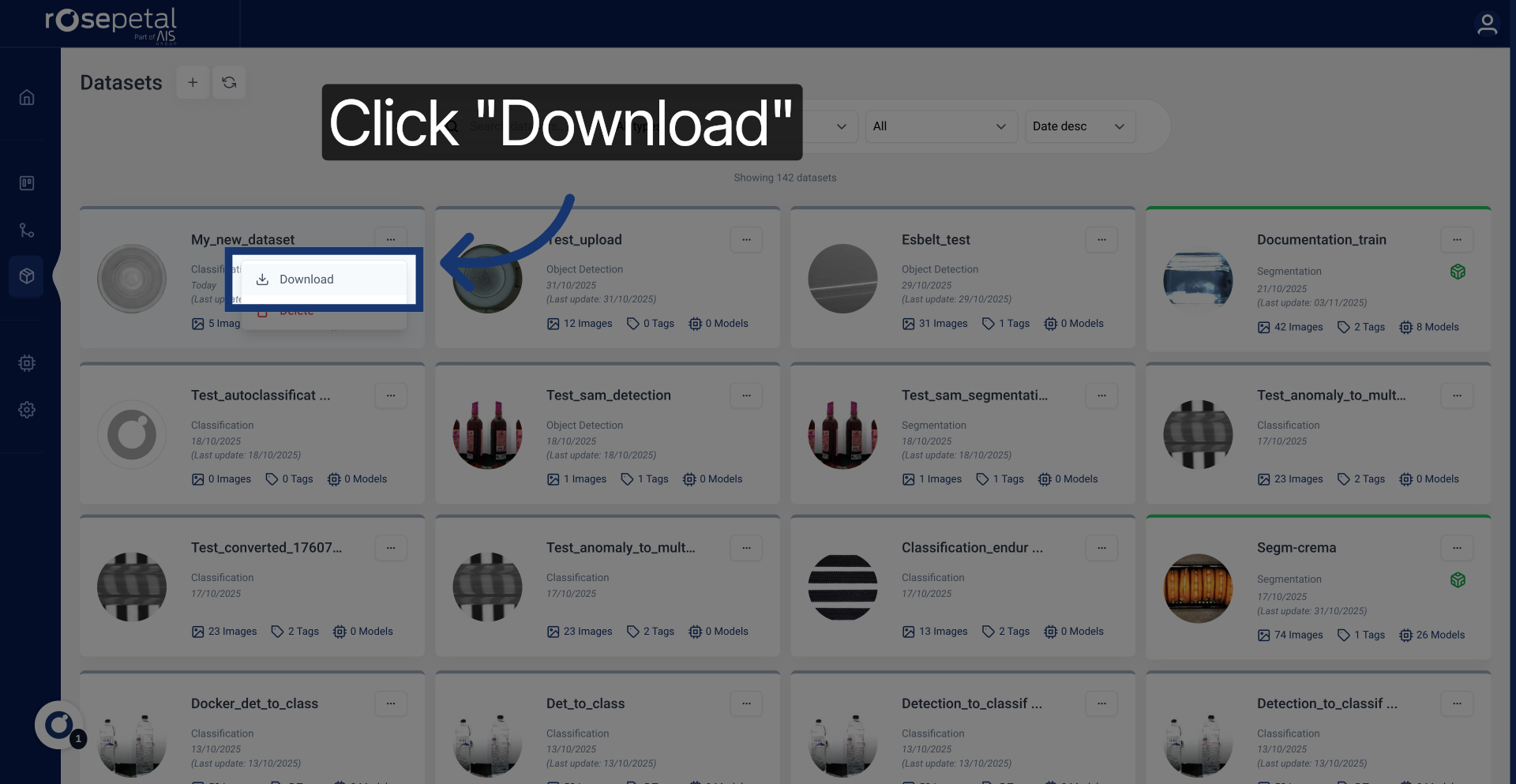
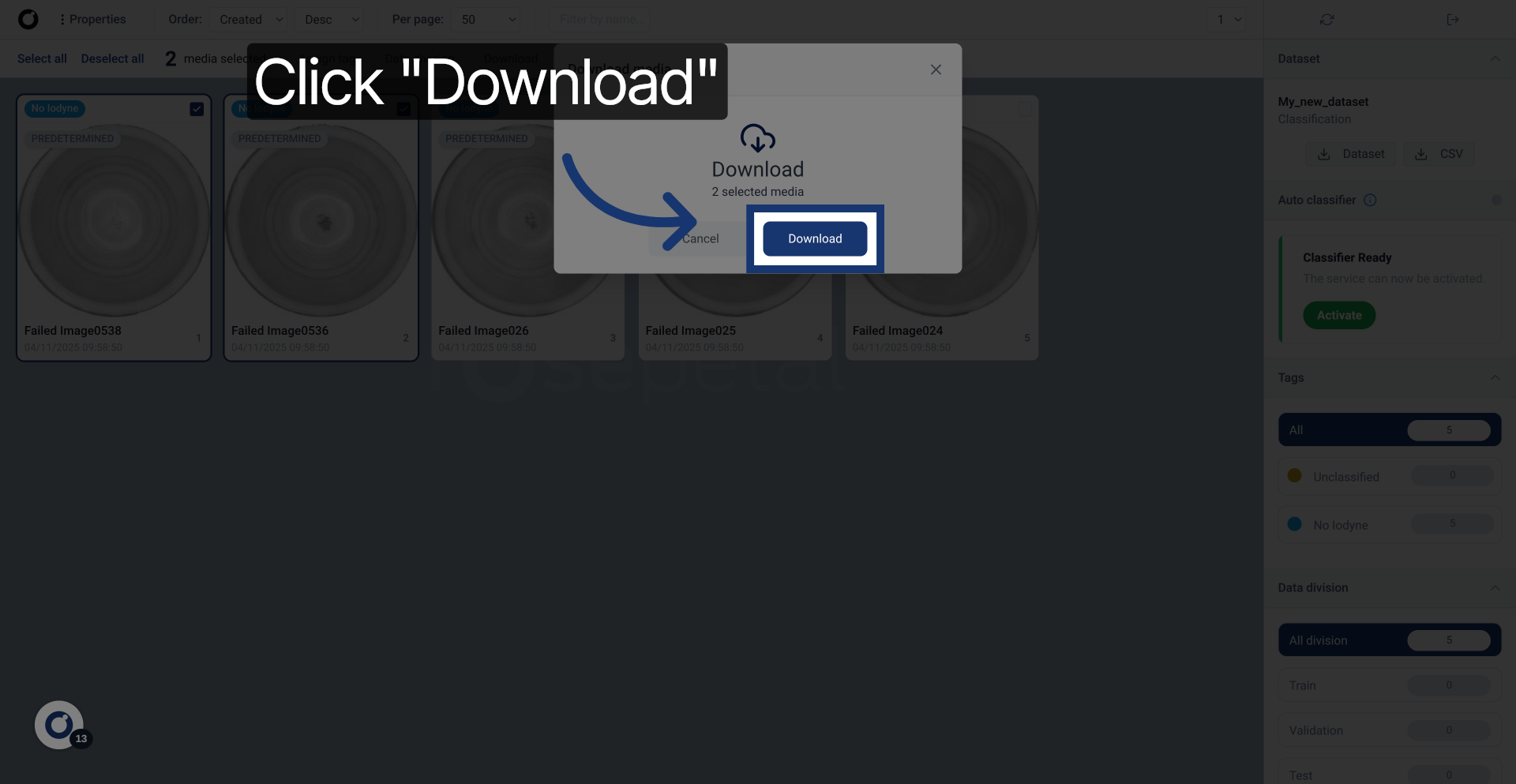
4. Confirm Download Selection
Confirm your selection and proceed.
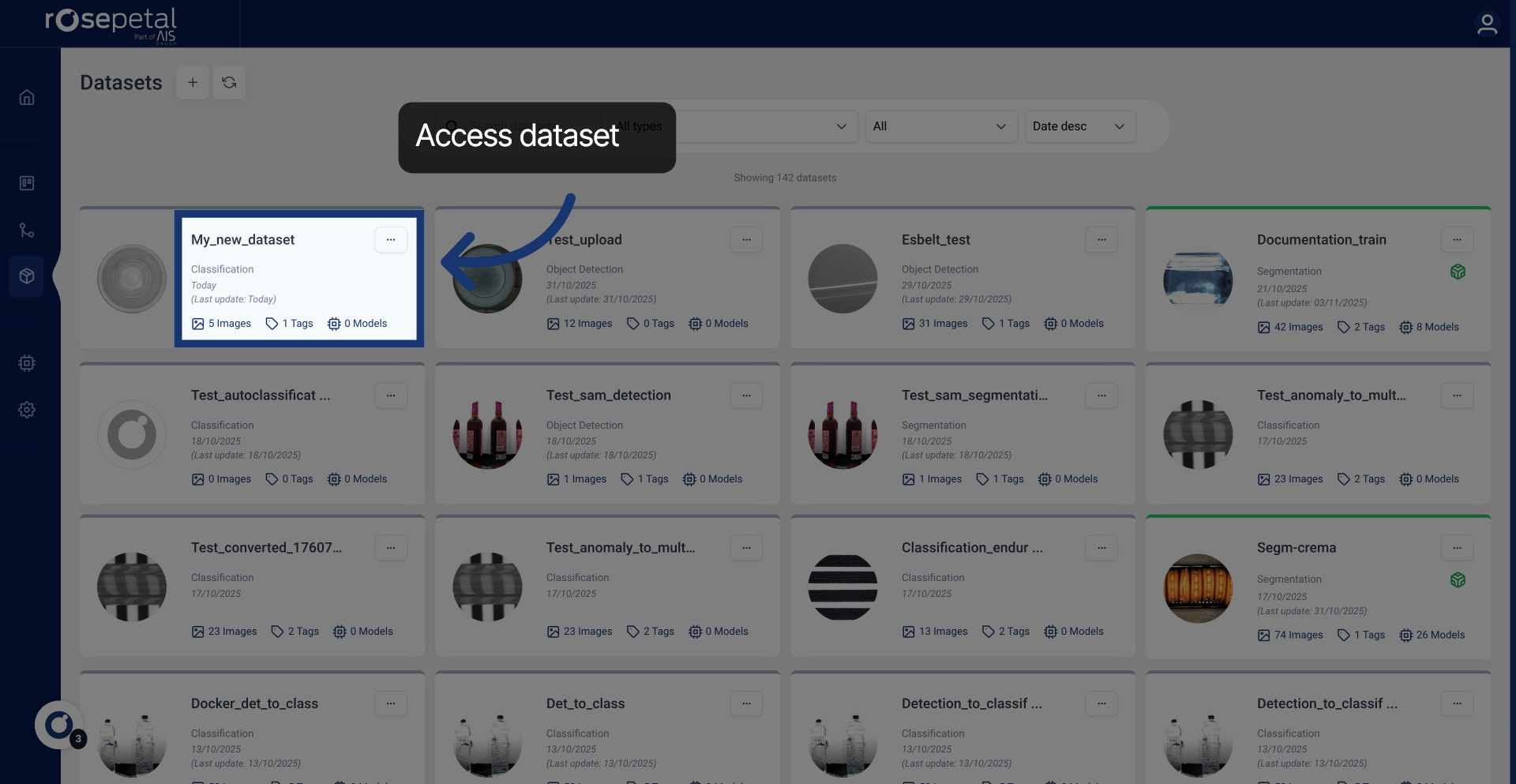
5. Select Dataset for Export
The second way is by entering the dataset and choose the the files you want to export.
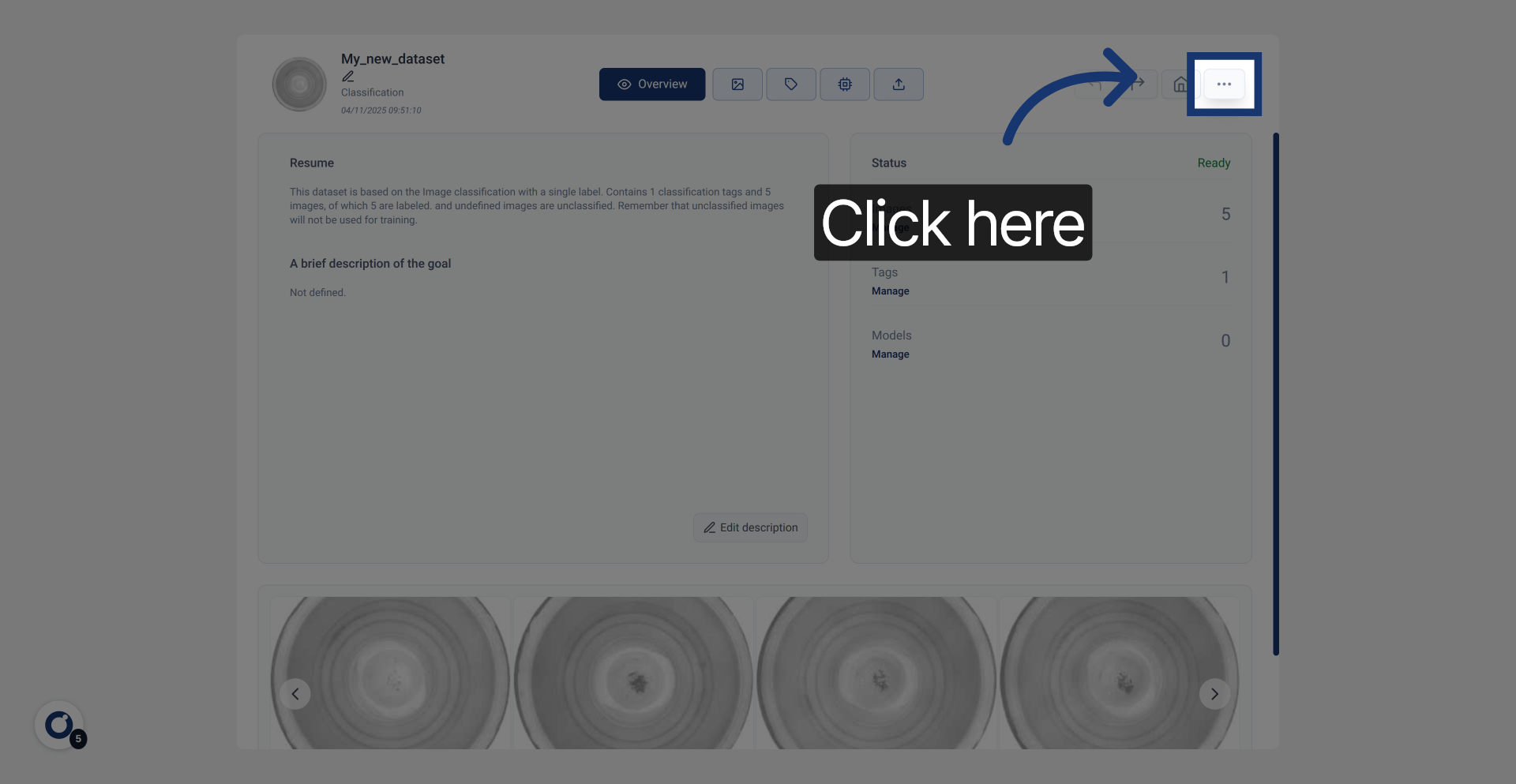
6. Access Additional Options
Click here to open additional options related to the dataset.
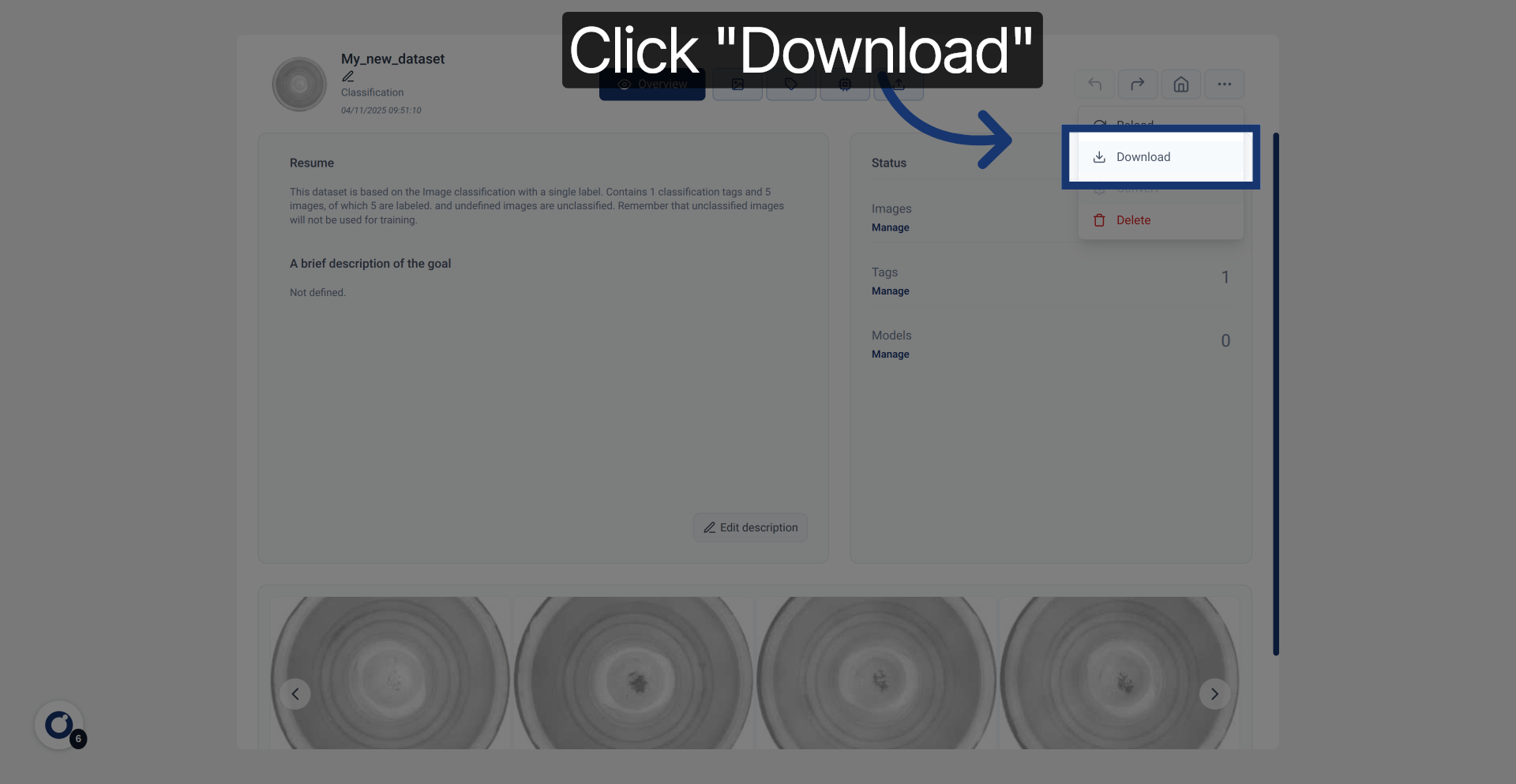
7. Initiate Dataset Download
Click "Download" to start the complete dataset download process.
8. Confirm Dataset Download
Confirm and proceed with downloading the dataset.
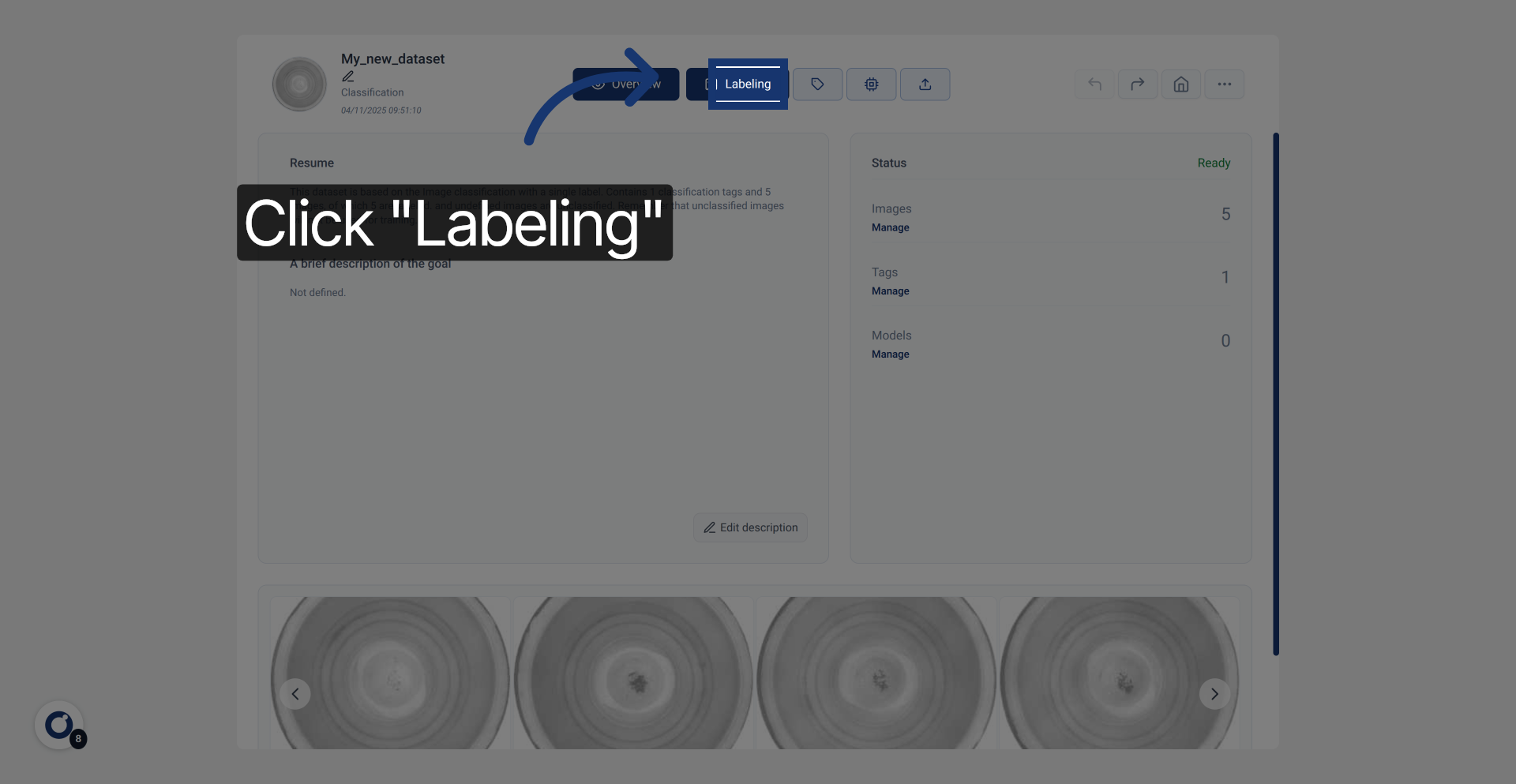
9. Navigate to Labeling Section
If you want to download only specific images, click "Labeling" to access the labeling section of the dataset.
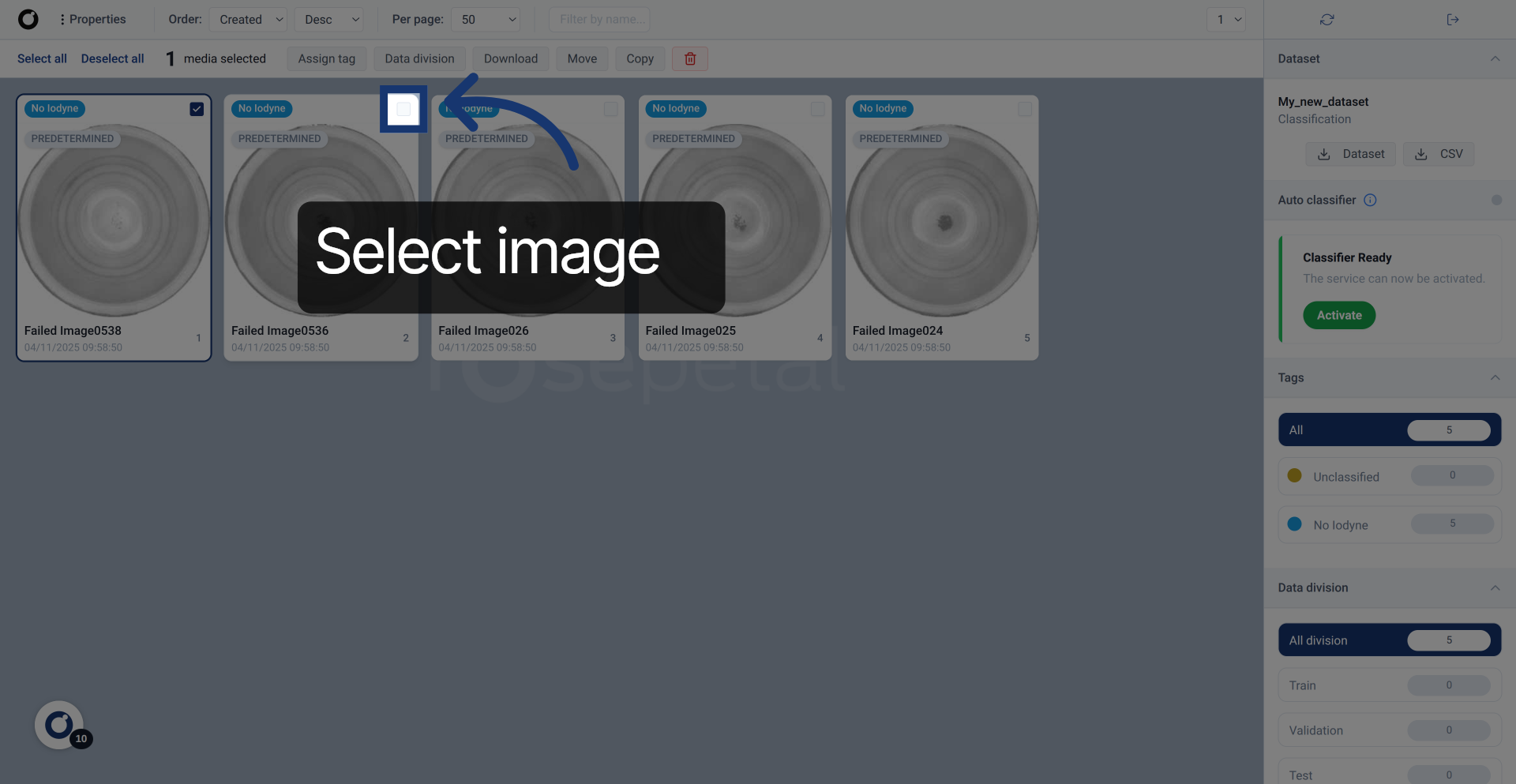
10. Choose Dataset Identifier
Select the images you want to download.
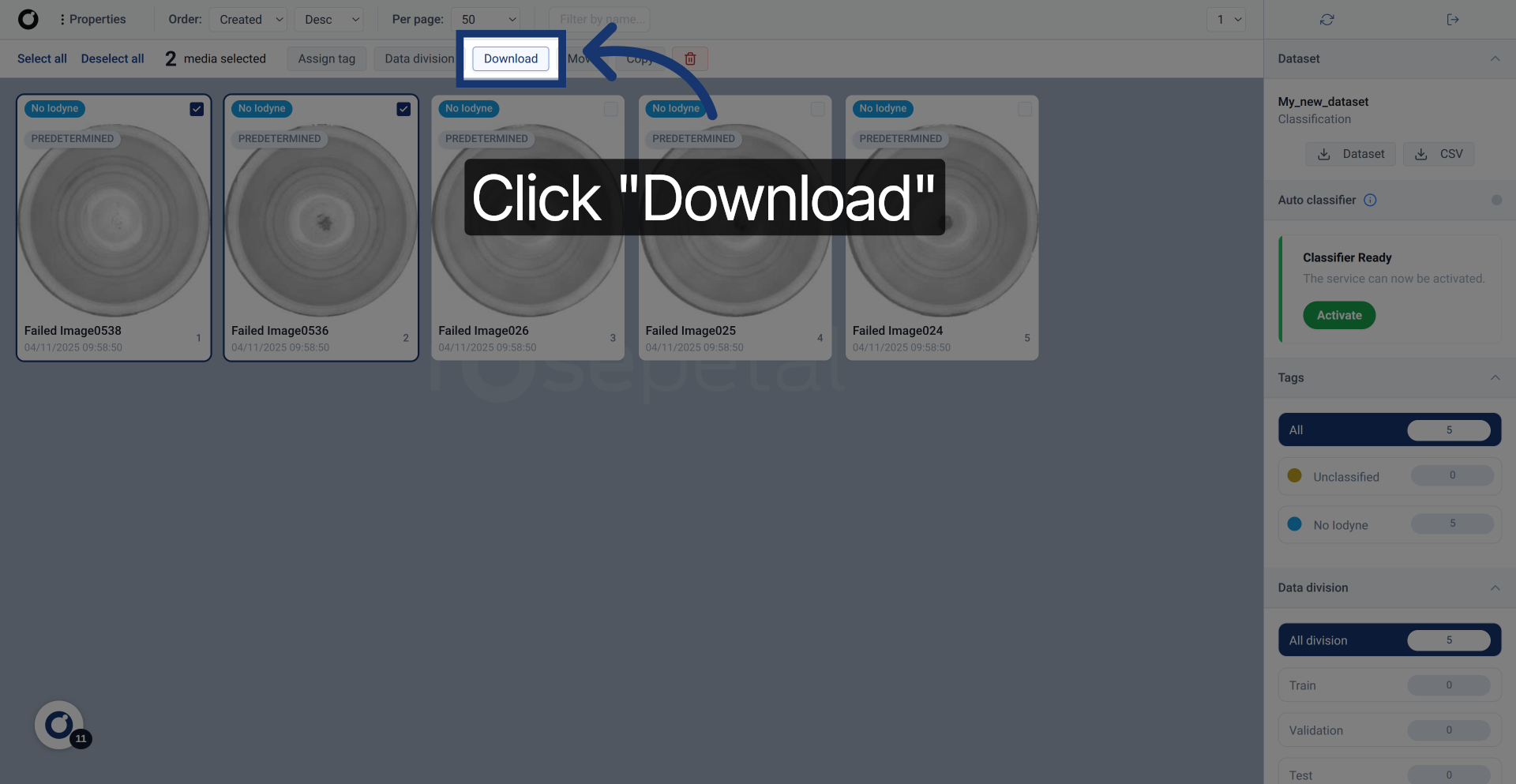
11. Start Final Download
Click "Download" to begin the download of the selected images.
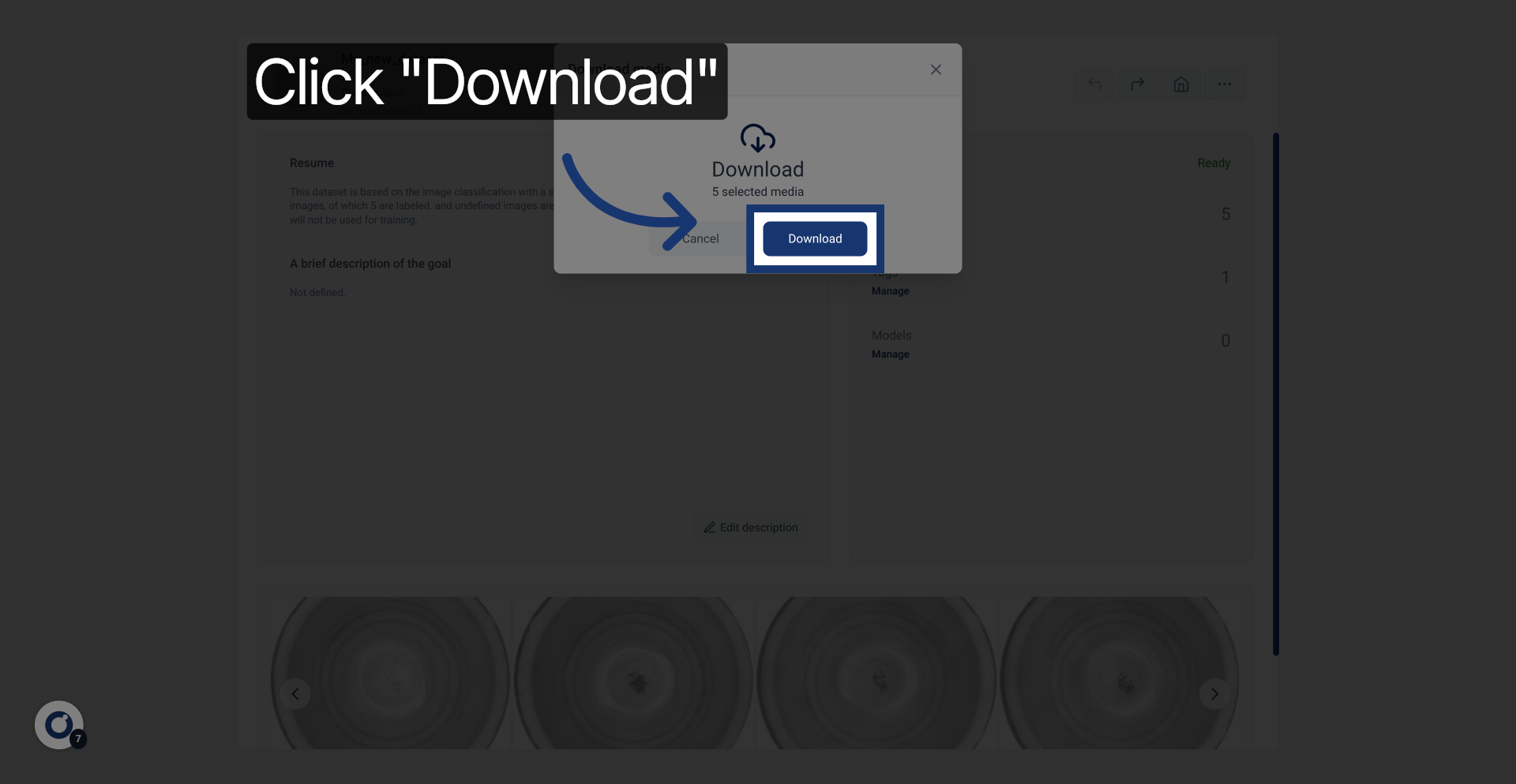
12. Complete Dataset Download
Finally confirm to complete the dataset export process.