

Follow long operations in the processes panel
Uploading many images, deleting a dataset or rewriting its tags takes a while. The platform shows the progress where the operation starts, lets it go on in the background while you keep working, lists it in the processes panel and tells you when it ends. In this guide you pause and resume an upload, follow it from the panel and delete a dataset in the background.
What you will learn
- How an upload shows its progress, and how to pause and resume it
- How to send a long operation to the background and keep working
- Where the processes panel is and what it shows
- Which notice tells you that an operation has ended
Before you start
You need a dataset. Uploading images is explained in Upload images to a dataset.
1. Choose the images
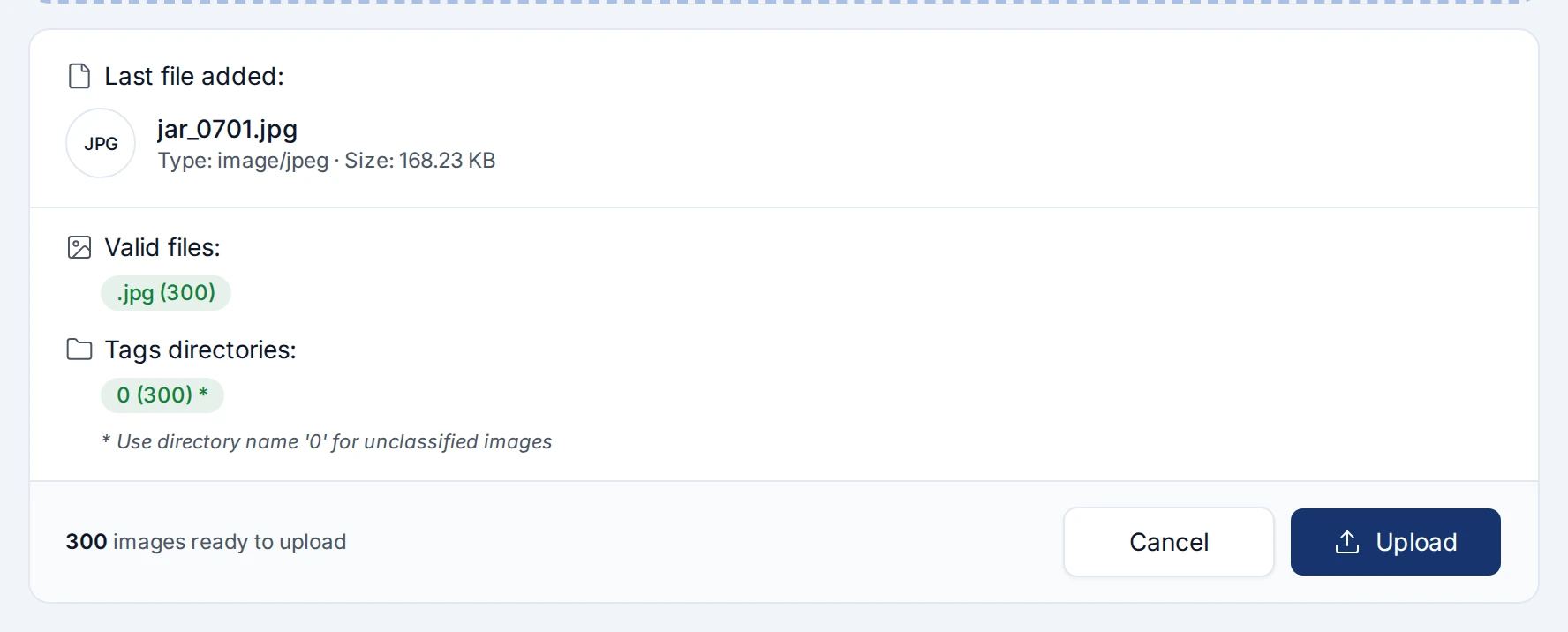
Open the dataset, go to the «Upload» tab and click «Select Files», or drop the images on the dashed area. Here the dataset already holds 700 images and 300 more are added: an upload of this size takes a while.
2. Start the upload
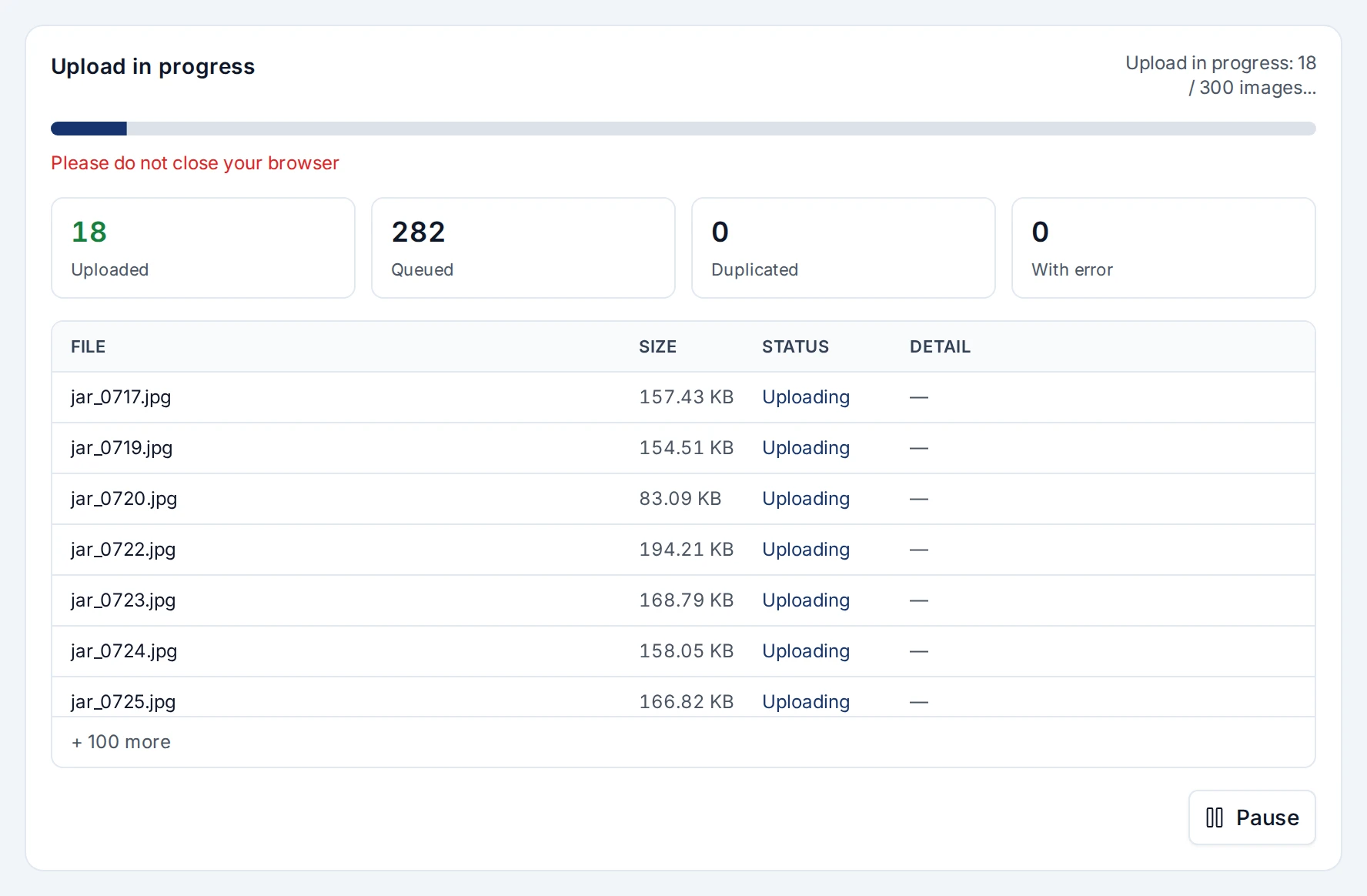
Click «Upload». The card «Upload in progress» shows a progress bar, how many images are uploaded, still queued, duplicated or with an error, and the state of each file. The images travel from your browser: keep it open until the upload ends.
3. Pause it
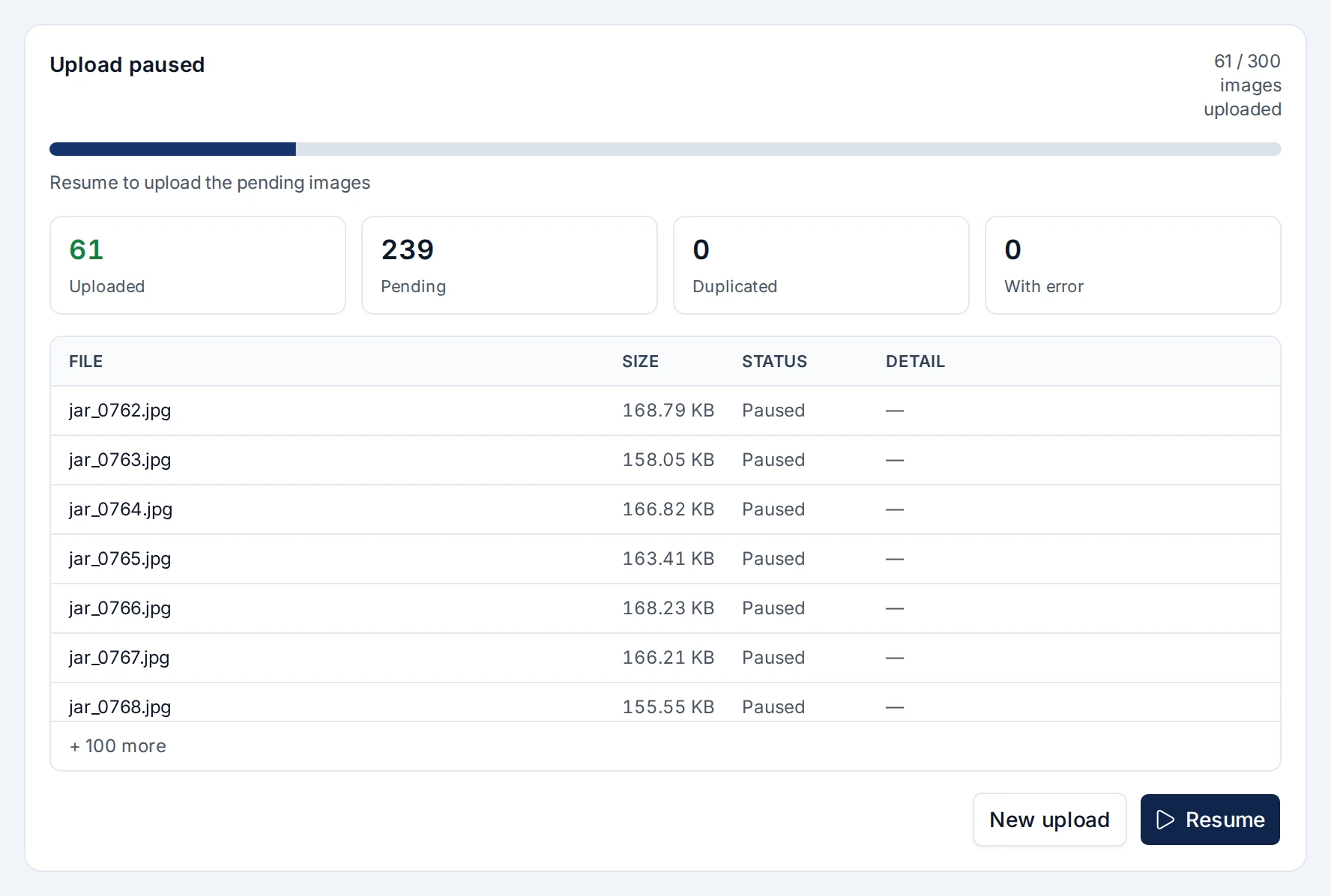
Click «Pause». The images already on their way finish first («Pausing...»); then the card reads «Upload paused» and counts the images still «Pending». Nothing is lost: the images uploaded so far stay in the dataset.
4. Resume it
Click «Resume» to go on. Only the images that were still pending are sent.
5. Keep working meanwhile
You do not have to wait on the «Upload» tab. Open another tab of the dataset, or another part of the platform: the upload goes on in the background, and a round button appears at the bottom right of the screen. Back in the «Upload» tab, the card shows the upload again. Do not close or reload the browser while it runs: the images are sent from it.
6. Open the processes panel
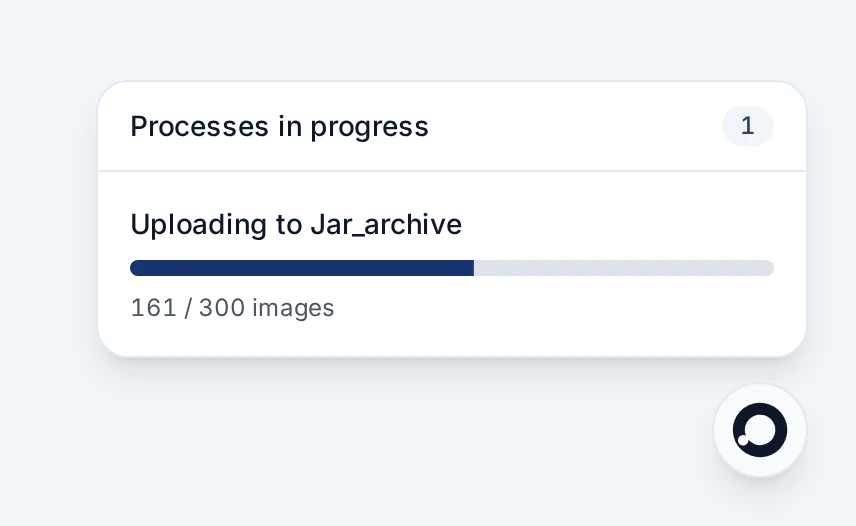
Click the round button at the bottom right. The panel «Processes in progress» lists what is running in the background, here «Uploading to Jar_archive», each with its bar and its count of images. With more than one running, a number on the button says how many. Click anywhere else to close the panel.
7. Wait for the notice
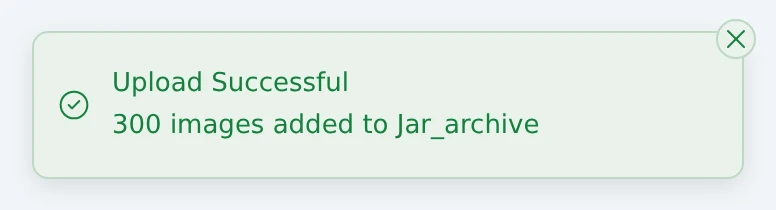
When the upload ends, it leaves the panel, the round button goes away when nothing else is running, and a notice at the bottom right says «Upload Successful» and how many images were added to which dataset. When some images fail, the notice says how many.
8. Delete the dataset
Other long operations work the same way. To delete the dataset, open «More options», at the top right, and click «Delete».
9. Confirm with its ID
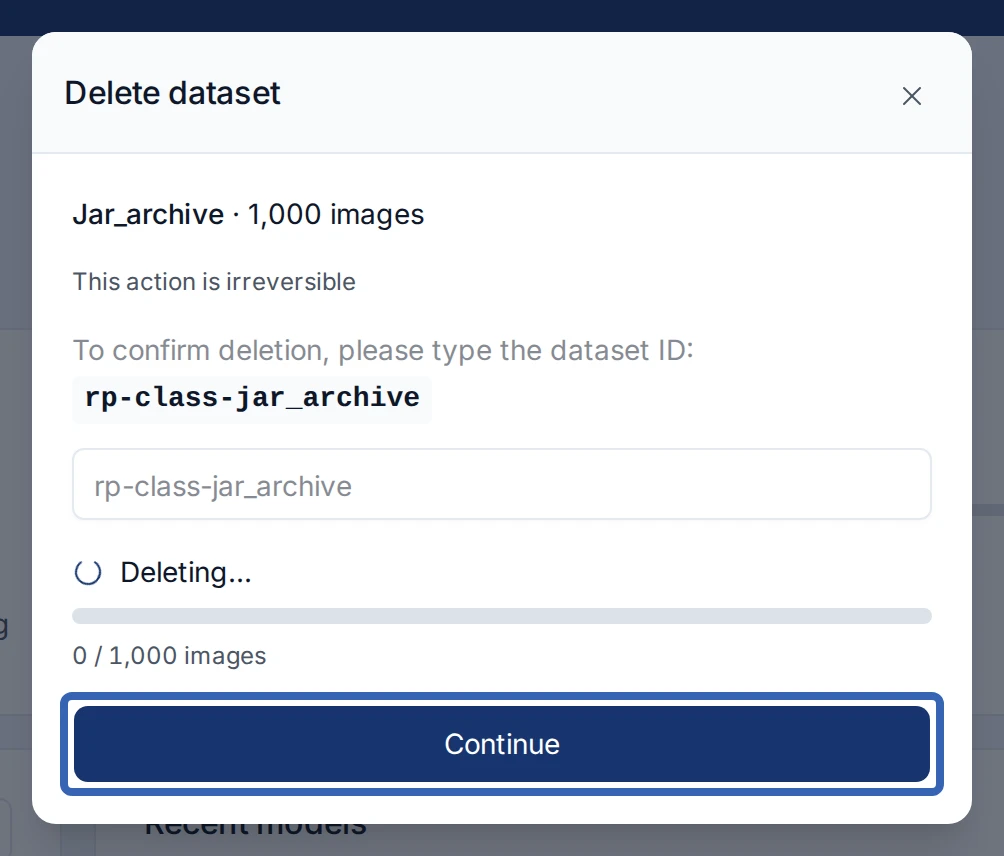
Type the ID of the dataset, shown above the field, and click «Delete».
10. Send it to the background
The dialog now shows a bar with the images deleted so far. You can wait, or click «Continue» (or close the dialog): the deletion goes on in the background. It runs on the server, so it also goes on if you reload or close the page; the panel shows it again when you come back in the same browser.
11. Follow it in the panel
Open the processes panel again: it follows the deletion, «Deleting Jar_archive», with the images deleted so far.

12. Read the notice at the end
When the deletion ends, a notice says «Dataset successfully deleted», with the name of the dataset. If you were still inside the dataset, the platform takes you back to the list of datasets.

Other long operations
The same progress, the same «Continue» and the same panel come with every operation that can take a while:
- Tags. Renaming a tag, combining tags, deleting a tag and clearing annotations rewrite every image that carries them.
- Images. Copying, moving or deleting many images, and changing the tag, group, division or review status of a selection.
- Downloads. While «Download» prepares the ZIP of a dataset, the panel lists it as «Preparing the ZIP of …» with a button to cancel it.
The panel only lists the operations started in your browser; what other people are doing in the project is not shown there.
Next steps
Recorded on Rosepetal release 1.8.15.