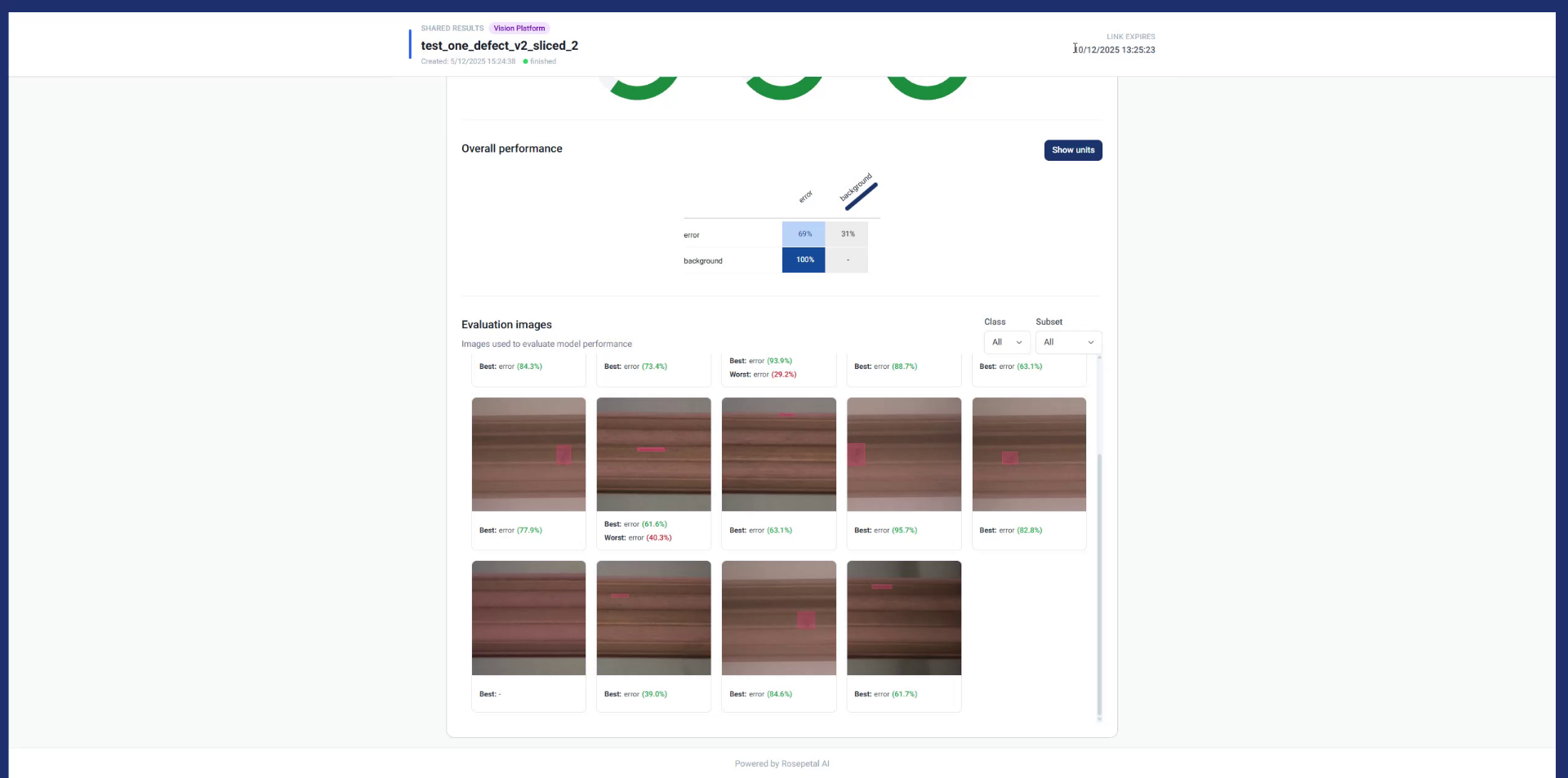
Share Model Results Using Rosepetal Platform
This tutorial explains how to share model results using the Rosepetal platform
Go to dev.rosepetal.ai
1. Introduction
You will learn to create and manage shareable links for easy collaboration without requiring login.
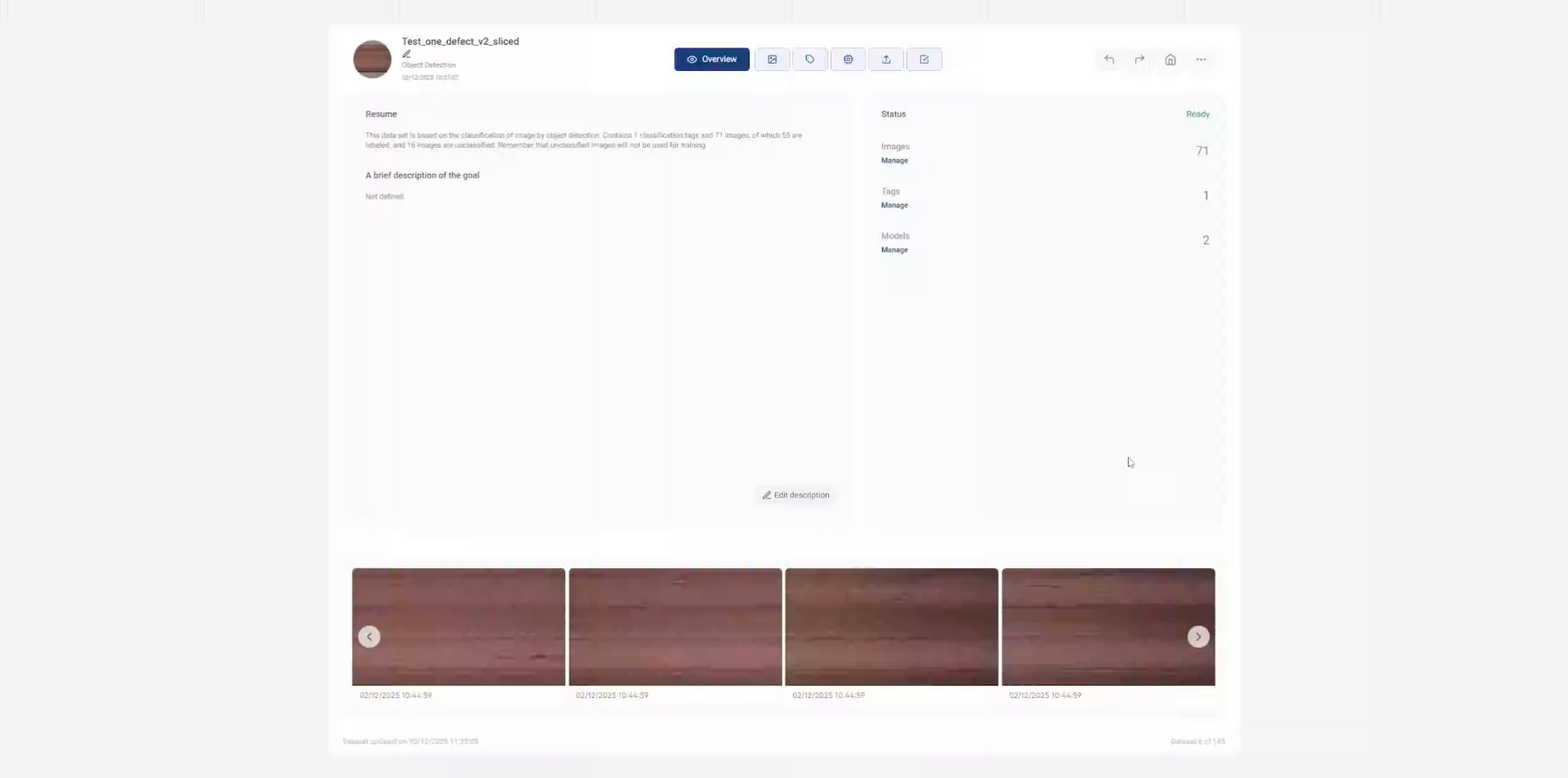
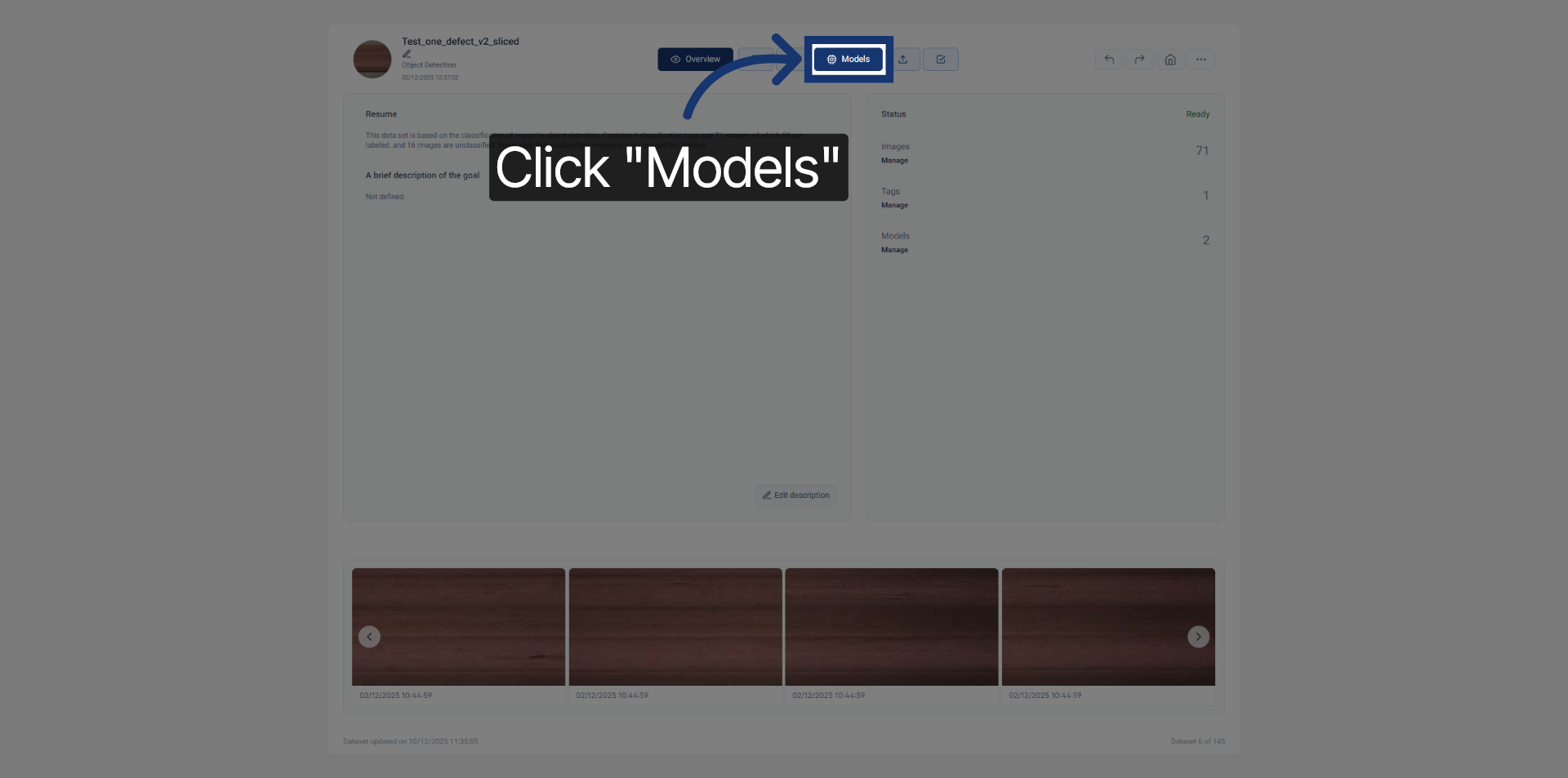
2. Navigate to Models Section
Click "Models" to access the list of available models for your project.
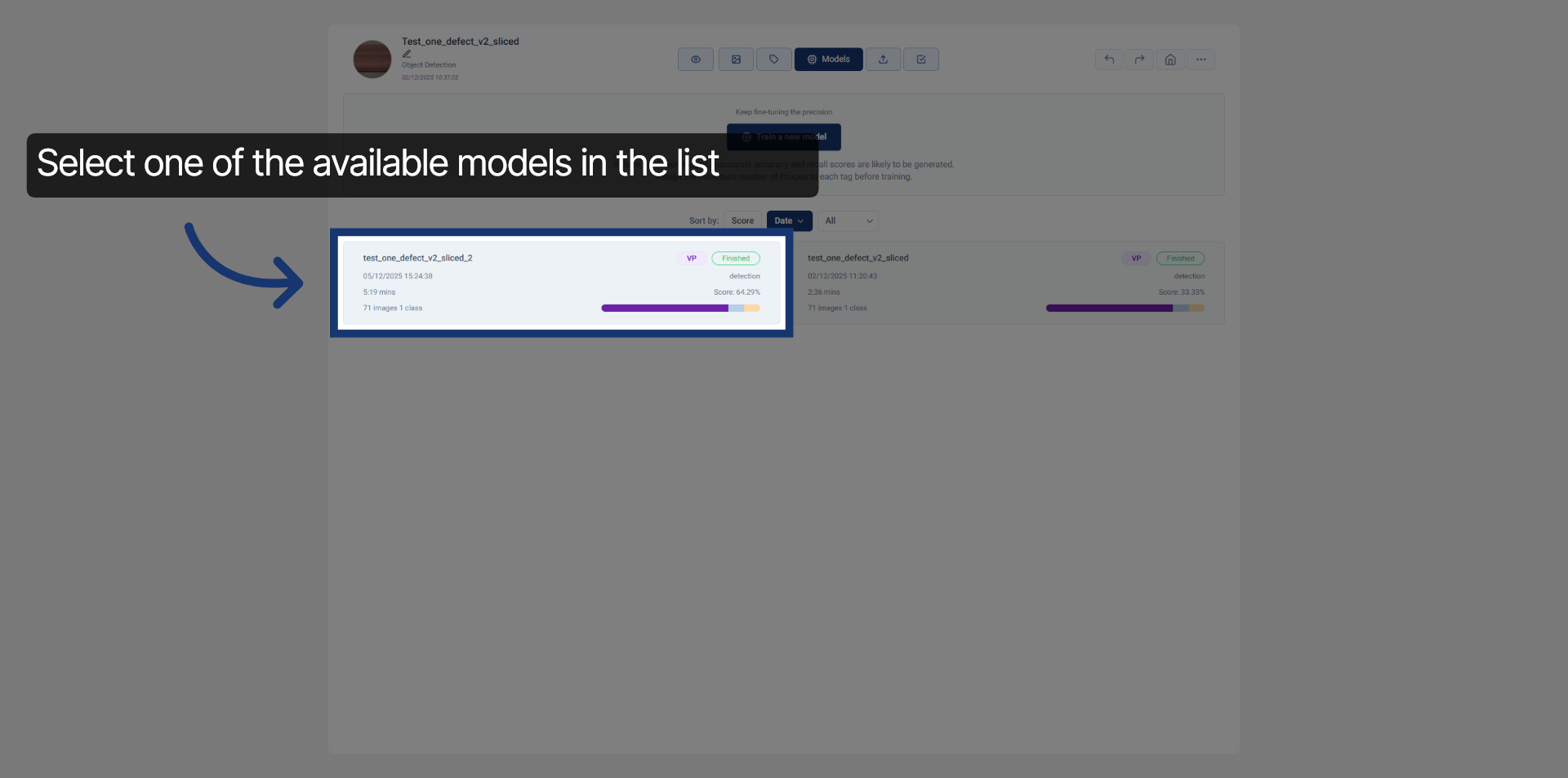
3. Choose Specific Model
Select one of the available models in the list
4. Access Sharing Options
Click here to open the sharing options for the model results.
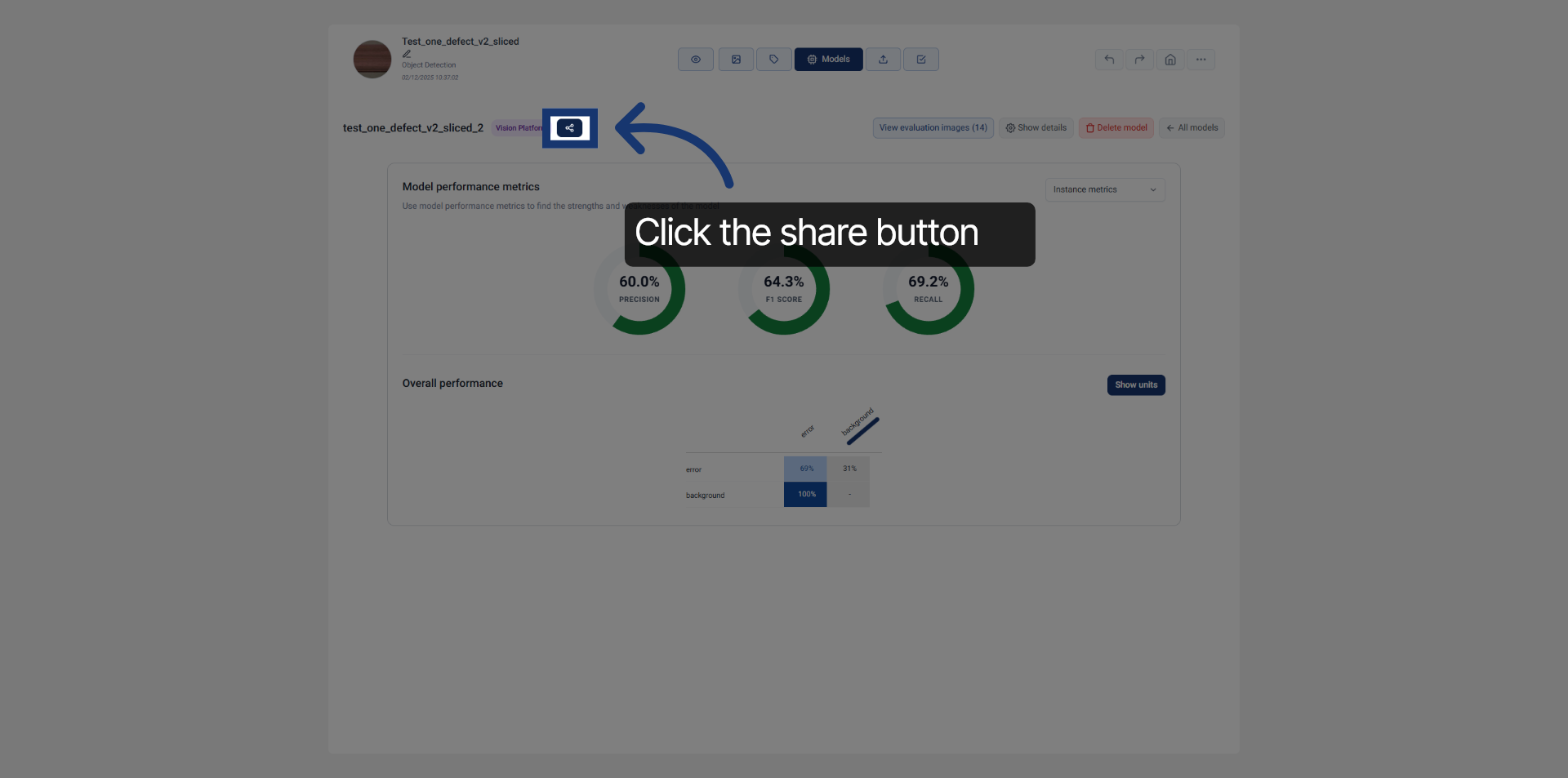
5. Initiate Shareable Link Creation
A dialog will open with the sharing options available.
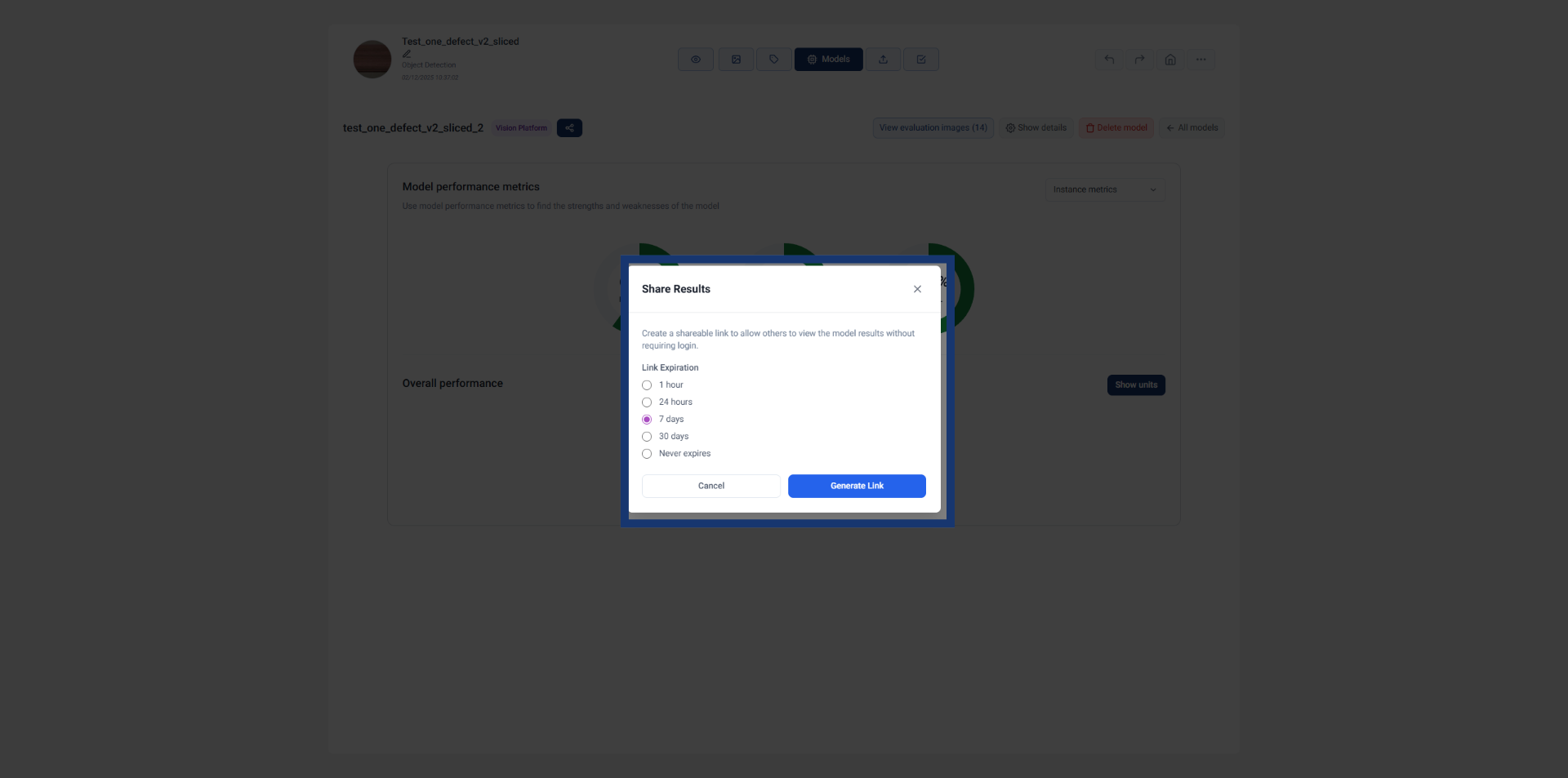
6. Select Link Expiration
Select the amount of time you want the results link to stay available.
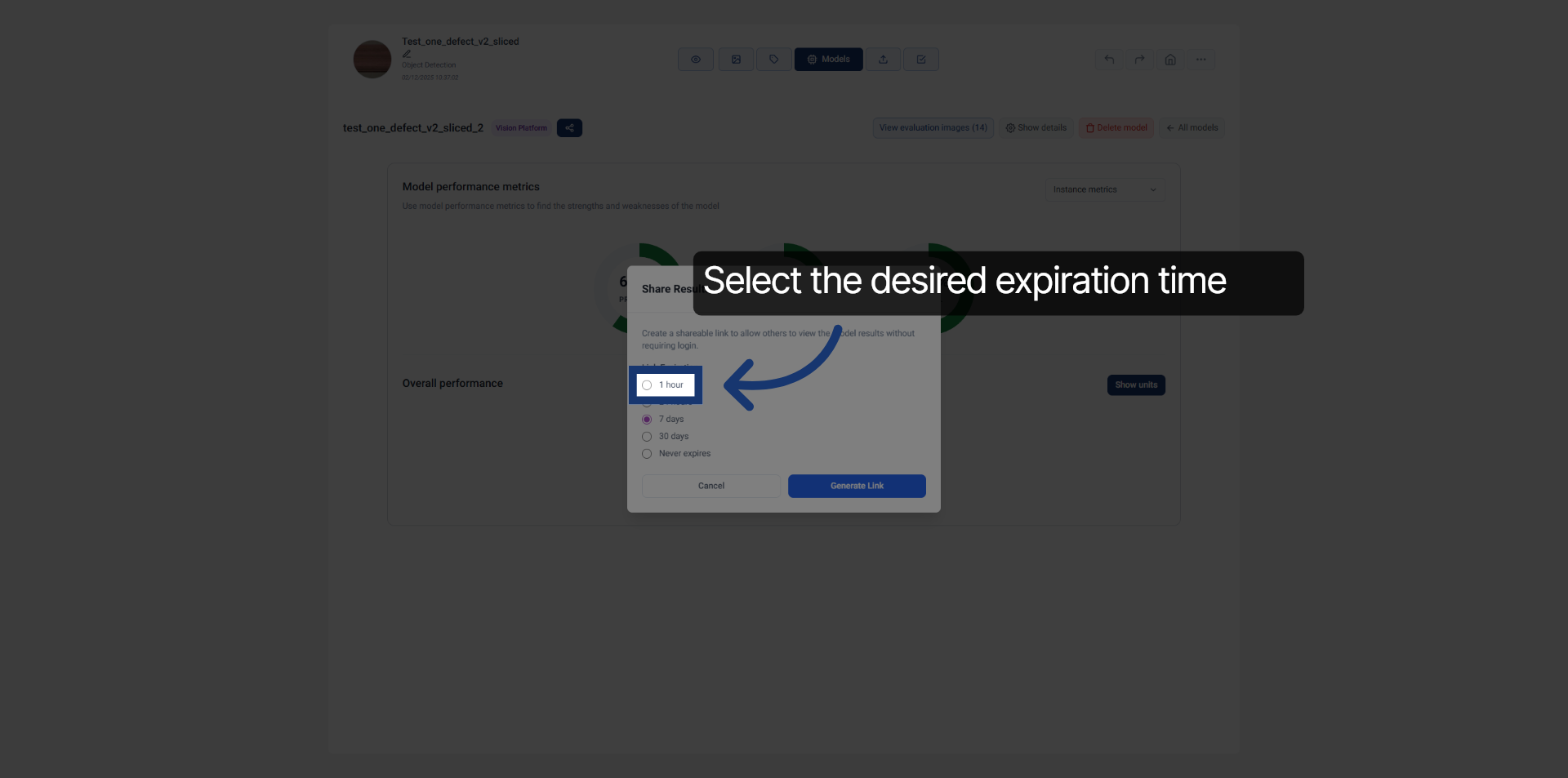
7. Confirm Expiration Duration
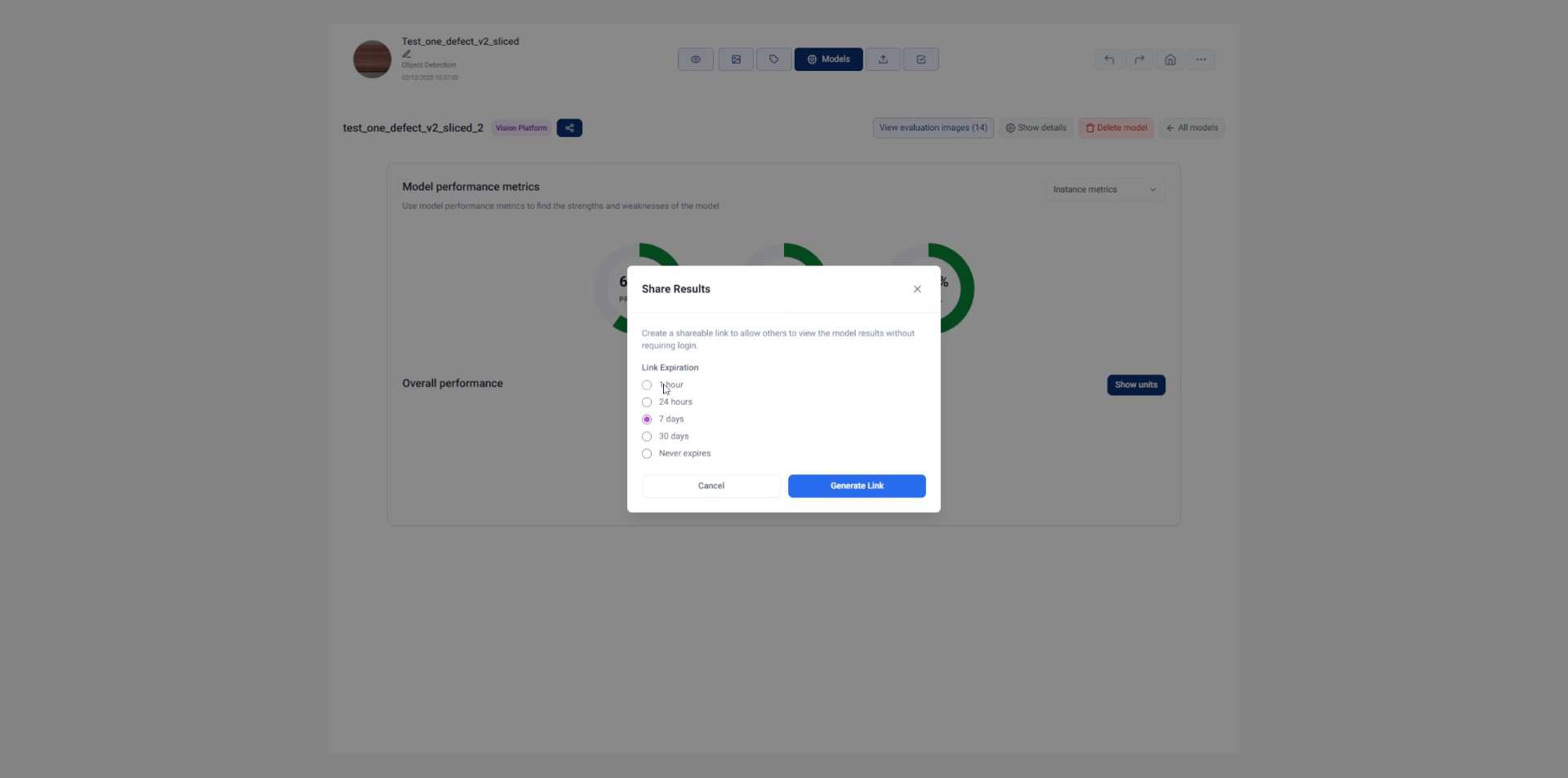
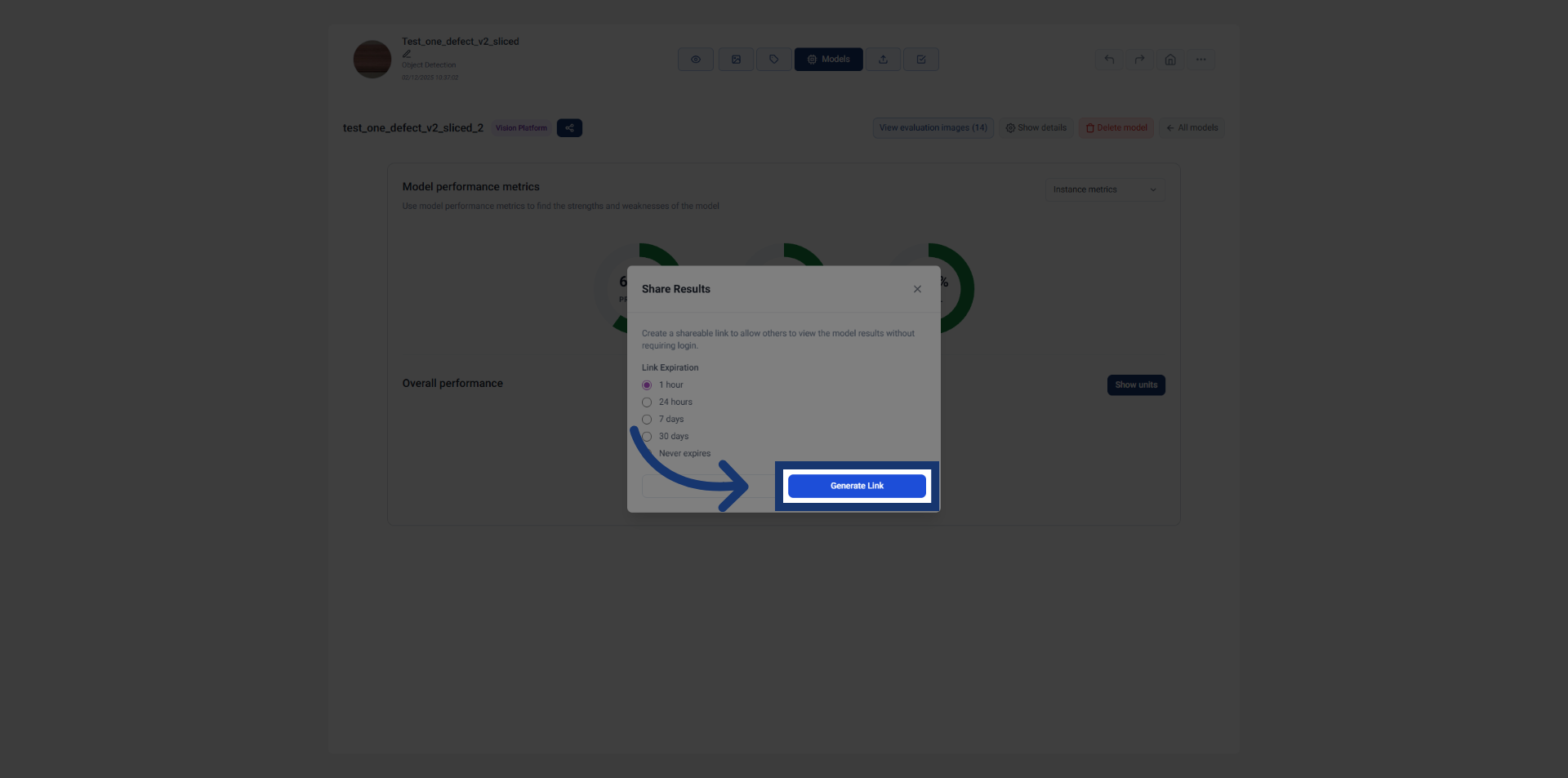
8. Generate Shareable Link
Once selected, click "Generate Link" to create the shareable link for the model results.
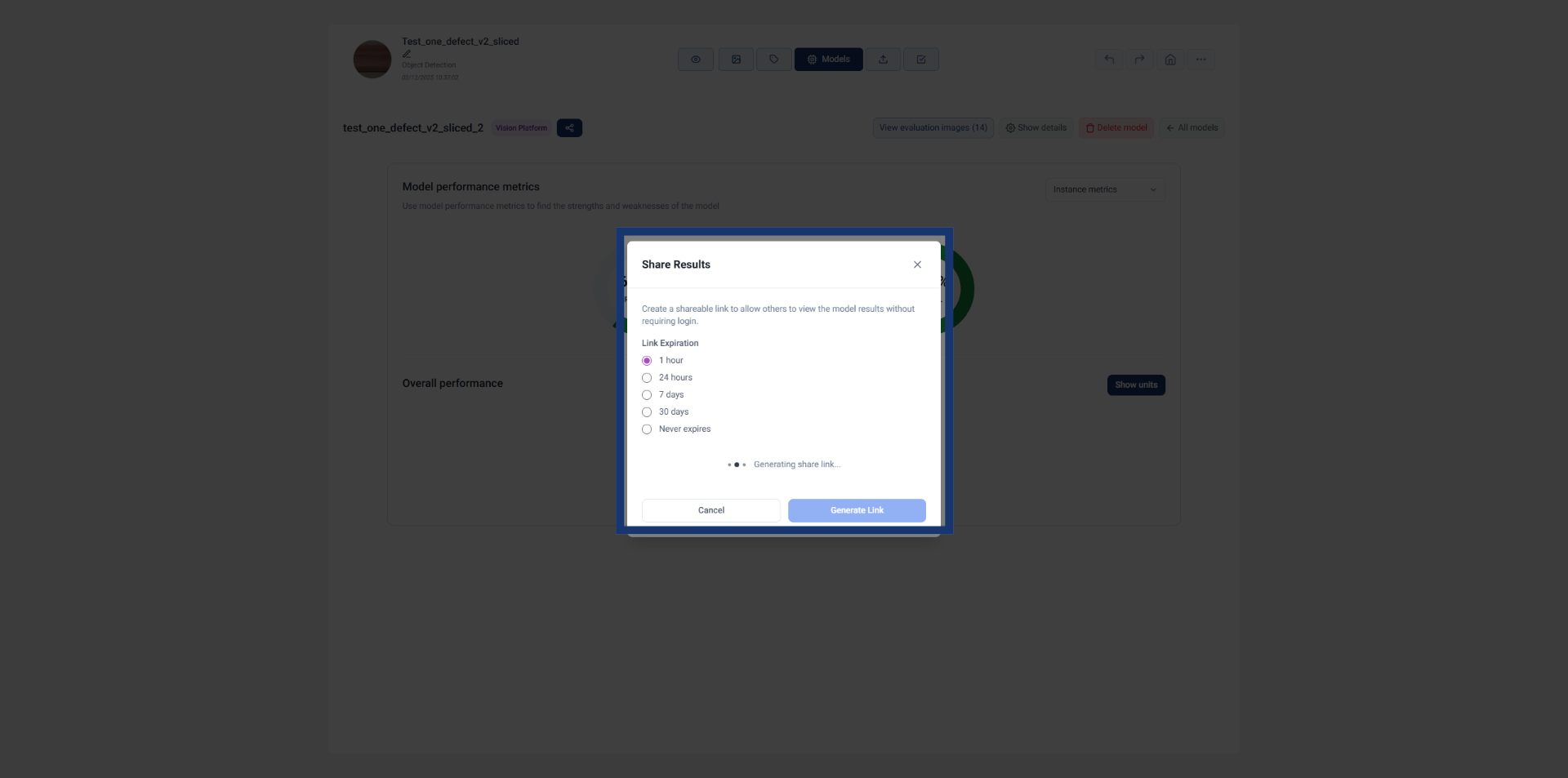
9. Wait for Link Generation
Wait while the link is being generated.
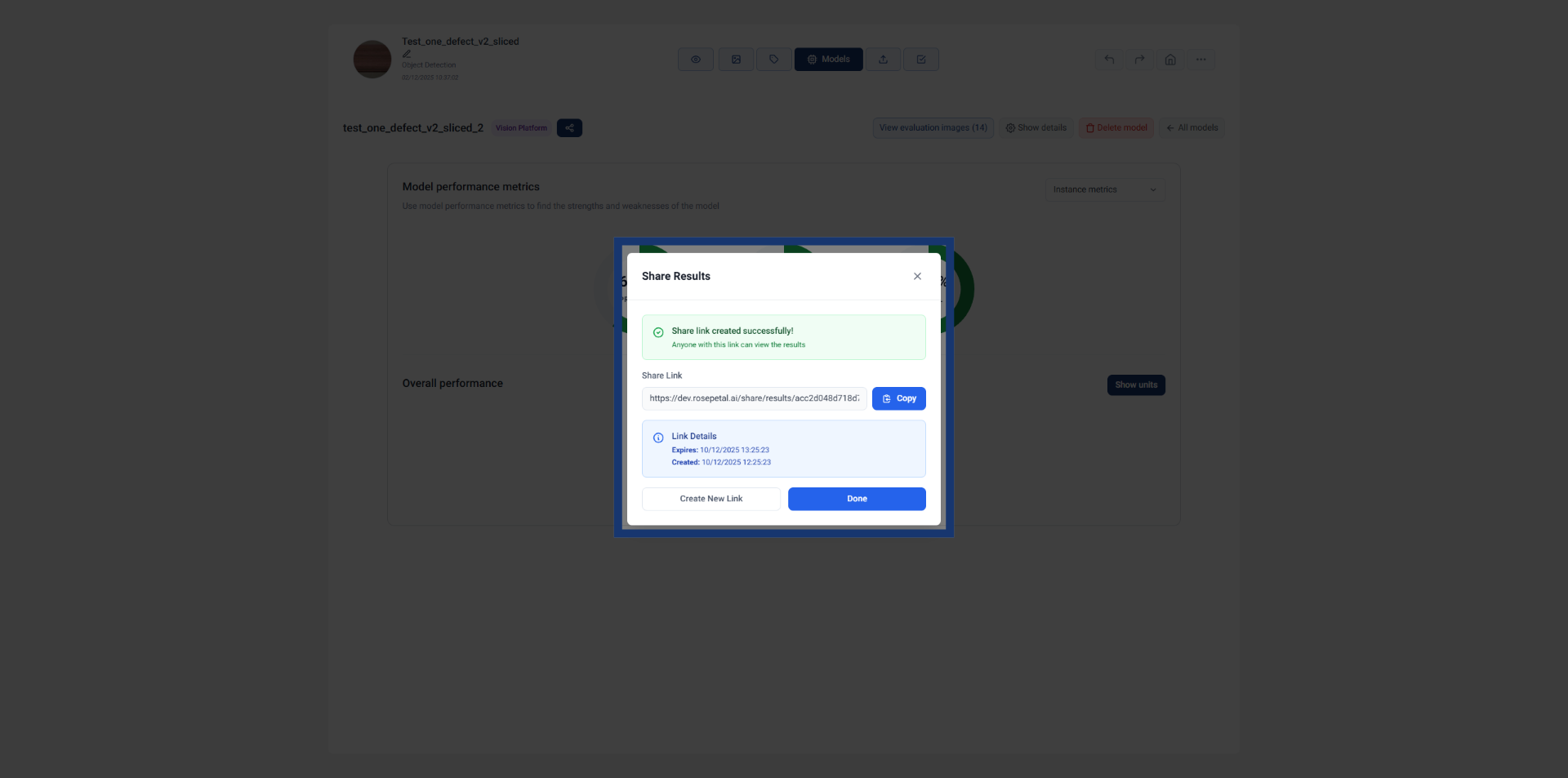
10. Confirm Link Creation
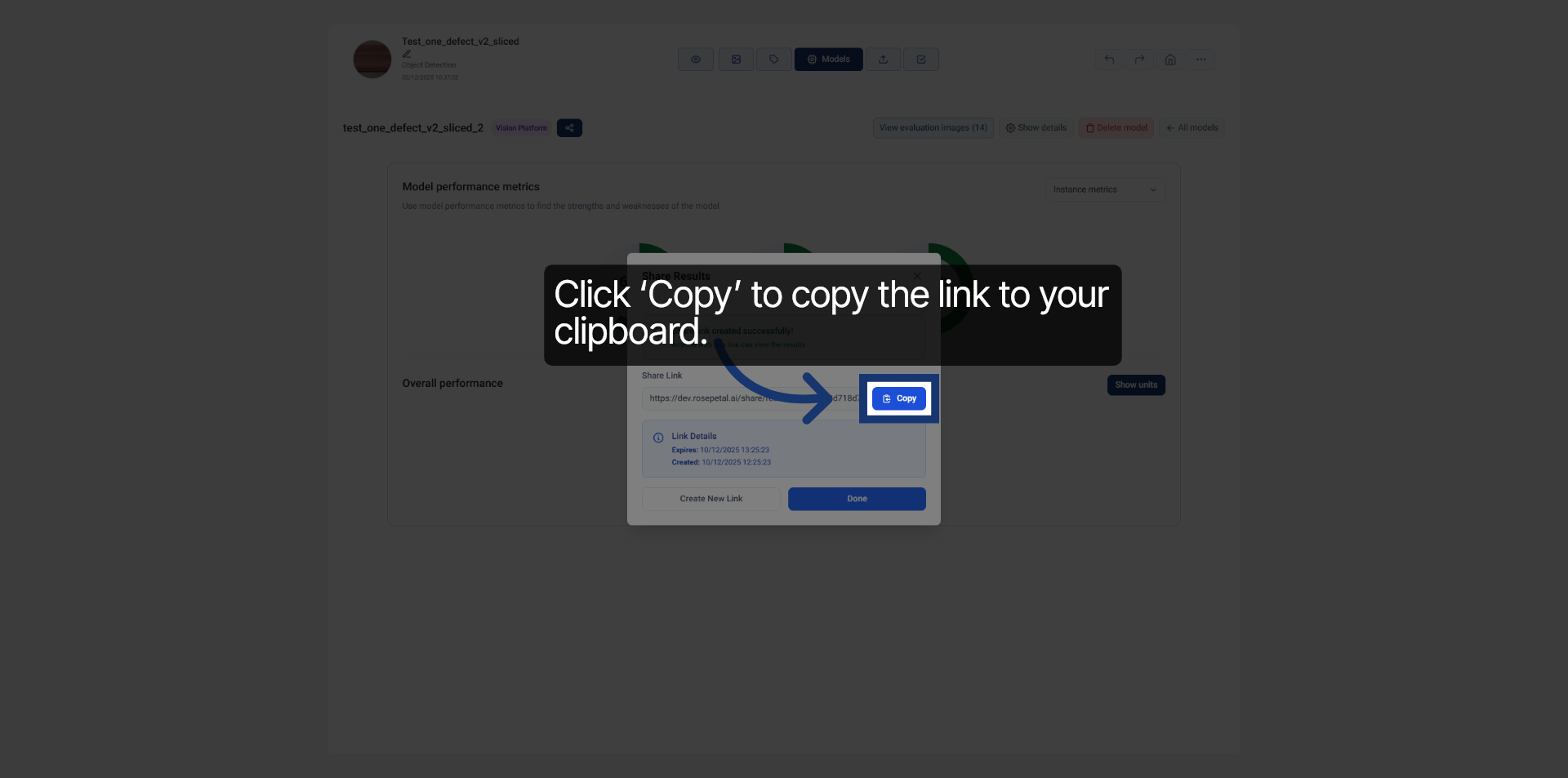
11. Copy Shareable Link
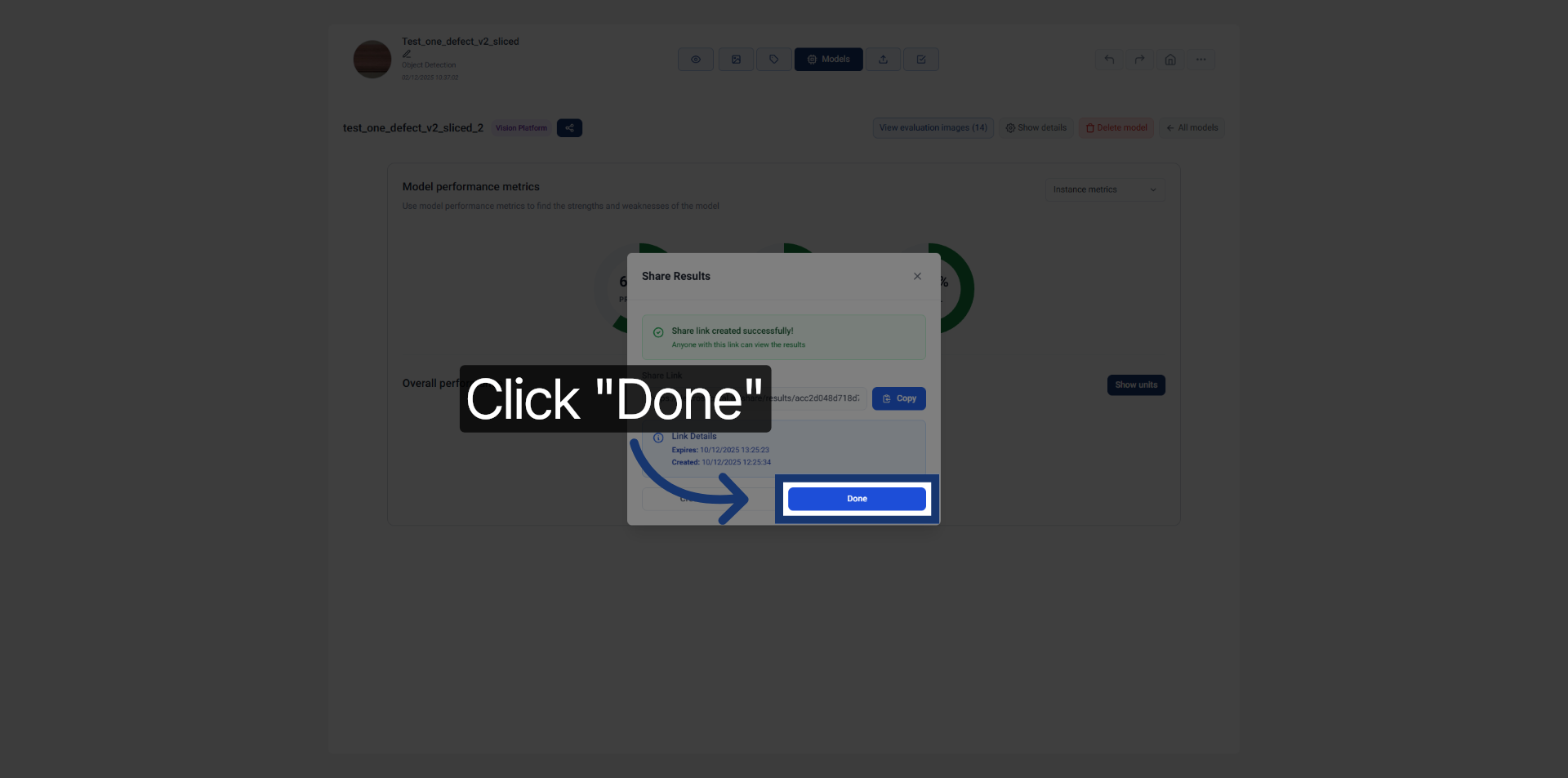
After the link is generated, click ‘Copy’ to copy it to your clipboard.
12. Complete Sharing Process
Click "Done" to finish the shareable link creation process.
13. Results review (1)
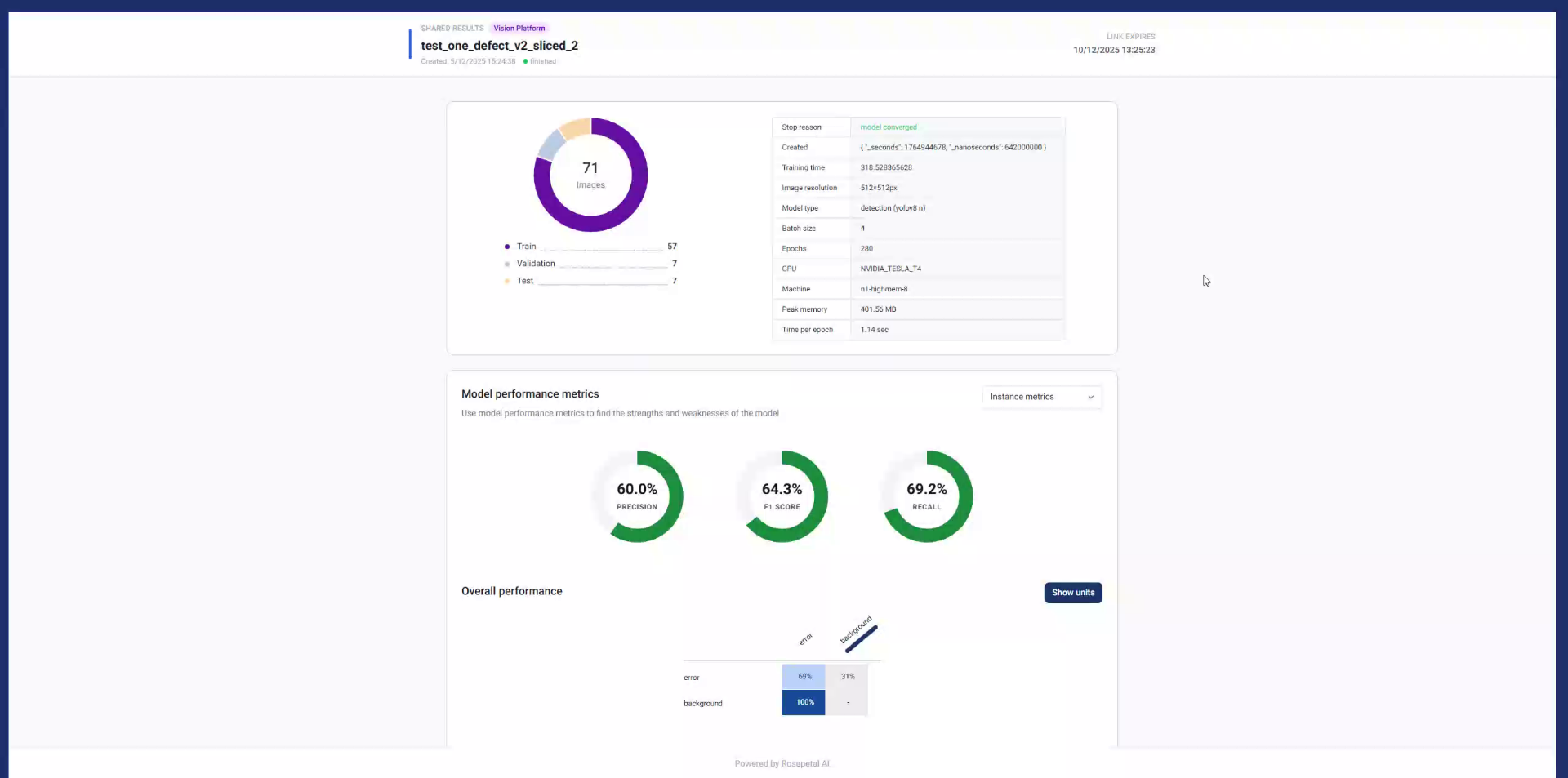
Once you copy the link in your browser, you will be able to view the model’s results just like in the interface, without needing to log in. You can share this link with others so they can see the results as well.
14. Results review (2) (2)
Once you copy the link in your browser, you will be able to view the model’s results just like in the interface, without needing to log in. You can share this link with others so they can see the results as well.