

Image Dialog
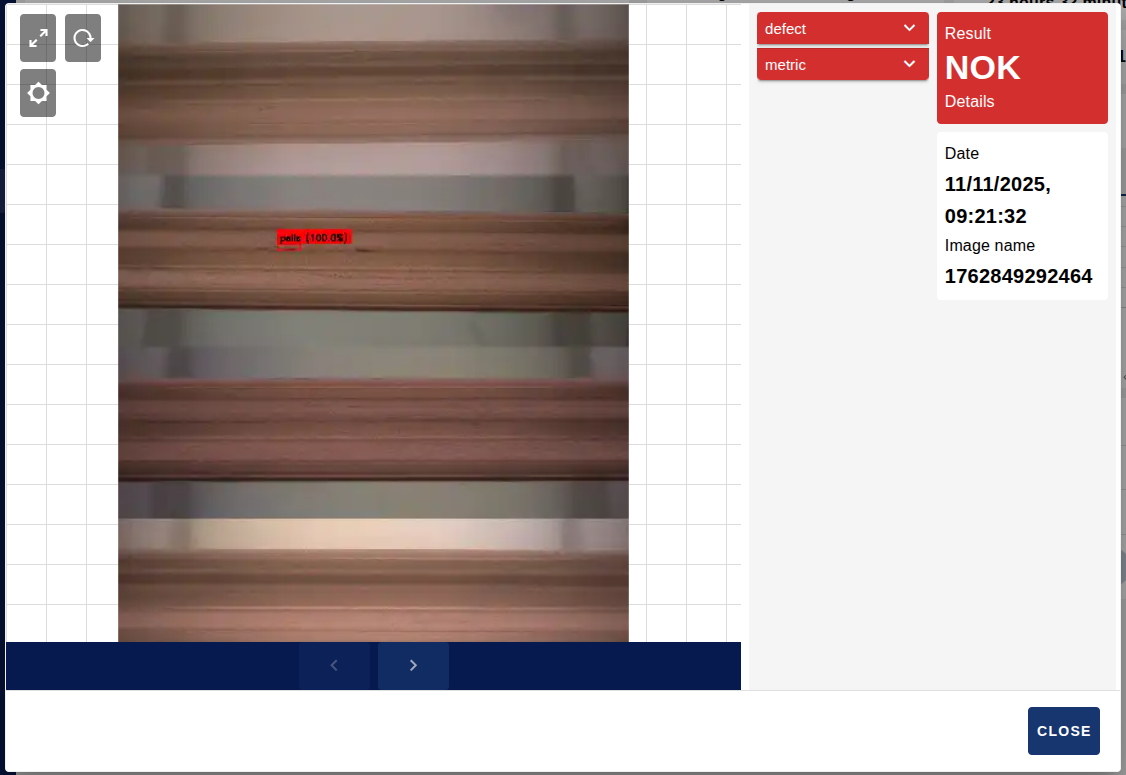
The Image Dialog widget displays images together with their associated data and analysis results. The dialog can open automatically when a message with action: "button_click" and column: "images" is received, or manually through the queue system. Once open, it presents the image in detail with its metadata, the model results and interactive display capabilities (zoom, pan, brightness, fullscreen, and so on).
It is a page-level widget that works across the whole dashboard page. It is usually reached through the Images button of the sessions table.

Features
- Grid display: responsive grid layout with a configurable number of images and colour-coded result indicators (green for OK, red for NOK).
- Interactive image dialog: high-resolution image display through a Fabric.js canvas.
- Advanced zoom and pan: mouse wheel zoom, pinch-to-zoom and drag to pan the image.
- Dynamic image type selection: configurable image types for multi-type display.
- Image upload: individual image upload with status tracking.
- Image download: download with automatic format detection (JPEG, PNG, WebP, GIF).
- Bounding box overlay: visual highlighting of detected objects or regions, with customisable stroke width and font size.
- Brightness adjustment: real-time brightness filter (range -1 to 1).
- Fullscreen mode: with viewport state preservation.
- State management: persistent viewport transform (zoom and position) per image and configurable queue size.
Configuration
| Property | Description | Default |
|---|---|---|
| Name | Node name shown in the editor. | "" |
| Page | Dashboard page the widget is registered on. | — (required) |
| Close button text | Custom text of the dialog close button. | CLOSE |
| Order | Order in which the widget appears. | 0 |
| Size | Widget width and height (0 = fit automatically). | 0 x 0 |
Input
This node has 1 input. The behaviour depends on the properties of the received message.
Automatic dialog opening (button click)
With action: "button_click" and column: "images" (the column name is case-insensitive), the dialog opens with the images given in payload.sessionImages.
Each element contains the main image in sessionImage, its name, the date in date (a timestamp) and the resume object with the model evaluation results. The bbox property is optional and holds the bounding boxes: x_rel, y_rel, w_rel and h_rel are relative coordinates in the 0-1 range, while strokeWidth (stroke width) and fontSize (label font size) are optional.
msg.action = "button_click";
msg.column = "images";
msg.payload = {
    sessionImages: [
        {
            sessionImage: "data:image/jpeg;base64,/9j/4AAQSkZJRg...",
            name: "sess_001_img_001.jpg",
            date: "1733052622000",
            resume: {
                model: "v2.1",
                threshold: 0.85,
                result: "OK",
                tag: "OK",
                isAnomalous: false,
                confidence: 0.95
            },
            bbox: [
                {
                    x_rel: 0.1, y_rel: 0.2, w_rel: 0.3, h_rel: 0.4,
                    color: "green",
                    strokeWidth: 3,
                    fontSize: 18,
                    tag: "OK",
                    score: 0.95
                }
            ]
        }
    ]
};Replacing the image queue
With queue: true, the payload is an array that completely replaces the image log. Each object can include sessionImage, name, date, result, tag, isAnomalous, resume (an object with the detailed model results) and, optionally, bbox.
msg.queue = true;
msg.payload = [
    {
        sessionImage: "data:image/jpeg;base64,/9j/4AAQSkZJRg...",
        name: "image_001.jpg",
        date: "2024-01-15T10:30:00Z",
        result: "NOK",
        tag: "defect",
        isAnomalous: true,
        resume: {
            model1: {
                model: "v2.1",
                threshold: 0.85,
                result: "NOK",
                tag: "NOK",
                isAnomalous: true,
                confidence: 0.87
            }
        },
        bbox: [
            {
                x_rel: 0.1, y_rel: 0.2, w_rel: 0.3, h_rel: 0.4,
                color: "red",
                strokeWidth: 5,
                fontSize: 24,
                tag: "defect",
                score: 0.87
            }
        ]
    }
];Image upload status
Upload confirmation:
msg.payload = { uploaded: { name: "image_001.jpg" } };Upload error:
msg.payload = { error: { name: "image_001.jpg" } };Upload status message, where msg.done is true if the upload finished successfully and false on error:
msg.payload = "image_001.jpg";
msg.done = true;Queue management
To remove an image from the log:
msg.payload = { removeQueue: "image_001.jpg" };To set the queue size, which is 100 by default and accepts a maximum of 200:
msg.payload = { logSize: 150 };Restoring the viewport
configViewportLog restores the viewport transform, that is, the zoom and the position.
msg.payload = { configViewportLog: [1, 0, 0, 1, 0, 0] };Output
This node has 1 output. It emits messages in the following situations:
Viewport saving: when the canvas position/zoom is saved.
jsmsg.payload = { saveViewportTransformLog: [1, 0, 0, 1, 0, 0] };Upload request: when an image upload is requested through the upload button.
jsmsg.payload = { name: "image_001.jpg" };
Usage example
Open the dialog from a button click in a table column named images:
msg.action = "button_click";
msg.column = "images";
msg.payload = {
    sessionImages: [
        {
            sessionImage: "data:image/jpeg;base64,/9j/4AAQSkZJRg...",
            name: "sess_001_img_001.jpg",
            date: "1733052622000",
            resume: {
                model: "v2.1",
                threshold: 0.85,
                result: "OK",
                tag: "OK",
                isAnomalous: false,
                confidence: 0.95
            },
            bbox: [
                {
                    x_rel: 0.1, y_rel: 0.2, w_rel: 0.3, h_rel: 0.4,
                    color: "green", strokeWidth: 3, fontSize: 18,
                    tag: "OK", score: 0.95
                }
            ]
        }
    ]
};
return msg;Replace the whole image log by preloading the queue:
msg.queue = true;
msg.payload = [
    {
        sessionImage: "data:image/jpeg;base64,/9j/4AAQSkZJRg...",
        name: "image_001.jpg",
        date: "2024-01-15T10:30:00Z",
        result: "NOK",
        isAnomalous: true,
        resume: {
            model1: {
                model: "v2.1", threshold: 0.85, result: "NOK",
                tag: "NOK", isAnomalous: true, confidence: 0.87
            }
        },
        bbox: [
            {
                x_rel: 0.1, y_rel: 0.2, w_rel: 0.3, h_rel: 0.4,
                color: "red", strokeWidth: 5, fontSize: 24,
                tag: "defect", score: 0.87
            }
        ]
    }
];
return msg;