

Image Grid
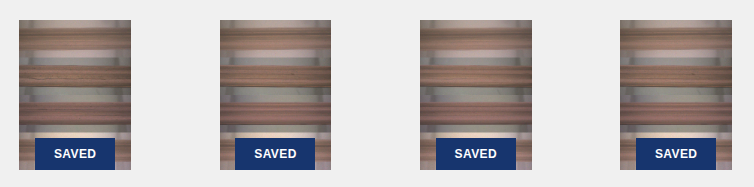
The Image Grid widget shows a dynamic grid of images with status indicators and an optional enlarged preview of the latest image. It is designed for real-time monitoring of image processing pipelines, giving visual feedback through status colours and a responsive layout that adapts to the screen size.
Images are handled as a queue: the most recent ones appear at the top and, when the limit of 100 images is reached, the oldest ones are removed automatically. Each image reflects its processing status (in process, saved, done or error) and this can be updated in real time from the flow.
Features
- Dynamic grid: responsive layout that adapts to the screen size (from 2 to 6 columns).
- Status management: real-time status updates with colour-coded indicators.
- Enlarged preview: optional large-format preview of the most recent image.
- Image queue management: automatic queue control (up to 100 images).
- Upload status tracking: visual indicators for the upload/completed states.
- Responsive layout: adapts to different screen sizes and orientations.
Configuration
| Property | Description | Default |
|---|---|---|
| Name | Node name shown in the editor. | "" |
| Group | Dashboard group where the widget is displayed. | — (required) |
| Size | Widget width and height (0 = fit automatically to the group). | 0 x 0 |
| Show bigger last image | When enabled, shows the most recent image in an enlarged format on the left (4-column layout) or spanning the full width (12-column layout). | false |
| Images path | Source path of the images: Training (training) or Log (log). | training |
| Image sources | Number of image sources to configure and their associated names (sourceNames). The names are stored in lowercase. | [] (required) |
Additional internal properties:
order(order within the group,0by default).
Input
This node has 1 input. The contents of the msg determine the action to perform on the grid.
Add an image — msg.payload as an object. The imageData field accepts a Base64 string (data:image/...;base64,...) or a URL, and status accepts the values IN PROCESS, SAVED, DONE and ERROR.
msg.payload = {
    status: "IN PROCESS",
    name: "image_001.jpg",
    sourceName: "camera1",
    imageData: "data:image/jpeg;base64,/9j/4AAQSkZJRg..."
};Update the status — the image is matched by name, timestamp and sourceName.
To mark an image as done, send its name together with msg.done:
msg.payload = "image_001.jpg";
msg.done = true;And to mark it as an error, together with msg.message:
msg.payload = "image_001.jpg";
msg.message = "error";Replace the whole queue — msg.queue = true with an array of images in payload.
msg.queue = true;
msg.payload = [
    { status: "DONE",       name: "image_001.jpg", imageData: "data:image/jpeg;base64,..." },
    { status: "IN PROCESS", name: "image_002.jpg", imageData: "data:image/jpeg;base64,..." }
];Clear the queue — send the string "clean".
msg.payload = "clean";The statuses are represented with colours: IN PROCESS and SAVED in blue (#17356e), DONE in green, ERROR in red and an unknown status in grey.
Output
This node does not emit messages. It is a display-only component that shows images and their status.
Usage example
Monitoring an image processing pipeline, adding each image with an initial status and updating it on completion.
Step 1. Add the image with status IN PROCESS:
msg.payload = {
    status: "IN PROCESS",
    name: "image_001.jpg",
    sourceName: "camera1",
    imageData: "data:image/jpeg;base64,..."
};
return msg;Step 2. Update it to DONE when the processing finishes:
msg.payload = "image_001.jpg";
msg.done = true;
return msg;Bulk update, replacing the whole queue at once:
msg.queue = true;
msg.payload = [
    { status: "DONE",       name: "img1.jpg", imageData: "..." },
    { status: "IN PROCESS", name: "img2.jpg", imageData: "..." }
];
return msg;