

Image Queue
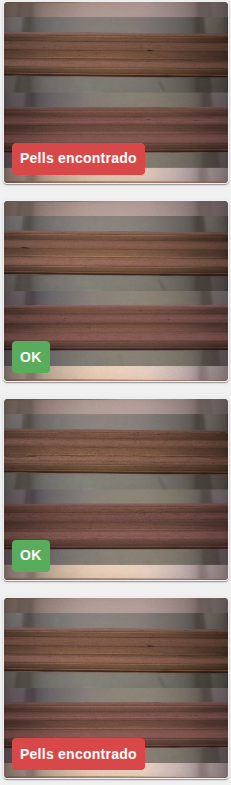
The Image Queue node is a widget for Node-RED Dashboard 2 that shows a fixed queue of 4 image cards with their thumbnails and analysis result. Each card visually indicates whether the result is correct (OK) or incorrect (NOK), and shows empty cards as placeholders when no data is available.
Clicking a card opens a dialog that shows the image in detail on a Fabric.js canvas, with interactive zoom, pan and brightness adjustment, along with its metadata, analysis results and overlays for bounding boxes and segmentation polygons. It supports several image types configurable per widget, and navigation between the images in the queue.
Features
- Fixed queue: always shows exactly 4 image cards in a grid layout, with empty placeholders when there is no data.
- Interactive image dialog: high-resolution image display on a Fabric.js canvas.
- Advanced zoom and pan: mouse wheel zoom, pinch-to-zoom and drag to pan.
- Dynamic image type selection: configurable image types for multi-type image display.
- Bounding box overlay: visual highlighting of detected objects or regions with customisable colours and labels.
- Polygon overlay: semi-transparent filled polygons for segmentation masks.
- Navigation between images: previous/next buttons to move through the queue.
- State management: preserves the viewport transform (zoom and position) and the brightness filter per image.
- Real-time brightness adjustment: brightness filter configurable in the range -1 to 1.
- Fullscreen mode: with viewport state preservation.
- Mask and OCR: optional mask image toggle and display of the barcode OCR result.
Configuration
| Property | Description | Default |
|---|---|---|
| Name | Node name shown in the editor. | '' |
| Group | Dashboard group where the widget is displayed. | (required) |
| Locale | Locale configuration node (time zone and date/time format). | '' |
| Size | Widget width and height (0 = fit automatically to the group). | 0 / 0 |
| Close button text | Text of the dialog close button. | 'CLOSE' |
| Show mask checkbox | Shows a checkbox in the bottom bar of the dialog to toggle mask visibility. | true |
| Show bbox checkbox | Shows a checkbox to toggle bounding box visibility. | true |
| Show annotations checkbox | Shows a checkbox to toggle the bounding box labels. | true |
| Show polygon checkbox | Shows a checkbox to toggle polygon visibility. | true |
| Image types | Number of image types to display (0-9). All of them are editable and customisable. | 0 |
| Type names | Names of the image types used for dynamic loading. They must match the keys of payload.imageShow. | [] |
Note:
showMaskImage(false) also exists in the internal configuration to control the initial state of the mask toggle.
Input
This node has 1 input. It is processed according to the contents of msg.payload.
Image array. When msg.payload is an array, it replaces the whole queue. Each object represents an image with its data and metadata:
| Property | Description |
|---|---|
id | Unique identifier. It is generated automatically if not provided. |
imageShow | Multi-type image structure. Each key is an image type with a configurable name (raw in the example). |
result | Detection result. |
tag | Detected tag or classification. |
isAnomalous | Boolean indicating whether the image is anomalous. |
date | Date object or ISO timestamp. |
name | Image name or identifier. |
performance | Performance metrics. |
ocr | Barcode OCR result. |
resume | Per-model evaluation results. |
Within each imageShow type, imageDataThumbnailMask, imageDataMask and bbox (bounding boxes) are optional.
msg.payload = [
    {
        id: "img_001",
        imageShow: {
            "raw": {
                imageData: "data:image/jpeg;base64,/9j/4AAQSkZJRg...",
                imageDataThumbnail: "data:image/jpeg;base64,...",
                imageDataThumbnailMask: "data:image/jpeg;base64,...",
                imageDataMask: "data:image/jpeg;base64,...",
                bbox: [
                    {
                        x_rel: 0.1,
                        y_rel: 0.2,
                        w_rel: 0.3,
                        h_rel: 0.4,
                        color: "red",
                        tag: "defect",
                        score: 0.95
                    }
                ]
            }
        },
        result: "NOK",
        tag: "defect",
        isAnomalous: true,
        date: "2024-01-15T10:30:00Z",
        name: "image_001.jpg",
        performance: {
            milliseconds: 1250
        },
        ocr: "BARCODE123",
        resume: {
            "model1": {
                isAnomalous: true,
                score: 0.95
            }
        }
    }
];Configuration messages. They restore the viewport or adjust the dialog brightness. configViewportQueue restores the viewport transform, that is, the zoom and the position:
msg.payload = {
    configViewportQueue: [1, 0, 0, 1, 0, 0]
};configBrightness sets the brightness filter, in the range -1 to 1:
msg.payload = {
    configBrightness: 0.5
};Segmentation polygons (optional). The msg.polygons field allows segmentation masks to be overlaid:
| Property | Description |
|---|---|
points | [x_rel, y_rel] pairs with relative coordinates in the 0-1 range. |
color | Fill and border colour, in rgb(r,g,b) format. |
tag | Class label (optional). |
confidence | Confidence between 0 and 1 (optional). |
alpha | Fill transparency (optional, 0.5 by default). |
msg.polygons = [
    {
        points: [[0.58, 0.59], [0.59, 0.60]],
        color: "rgb(116,37,162)",
        tag: "blister_nok",
        confidence: 0.95,
        alpha: 0.5
    }
];Output
This node has 1 output. It emits a message with the viewport transform when the canvas position/zoom is saved:
msg.payload = {
    saveViewportTransformQueue: [1, 0, 0, 1, 0, 0]
};Usage example
Send an array of images to populate the queue:
msg.payload = [
    {
        imageShow: {
            "raw": {
                imageData: "data:image/jpeg;base64,/9j/4AAQSkZJRg...",
                imageDataThumbnail: "data:image/jpeg;base64,...",
                bbox: [
                    {
                        x_rel: 0.1,
                        y_rel: 0.2,
                        w_rel: 0.3,
                        h_rel: 0.4,
                        color: "red",
                        tag: "defect"
                    }
                ]
            }
        },
        result: "NOK",
        isAnomalous: true,
        date: "2024-01-15T10:30:00Z",
        name: "image_001.jpg"
    },
    {
        imageShow: {
            "raw": {
                imageData: "data:image/jpeg;base64,...",
                imageDataThumbnail: "data:image/jpeg;base64,..."
            }
        },
        result: "OK",
        isAnomalous: false,
        date: "2024-01-15T10:31:00Z",
        name: "image_002.jpg"
    }
];
return msg;