

Image Log
The Image Log widget shows logged inspection images as a grid of cards, newest first. Each card has the thumbnail (with its bounding boxes and polygons drawn over it, if enabled), the tag, the result text and the date, coloured by isAnomalous. Clicking a card opens a dialog with the full image, its detections, metadata and per-model results. The node keeps one JSON file per image on disk, so the log survives restarts and older images are paged in with Load more. Selected images can be downloaded, or sent to the flow to be uploaded.
Palette: category Renders, label image log. 1 input, 1 output.

Log uses the same grid and dialog and adds the rest of a Log page: it builds the entries from the files the flow saved, has a side panel (start and stop logging, errors-only filter, disk, summary, clear log), runs the uploads to a dataset itself through dataset-upload with a dialog that asks a dataset per image source, can restrict uploads to some user profiles, and has three outputs (upload, audit, dataset list). Image Log only sends the name of each image to upload and leaves the upload to the flow.
Features
- Grid: one to six cards per row depending on the screen width; the widget takes 95% of the window height. The header shows the number of images in the log.
- Selection: with no selection a click opens the image; with a selection, or with Shift held, a click selects or deselects. Shift+click selects a range, and dragging over the grid draws a box that selects every card it touches. Clear, or Esc with the dialog closed, empties the selection.
- Upload: sends the selected images that are not uploaded or uploading to the output (see Output).
- Download: one menu group per configured image type, with Image (
imageData) and Mask image (imageDataMask) when the selection has them. One image is saved as<name>[_<type>][_mask].<ext>(no type suffix for typeraw); several are saved in one zip,image-log_YYYY-MM-DD_HH-MM-SS.zip. - Show annotations: header button that draws the boxes and polygons over the thumbnails (boxes as outlines, polygons with a light fill, no labels). Its initial state is the node setting; the user's choice is kept in the browser.
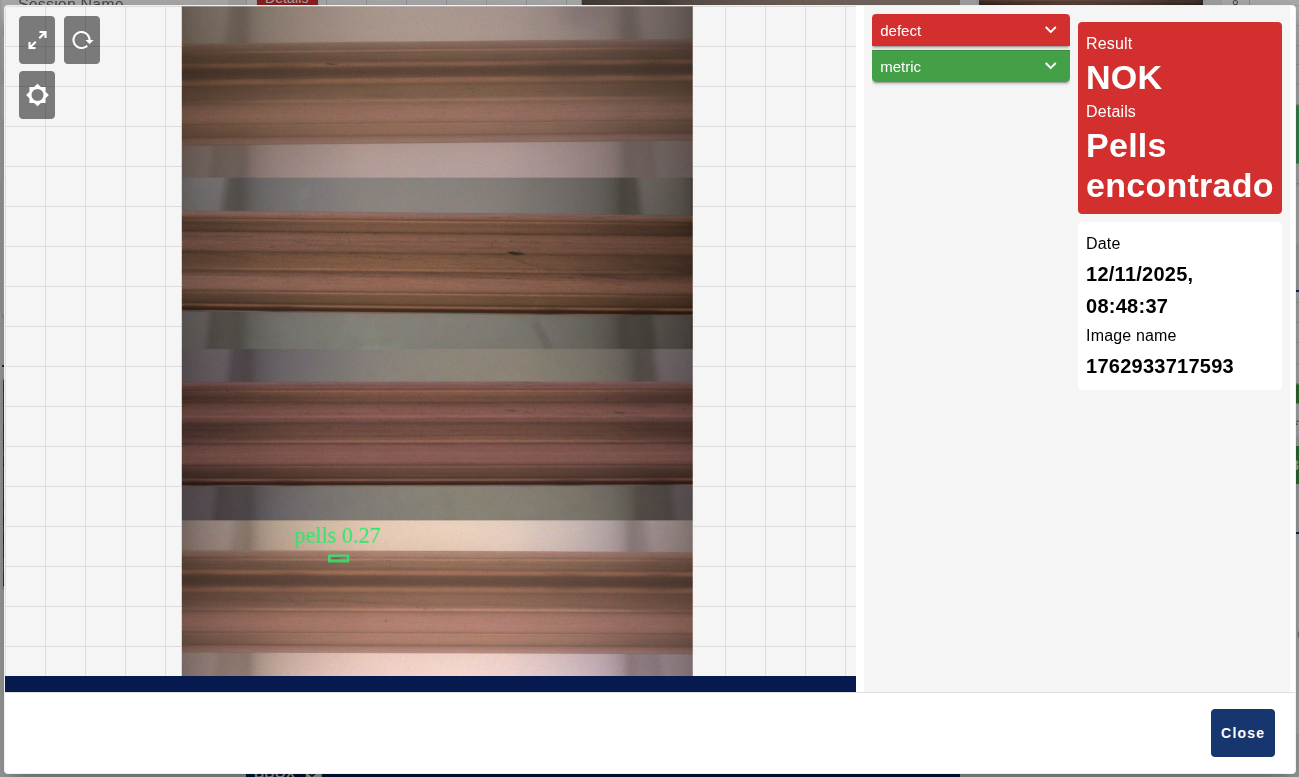
- Dialog: image type selector, result, details, date, image name and barcode OCR on the left, one panel per model result on the right. Mouse wheel or pinch zooms, dragging pans, the arrows of the footbar or the Left and Right keys move through the images (the counter shows
n / total). The buttons over the image adjust the brightness (-1 to 1, kept in the browser), reset the zoom, lock the zoom and pan so the next images keep them, and switch to full screen. - Footbar: MASK, BBOX and POLYGONS checkboxes (each one only if enabled in the node) and a gear menu with two options, both off by default and kept in the browser: Labels on hover (a label shows only while the pointer is over its box or polygon) and Bounding box fill (translucent fill inside the boxes, in the dialog and on the thumbnails). The dialog opens on the mask image when the image type has one; the MASK checkbox switches to
imageDataand back.
Configuration
| Property | Description | Default |
|---|---|---|
| Name | Node name shown in the editor. | "" |
| Group | Dashboard group that holds the widget (required). | — |
| Locale | Locale Config node with the time zone and date and time format of the dates, and default texts for the footbar. Empty: the browser's format, 24-hour clock, and the built-in texts. | "" |
| Size | Width and height of the widget; 0 fits the group. | 0 / 0 |
| Close button text | Text of the button that closes the dialog. | Close |
| Show mask checkbox | Shows the MASK checkbox in the dialog footbar. | on |
| Show bbox checkbox | Shows the BBOX checkbox, which hides or shows the bounding boxes. | on |
| Show polygon checkbox | Shows the POLYGONS checkbox, which hides or shows the polygons. | on |
| Mask checkbox text | Label of the MASK checkbox. Empty, or equal to the built-in text: the Locale Config text, else MASK. The same rule applies to the next six texts. | "" |
| Bbox checkbox text | Label of the BBOX checkbox. Built-in: BBOX. | "" |
| Polygon checkbox text | Label of the POLYGONS checkbox. Built-in: POLYGONS. | "" |
| Hover label text | Title of the Labels on hover option of the gear menu. Built-in: Labels on hover. | "" |
| Hover label hint | Subtitle of that option. Built-in: Show a label only while pointing at its detection. | "" |
| Box fill text | Title of the Bounding box fill option. Built-in: Bounding box fill. | "" |
| Box fill hint | Subtitle of that option. Built-in: Tint the inside of each bounding box. | "" |
| Annotations on thumbnails | Initial state of the Show annotations button. | on |
| Annotation text size (px) | Size of the detection labels in the dialog, 0 to 200. 0 uses the fontSize of each detection, or 16 when it has none. | 16 |
| Images folder | Folder that holds the image files of the log. The node keeps one JSON per image in its metadata subfolder (see History on disk). Empty: the default. | /opt/storage/images/log/imageShowDir |
| Images per page | Images restored when the node starts and fetched by each Load more, 1 to 200 (other values are clamped). The widget shows at most 100 of the images restored on load unless setQueueSize raises it (see Input). | 100 |
| Remove after upload | A confirmed upload removes the image from the log and, 5 minutes later, its files (see uploadStatus under Input). | on |
| Image types | Number of Type name rows, 0 to 9. Each row is a key of imageShow. The first type gives the card thumbnail, the dialog lists all of them, and the download menu has one group per type. Without types, cards of entries with typed imageShow have no thumbnail and Download offers nothing. | 0 |
Input
The node acts on msg.payload.action. Other messages are ignored and produce no output.
Add an image
msg.payload = { action: "imageInput", image: { /* entry, see below */ } };The node writes the entry to its JSON file, puts it first in the list it keeps for the widget (at most Images per page entries), and the open dashboards add the card at the top. A browser keeps at most 200 live cards until it has loaded a history page; older cards come back with Load more.
Image entry fields
| Property | Type | Use |
|---|---|---|
name | string | Unique identifier: names the JSON file, the selection, the upload message and the downloaded file. An entry without name is shown but not written to disk. |
date | Date, ISO string or milliseconds | Date of the card and the dialog, formatted with the Locale Config. |
isAnomalous | boolean (also 1/0, "true"/"false") | Red when true, green when false, blue otherwise. With true or false, the dialog's Result shows NOK or OK. |
tag | string | Chip on the card; the dialog's Result when isAnomalous is not a boolean. |
result | string | Text on the card's bottom bar and the dialog's Details. |
ocr | string, array or object | Dialog's Barcode OCR (also read from barcode_ocr, inference.ocr, id_do or idDo); - when missing. |
resume | object | One panel per key in the dialog, coloured by the result (OK/NOK) or isAnomalous inside that key's object, listing its properties; a ruleResults array is listed rule by rule. A key named barcode ocr is skipped. Values between 0 and 1 are shown as percentages when the property name contains score, confidence, probability, ratio or threshold, or when the value is not a whole number. |
imageShow | object | One object per image type, keyed by the names in Image types. An object with imageData directly in it is treated as type raw. |
bbox, polygons | array | Detections used when the image type has none. |
Each imageShow[type] object accepts:
| Property | Use |
|---|---|
imageData | Image shown in the dialog: URL, data URL or bare base64 (the JPEG, PNG, WebP or GIF header is guessed). |
imageDataThumbnail | Card thumbnail. |
imageDataMask | Mask shown in the dialog while MASK is on. |
imageDataThumbnailMask | Mask thumbnail: shown on the card instead of imageDataThumbnail, and in the dialog when there is no imageDataMask. |
bbox | Bounding boxes of this type. |
polygons | Polygons of this type. |
A bounding box has x_rel, y_rel, w_rel, h_rel (top-left corner and size relative to the image, 0 to 1), and optionally tag (label text; no label without it), score (appended to the label, cut to two decimals), color (CSS colour, { r, g, b, a } or [r, g, b, a]; when missing or invalid, a colour derived from the tag), strokeWidth (default 2) and fontSize.
A polygon has points, at least three [x_rel, y_rel] pairs, and optionally color (default: derived from the tag, green without a tag), alpha (fill opacity in the dialog, default 0.5; it applies when the colour is rgb(r,g,b), { r, g, b } or [r, g, b]), tag and confidence (label), strokeWidth (default 0.5) and fontSize.
Upload result
msg.payload = { action: "uploadStatus", name: "1718000000000", done: true };done: truewith Remove after upload on: the node drops the image from its list and deletes its JSON at once. The open dashboards keep the card marked Done until the widget reloads (a page reload or a tab change). 5 minutes later the node deletes the image files<name>.*and<name>_*of the Images folder; on redeploy or stop it deletes them at once.done: truewith the option off: the JSON records the image as uploaded. The card shows Done, also after a reload, and Upload no longer sends it.donefalse or missing: the card goes back to normal and can be uploaded again.
Number of cards shown
msg.payload = { action: "setQueueSize", logSize: 150 };Read only by the dashboards open at that moment; the node does not store it. The widget shows up to 100 cards of the list it gets when it loads; this raises that number to logSize, at most 200. With Images per page above 100, only the first 100 restored images are visible until this message arrives or more images are loaded, and a reload goes back to 100.
Replace the list
A message with msg.queue = true that matches none of the above is stored as the widget's state, sent to the open dashboards and replayed when a dashboard loads. The widget reads it only when msg.payload is { action: "initQueue", queue: [ ...entries ] }, which replaces the cards. It is not written to disk, and the next imageInput stores the node's own list again. The older form, with the array of entries directly in msg.payload, shows nothing.
History on disk
- The JSON of an image is
<Images folder>/metadata/<name>.json; characters ofnameother than letters, digits,_,.and-become_. - When the node starts it lists these files, sorts them newest first by the number at the start of the name (a millisecond timestamp works), and restores the first Images per page. Load more reads the next page.
- An entry stays only while the Images folder holds at least one file named
<name>.<ext>or<name>_<type>.<ext>, where<type>contains no_. Otherwise the node deletes its JSON when it lists the folder and leaves it out of the list it stores for the widget. An entry whose name starts with a timestamp less than 60 seconds old is spared, as its files may still be on their way to disk. The flow must therefore save the image files in the Images folder under the entry'sname. - The node never writes image files. It deletes them only after a confirmed upload with Remove after upload on.
Output
The Upload button of the header sends one message per selected image that is neither uploaded nor uploading:
msg.payload = { name: "1718000000000" };The flow does the upload and answers with uploadStatus for that name. Meanwhile the card shows Uploading..., only in the browser where the button was pressed. Incoming messages are not passed through.
Status and errors
The node sets no status. It logs:
| Message | When |
|---|---|
No group configured | Error at deploy: the node has no group and does nothing. |
ui-image-log: could not persist metadata: <reason> | The JSON of a new image could not be written. |
ui-image-log: could not read images folder: <reason> / could not read metadata folder: <reason> | A folder exists but cannot be read. |
ui-image-log: skipping <file>: <reason> | A JSON file cannot be read or parsed; the image is left out. |
ui-image-log: could not delete orphan <file>: <reason> | A JSON without image files could not be deleted. |
ui-image-log: could not update upload state: <reason> | The uploaded mark could not be written. |
ui-image-log: could not remove uploaded image <name>: <reason>, could not delete <file>: <reason>, could not delete files of <name>: <reason> | Cleanup after an upload failed. |
ui-image-log: could not restore log, could not read page, could not publish queue (each followed by the reason) | Reading the history or updating the widget's list failed. |
Usage example
A function node after the step that saved 1718000000000_raw.jpg in the Images folder adds the image to the log. Here the folder is assumed to be served by Node-RED under /images/log; any URL the browser can load, or base64, works. Image types has one row, raw.
const name = "1718000000000";   // stem of the saved files
msg.payload = {
    action: "imageInput",
    image: {
        name,
        date: new Date().toISOString(),
        isAnomalous: true,
        tag: "scratch",
        result: "Scratch on cap",
        imageShow: {
            raw: {
                imageData: `/images/log/${name}_raw.jpg`,
                imageDataThumbnail: `/images/log/${name}_raw.jpg`,
                bbox: [
                    { x_rel: 0.12, y_rel: 0.30, w_rel: 0.20, h_rel: 0.15, tag: "scratch", score: 0.93 }
                ]
            }
        },
        resume: {
            "cap-detector": { result: "NOK", score: 0.93 }
        }
    }
};
return msg;Wire the output to the upload step, and when it ends send the result back to the node's input:
// msg.payload.name came from the Image Log output
msg.payload = { action: "uploadStatus", name: msg.payload.name, done: true };
return msg;