

Image-In Node
Purpose & Use Cases
The image-in node is the primary entry point for loading images from the filesystem into Node-RED flows. It converts image files into the standardized image object format used throughout the Rosepetal Image Tools ecosystem.
Real-World Applications:
- Photo Processing Workflows: Load photos for batch editing and enhancement
- Computer Vision Pipelines: Import images for AI/ML analysis and object detection
- Web Content Processing: Load user-uploaded images for processing before storage
- Surveillance Systems: Import images from cameras or storage for analysis
Input/Output Specification
Inputs
- Any message triggers the node. Its content is only used when File Path or Debug Width is read from a
msgproperty.
Outputs
One output. The node writes the decoded image to Output to (msg.payload by default) and sends the message:
{
  data: Buffer,        // Raw pixel data, row by row
  width: number,       // Image width in pixels
  height: number,      // Image height in pixels
  channels: number,    // 1, 3 or 4
  colorSpace: string,  // "GRAY", "RGB" or "RGBA", from the channel count
  dtype: "uint8"
}When Output to is a flow or global key, the image is stored there and the message is sent unchanged.
Configuration Options
| Property | Default | Meaning |
|---|---|---|
| Name | empty | Label of the node in the editor |
| File Path | empty (required) | Path of the image file on the Node-RED host: a fixed string, or read from msg, flow or global |
| Output to | msg.payload | Where the image object is written: a msg property or a flow / global key |
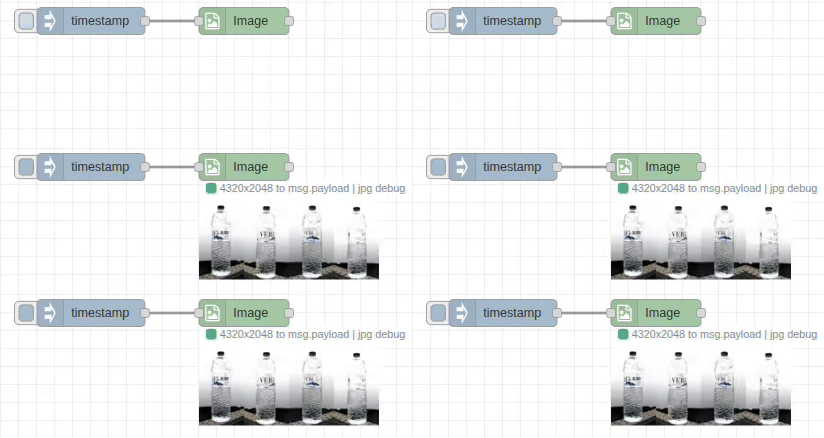
| Debug | off | Show loaded image: shows a preview of the image under the node in the editor |
| Debug Width | 200 | Width of the preview in pixels: a number, or read from msg, flow or global |
File Path
- Fixed path: an absolute path, or a path relative to the working directory of the Node-RED process (e.g.,
/home/user/photos/image.jpg) - Dynamic path: for example
msg.imagePathorflow.currentImageFile - Formats: BMP files are decoded by the native OpenCV addon; every other file is decoded by
sharp(JPEG, PNG, WebP, TIFF, GIF and the other formats it reads). Images with 2 channels (grayscale with alpha) are rejected
Debug Options
- Show loaded image: the preview is a JPEG of the loaded image scaled to Debug Width, sent to the editor and drawn under the node
- The status text gets
| jpg debugappended
Performance Notes
- The file is read with asynchronous file I/O and decoded by
sharpor by the native addon, off the Node-RED event loop. - The node does not record timings in
msg.performance.
Status Display
- Blue dot
reading...: the file is being read - Green dot
<width>x<height> to <type>.<path>(for example1920x1080 to msg.payload): the image was loaded - Red ring
Error: the file could not be decoded
Errors
On every failure the node logs a warning and sends no message:
| Warning | Cause |
|---|---|
File path is not configured or resolved. | File Path is empty, or the msg / flow / global value it points to is empty |
Cannot access file: <path> | The file does not exist or Node-RED cannot read it. The status stays at reading... |
Error reading image file: <message> | The file is not an image sharp or OpenCV can decode, or it has an unsupported channel count |
Real-World Examples
Basic Photo Import
[Inject] → [Image-In: /photos/vacation.jpg] → [Debug]Load a single photo and inspect its properties.
Dynamic File Loading
[File List] → [Image-In: File Path from msg.imagePath] → [Resize] → [Save]Process multiple files by configuring File Path to use msg.imagePath for dynamic file selection.
Computer Vision Pipeline
[Image-In] → [CropBB] → [Filter] → [Analysis]Load images for object detection and post-processing.
Visual Development
[Image-In: Debug enabled] → [Transform] → [Output]Enable debug preview to visually verify image loading and dimensions.
Batch Processing Setup
[Image-In] → [Array-In] → [Array-Out] → [Batch Transform]Collect multiple images into an array for the nodes that process arrays. Array-In and Array-Out are part of @rosepetal/node-red-contrib-utils.
Common Issues & Troubleshooting
File Access Problems
- Issue:
Cannot access filewarning and no message - Solution: Verify that the file exists on the Node-RED host and that the Node-RED process can read it
- Check: Use absolute paths; relative paths are resolved from the working directory of Node-RED, not from the user directory
Unsupported Format
- Issue:
Error reading image file: ...warning and a redErrorstatus - Solution: Use a format
sharpreads (JPEG, PNG, WebP, TIFF, GIF) or BMP; convert grayscale images with alpha to RGBA or GRAY first - Check: Verify the file is not corrupted using an image viewer
Path Configuration
- Static Path: Set File Path to the string type for a fixed file
- Dynamic Path: Read File Path from
msg,floworglobalto choose the file at runtime - Empty path:
File path is not configured or resolved.means the property the path is read from is missing or empty
Debug Display Issues
- Issue: Debug preview not appearing
- Solution: Check the Debug box, deploy, and keep the flow open in the editor