

Rotate Node
Purpose & Use Cases
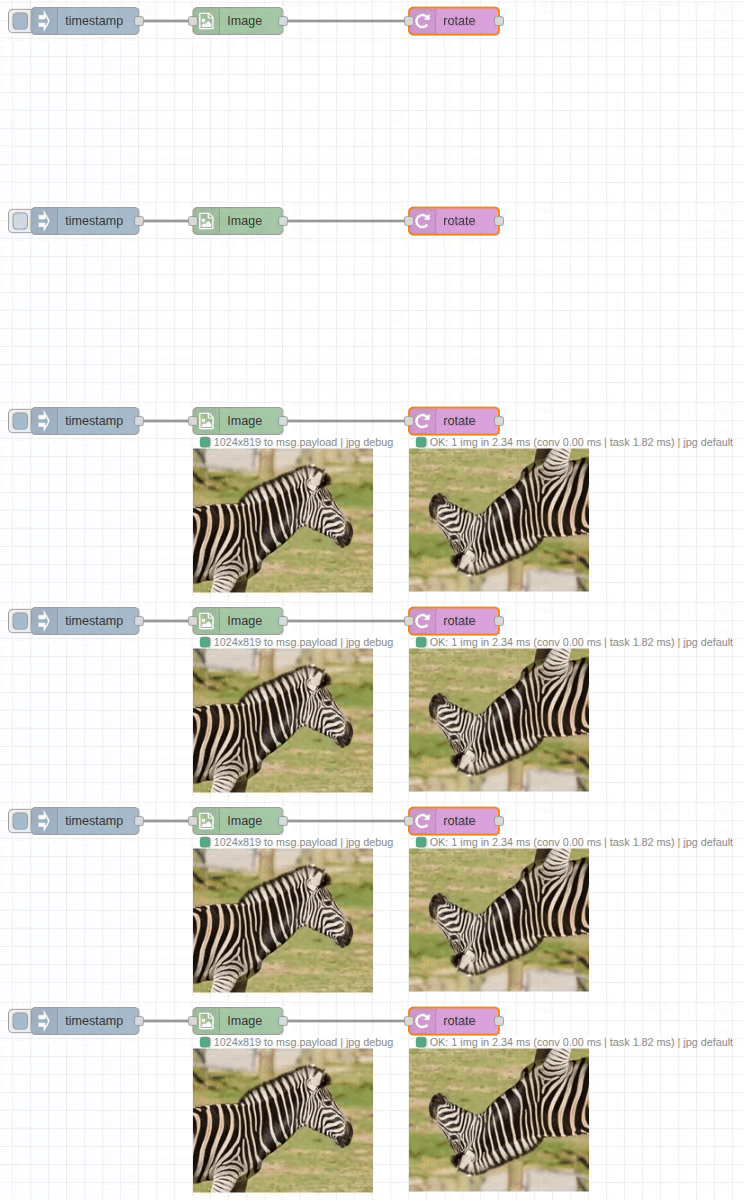
The rotate node rotates an image, or every image of an array, by any angle in degrees. The canvas grows so that the whole rotated image fits, and the uncovered corners are filled with a pad colour.
Real-World Applications:
- Photo Orientation: Correct camera orientation issues
- Document Processing: Straighten scanned documents and receipts
- Artistic Effects: Create artistic compositions with angled elements
- Quality Control: Align products for consistent photography
- Medical Imaging: Orient medical scans for proper analysis
Input/Output Specification
Inputs
- Single Image: a raw image object, or an encoded JPEG/PNG/WebP/BMP
Buffer(decoded by the addon) - Image Array: an array of images, rotated in parallel by the same angle; the output is an array in the same order
- Dynamic Angles: the angle can be read from
msg,floworglobal
Outputs
One output, written to Output (msg.payload by default):
- Rotated Image: a raw image object with the size of the rotated image's bounding box, or an encoded
Buffer(JPEG, PNG, WebP) msg.performance.rpimage.<key>:{ conversion, task, total }in milliseconds
Configuration Options
| Property | Default | Meaning |
|---|---|---|
| Name | empty | Label of the node; also the key of its timings in msg.performance.rpimage |
| Input | msg.payload | Where the image or array is read (msg, flow or global) |
| Output | msg.payload | Where the result is written (msg, flow or global) |
| Output Format | Raw (fastest) | Raw (fastest), JPEG, PNG or WebP |
| Quality | 90 | JPEG and WebP quality, 1-100 |
| PNG Optimize | off | PNG compression level 6 instead of 0 |
| Lossless / Smart Subsample / Effort | off / off / empty | WebP options; when any is set the WebP is encoded with sharp |
| Debug | off | Show processed image under the node in the editor (the first image of an array) |
| Debug Width | 200 | Width of the preview in pixels |
| Angle (°) | 90 | Rotation angle in degrees: a number, or read from msg, flow or global. Empty means 0 |
| Pad colour | #000000 | Colour of the corners uncovered by the rotation |
| Inference | off | Under Advanced options: Transform inference coordinates, with Inf. Input and Inf. Output (both msg.inference) |
Rotation Settings
Angle
- Values: any number of degrees, with decimals (e.g., 15.5); values beyond 360 or below 0 wrap around
- Sources: Number,
msg.*,flow.*,global.*. A value that is not a number fails withValue "..." from property "..." is not a valid number. - Direction: Positive = counter-clockwise, Negative = clockwise
- Right angles: 0, 90, 180 and 270 degrees are exact rotations without interpolation; other angles use bilinear interpolation
Padding Settings
- Pad colour: picked with the editor's colour picker (
#RRGGBB) - Images with alpha (RGBA, BGRA): the padding is transparent, whatever the colour
Output Format Options
- Raw: Standard image object (fastest between image nodes)
- JPEG: Compressed with quality control (1-100); the alpha channel is dropped
- PNG: Lossless, keeps the alpha channel
- WebP: Quality control (1-100), keeps the alpha channel
Inference
With Transform inference coordinates checked, the detections and segmentations read from Inf. Input get the same rotation, measured on the first input image, and are written to Inf. Output, so that their normalized coordinates match the rotated image. Bitmap masks are rotated too. Only a non-empty array is processed; a failure logs Inference transform: ....
Status and Errors
- Success: green dot
OK: <n> img in <t> ms (conv <c> ms | task <k> ms), plus the preview format with Debug on - Failure:
msg.erroris set, the input is written back to Output, a warning is logged, the status shows a red ringError: <first 30 characters>and the message is still sent. Invalid input images giveInvalid image structureorInvalid image list structure
Performance Notes
- Rotation and encoding run in the native OpenCV addon on the libuv thread pool
- Canvas Growth: for angles that are not multiples of 90 the output is larger than the input; at 45 degrees a square image grows by a factor of about 1.41 on each side
Real-World Examples
Photo Orientation Correction
[Image-In: rotated_photo.jpg] → [Rotate: -90°] → [Corrected Photo]Fix photos taken with rotated camera orientation.
Document Straightening
[Scanned Document] → [Rotate: 2.3°, White background] → [Straight Document]Correct slight rotation in scanned documents.
Batch Photo Processing
[Photo Array] → [Rotate: msg.orientation] → [Corrected Photos]Apply one angle, read from the message, to every photo of the array.
Artistic Composition
[Logo Image (RGBA)] → [Rotate: 45°, PNG] → [Diamond Logo]An RGBA logo rotated by 45 degrees gets transparent corners.
Dynamic Rotation
[Analysis] → [Calculate Angle] → [Rotate: msg.correctionAngle] → [Aligned Image]Rotate based on image analysis results.
Common Issues & Troubleshooting
Image Size Changes
- Issue: Output image larger than input
- Cause: Canvas expansion to accommodate rotated content
- Expected: Normal behavior to prevent clipping
- Solution: Follow with a crop or resize node if a fixed size is needed
Background Color Issues
- Issue: The corners are black, or transparent instead of the pad colour
- Solution: Set Pad colour; for images with alpha the corners are always transparent, so convert to RGB first if a coloured background is needed
- Transparency: Use PNG or WebP output to keep it; JPEG drops the alpha channel
Wrong Direction
- Issue: The image turns the opposite way
- Solution: Positive angles turn counter-clockwise; use a negative angle to turn clockwise