

Resize Node
Purpose & Use Cases
The resize node scales an image, or every image of an array, to a size in pixels or by a factor, and keeps the aspect ratio when one dimension is left empty. The scaling runs in the native OpenCV addon with bilinear interpolation.
Real-World Applications:
- Web Image Optimization: Scale images for different device sizes and bandwidths
- Thumbnail Generation: Create preview images and gallery thumbnails
- Print Preparation: Resize images to specific print dimensions
- Storage Optimization: Reduce image sizes to save storage space
- Performance Enhancement: Optimize image sizes for faster loading
Input/Output Specification
Inputs
- Single Image: a raw image object, or an encoded JPEG/PNG/WebP/BMP
Buffer(decoded by the addon) - Image Array: an array of images, resized in parallel; the output is an array in the same order
- Dynamic Dimensions: Width and Height can be read from
msg,floworglobal
Input Image Format
{
  data: Buffer,        // Raw pixel data
  width: number,       // Original width in pixels
  height: number,      // Original height in pixels
  channels: number,    // Channel count (1, 3, 4)
  colorSpace: string,  // "GRAY", "RGB", "RGBA", "BGR" or "BGRA"
  dtype: string        // "uint8"
}Outputs
One output. The result is written to Output to and its form depends on Output Format:
- Raw: an image object with the new
widthandheightand the same channels and color space - JPEG/PNG/WebP: an encoded
Buffer
The node also sets msg.performance.rpimage.<key> ({ conversion, task, total } in milliseconds) and, with Inference checked, writes the detections back (see below).
Configuration Options
| Property | Default | Meaning |
|---|---|---|
| Name | empty | Label of the node; also the key of its timings in msg.performance.rpimage |
| Input from | msg.payload | Where the image or array is read (msg, flow or global) |
| Output to | msg.payload | Where the result is written (msg, flow or global) |
| Output Format | Raw (fastest) | Raw (fastest), JPEG, PNG or WebP |
| Quality | 90 | JPEG and WebP quality, 1-100 |
| PNG Optimize | off | Compress PNG (slower, smaller file): PNG compression level 6 instead of 0 |
| Lossless / Smart Subsample / Effort | off / off / empty | WebP options. When any of them is set, the WebP is encoded with sharp (Effort 0-6) instead of OpenCV |
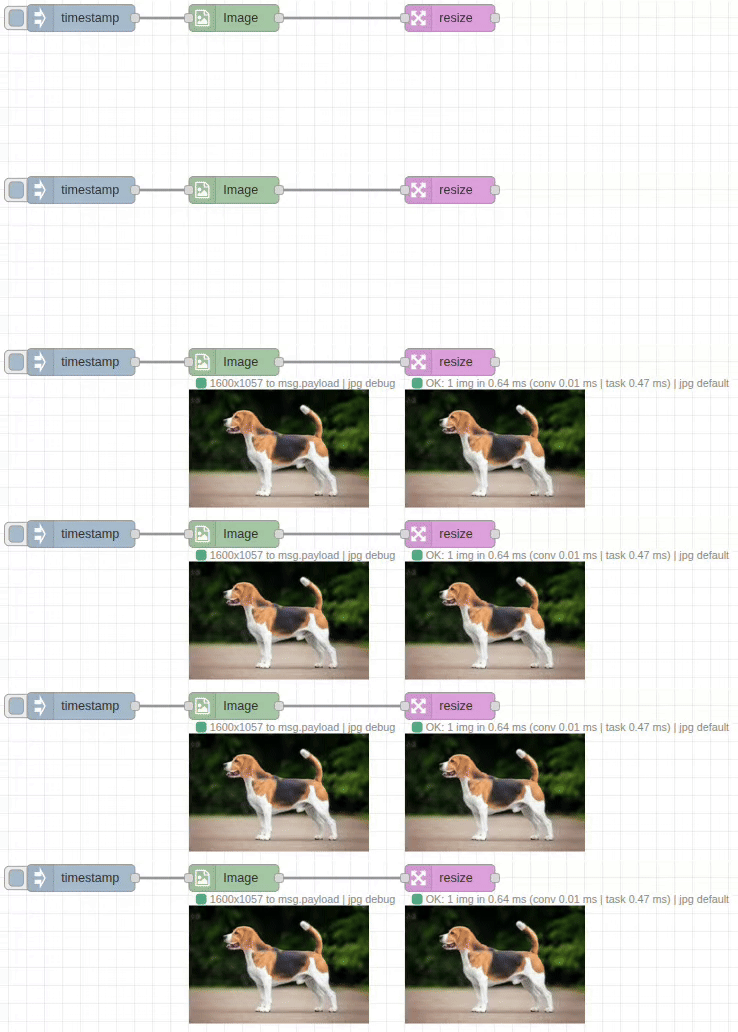
| Debug | off | Show processed image: a preview under the node in the editor (the first image of an array) |
| Debug Width | 200 | Width of the preview in pixels: a number, or read from msg, flow or global |
| Width | Set to, empty | Mode (Set to or Multiply by) and value: a number, or read from msg, flow or global |
| Height | Set to, empty | Same as Width |
| Inference | off | Under Advanced options: Transform inference coordinates, with Inf. Input and Inf. Output (both msg.inference) |
Dimension Configuration
Width Settings
- Mode:
- Set to: the width in pixels (e.g., 800)
- Multiply by: a factor of the input width (e.g., 0.5 for half size)
- Value Sources: a number, or a
msg,floworglobalproperty. A value that is not a number fails withValue "..." from property "..." is not a valid number. - Auto: leave it empty (or 0) and the width follows from the height, keeping the aspect ratio
Height Settings
- Mode: Same options as width (Set to / Multiply by)
- Value Sources: Same as width
- Auto: leave it empty (or 0) and the height follows from the width
Results are rounded to whole pixels. Leaving both empty fails with Both dimensions are Auto. An output larger than 4 GiB is refused; the limit can be changed with the environment variable ROSEPETAL_MAX_RESIZE_BYTES (in bytes) of the Node-RED process.
Output Format Options
Raw Format (Default)
- Performance: no encoding; the fastest option between image nodes
- Use Case: When passing to other image nodes
JPEG Format
- Quality: 1-100 (default: 90)
- Use Case: Final output, small files
- Compression: Lossy; the alpha channel is dropped
PNG Format
- PNG Optimize: compression level 6 when checked, 0 (fastest, largest) otherwise
- Use Case: When transparency or lossless output is needed
- Compression: Lossless
WebP Format
- Quality: 1-100 (default: 90)
- Lossless, Smart Subsample (lossy only) and Effort (0-6): encoded with
sharpwhen any of them is set - Use Case: Small files with alpha, lossy or lossless
Debug Options
- Show processed image: a preview of the result (or of the first image of an array) under the node in the editor, as JPEG for Raw output and in the output format otherwise
- Debug Width: width of the preview in pixels
- Interactive: click the preview to hide it
Inference
With Transform inference coordinates checked, the node reads the inference results at Inf. Input and writes them to Inf. Output after the image is resized. Normalized coordinates do not change with a resize, so boxes and polygons are written back unchanged. Bitmap masks of segmentations are resized to the new image size, except when the output is encoded by OpenCV (JPEG, PNG, or WebP without the sharp options): the new size is then not read back and the masks are left as they are. Only a non-empty array is processed; a failure logs Inference transform: ... and leaves the message as it is.
Status and Errors
- Success: green dot
OK: <n> img in <t> ms (conv <c> ms | task <k> ms), followed by the preview format with Debug on (| jpg default (first)for an array) - Failure: the node sets
msg.error(message,operation,hint,details,timestamp,nodeId,nodeName,nodeType), writes the input back to Output to, logs a warning, shows a red ringError: <first 30 characters>and still sends the message. Invalid input images giveInvalid image structureorInvalid image list structurewithmsg.error.validationErrorset totrue
Performance Notes
- Resizing and encoding run in the native addon on the libuv thread pool, not on the Node-RED event loop
- The images of an array are resized concurrently
- Interpolation: bilinear (
cv::INTER_LINEAR)
Real-World Examples
Web Image Optimization
[Image-In: original.jpg] → [Resize: 800x600] → [Save: web_optimized.jpg]Create web-optimized versions of high-resolution images.
Responsive Image Set
[Image-In] → [Resize: 1200 x Auto, JPEG Quality 80] → [Large]
          → [Resize: 800 x Auto, JPEG Quality 85]  → [Medium]
→ [Resize: 400 x Auto, JPEG Quality 90] → [Small]Generate multiple sizes for responsive web design.
Thumbnail Generation
[Image Array] → [Resize: 150x150, PNG] → [Thumbnail Gallery]Create square thumbnails from image collections (images that are not square are stretched).
Batch Photo Processing
[Photo Collection] → [Resize: Multiply 0.7] → [Save Reduced]Reduce photo sizes by 30% for storage optimization.
Dynamic Sizing
[Set msg.targetWidth] → [Resize: Set to msg.targetWidth, Auto height] → [Output]Resize based on runtime requirements.
Common Issues & Troubleshooting
Aspect Ratio Distortion
- Issue: Images appear stretched or squashed
- Cause: Both width and height set without considering aspect ratio
- Solution: Leave one dimension empty for auto-calculation
Too Much Memory
- Issue:
Resize to WxH would allocate too much memory - Cause: The computed size is over 4 GiB, usually a pixel size typed in Multiply by mode or a wrong dynamic value
- Solution: Check the mode and the values; raise
ROSEPETAL_MAX_RESIZE_BYTESonly if such a size is intended
Quality vs. File Size Balance
- Issue: Output files too large or quality too low
- Solution: Adjust the quality (80-95 is a common range), or check PNG Optimize for smaller PNG files
Dynamic Value Errors
- Issue:
Value "..." from property "..." is not a valid number.inmsg.error - Solution: Make sure the
msg,floworglobalproperty exists and holds a number - Debugging: Use debug nodes to verify property values